29
Create a Picture Phone Book Entry
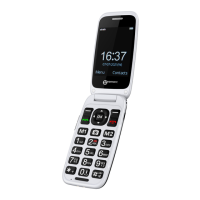
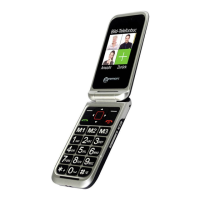
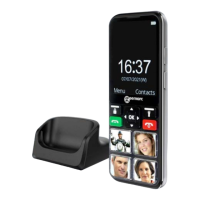
You can also create a Picture Phonebook entry with a contact
associated with it. This is particularly useful when you receive
an incoming call as the photograph will be displayed on the
inside screen. Therefore, you can see who is calling by simply
looking at the photograph of them.
1. In normal lock mode, if the picture is empty, press directly on
the picture that you want to set or Menu Æ Contacts Æ Photo
contacts.
2. Select Add or Edit to modify contact.
3. On modify icon press option and Select from album or Take
photo.
4. Take a photograph of the person that you are adding to the
phonebook (press Central Square key). Press OK soft key.
5. Select Name and press OK Æ Add from phonebook or Edit
a name for the Phonebook with
and press Save
soft key.
6. Select number and press OK Æ enter the Number for the
phonebook entry with
and press Save soft key.
7. Select the ring settings for the contact.
8. Press
to exit.
Set your 4 photo memories by message
You have the possibility to program your 4 photo memories
remotely by receiving an SMS.
From another mobile phone, you need to send the following SMS:
PIC_PHB#name1,number1;name2,number2;name3,nu
mber3;name4,number4#
PHONE BOOK


 To Next Page