76
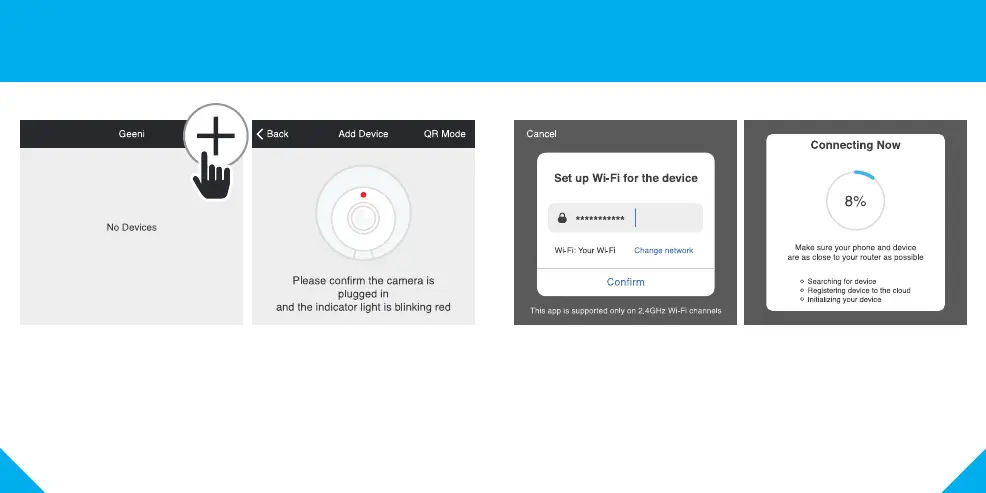
STEP 1.
In the Geeni app, on the top
corner of the Devices screen,
click (+).
Choose “Video Camera“.
STEP 2.
Make sure the camera’s indicator light
is blinking red. If it is not, follow
the reset instructions on page 5.
Once the indicator light blinks red,
press “Next Step”.
STEP 3.
Enter your Wi-Fi network and
password.
*If the connection fails, try to reset and connect directly using QR Code Mode.
STEP 4.
The Geeni app will connect to
your device. During this time, the
camera will beep and the indicator
light will continue to blink red
before turning into solid green.
4 Add device. Method 1: Easy Mode
NOTE: Geeni can’t connect to 5GHz networks.



 To Next Page