1110
Settings
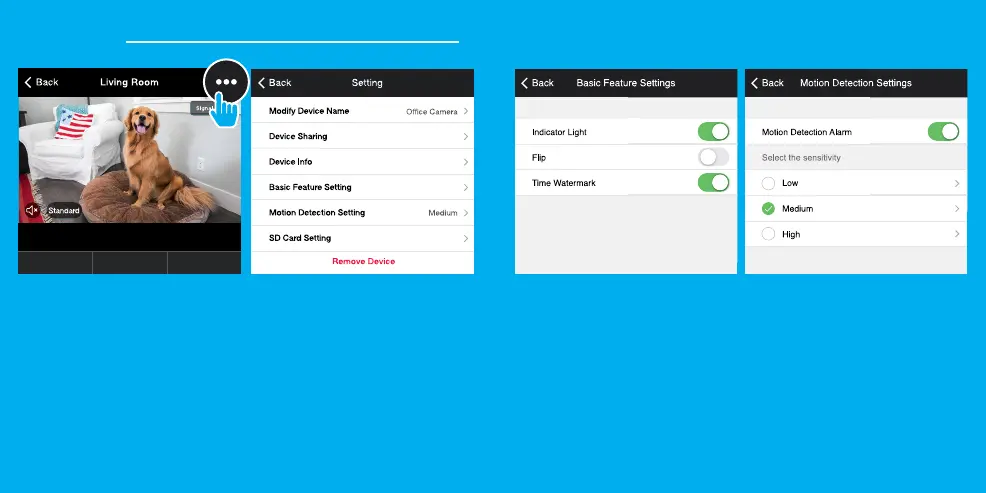
Indicator Light: By default, the camera lights up to show it’s on. Switch
“Indicator Light” off to hide the light.
Flip: If you mount your camera upside down, toggling the “Flip” function
will rotate the image so that it’s right side up.
Time Watermark: Turn the time watermark on to always see a time
stamp of when video is taking place.
Motion Detection: When turned on, you’ll receive notifications to
your phone whenever the camera senses motion. Press to turn Motion
Detection off or adjust sensivity.
Format SD Card:
Press to erase your microSD Card.
Access Camera Settings:
From your main device list, click on the camera you want to edit, then
press “•••“ button on the top right for advanced settings.
Device Name: Press to rename your device to something like “Bedroom”
or “Kids’ Room”.
Device Sharing: Let friends, spouse, roommates, or family keep an eye
on what your cameras see. Whether it’s a baby’s crib or the family dog, you
can decide who gets to check in, access the camera, and set notifications.
Remove Device:
Delete the camera from your account. Until it’s deleted, it will always be
linked to your account.



 To Next Page