9
PROGRAMMING TIPS
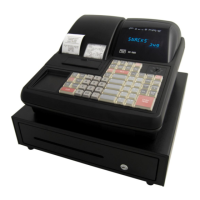
To check the Flash Version in the SX-590 do the following –
• Turn the key to the ‘P’ position on the Control Lock
• Turn off the power at the mains (Or side switch)
• Press and hold the CASH key
• Power on the ECR
A ticket will be printed from the cash register. At the bottom of the ticket will be
the Flash Version that is currently installed on the Cash register
Example – SX-590 V.AE
For Upgrading Flash or Updating Boards
Please Contact our Support Department
The following table contains information on printing program confirmation.
Please note all of the following are performed in the ‘P’ Position
Confirmation Type Procedure
Program Confirmation 9 9 9 9 9 9 CASH TEND
Clerk Confirmation ENT RLS - CLK ID
Dept Confirmation ENT RLS - DPT #
PLU Confirmation ENT RLS - PLU
PLU Range PLU # (1-5000) - ENT RLS - PLU End # (1-
PLU
IMPORTANT
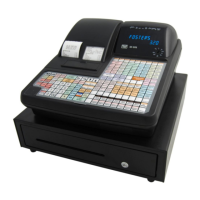
There are many keys which are used in the programming position. We
recommend that you leave these keys in their default positions, so not to make
this confusing for the end user. The SX-590 does have a soft keyboard, but
when the key is turned to the ‘P’ position, the default programming keyboard is
loaded. See page 11 for the programming layout and their positions.


 To Next Page