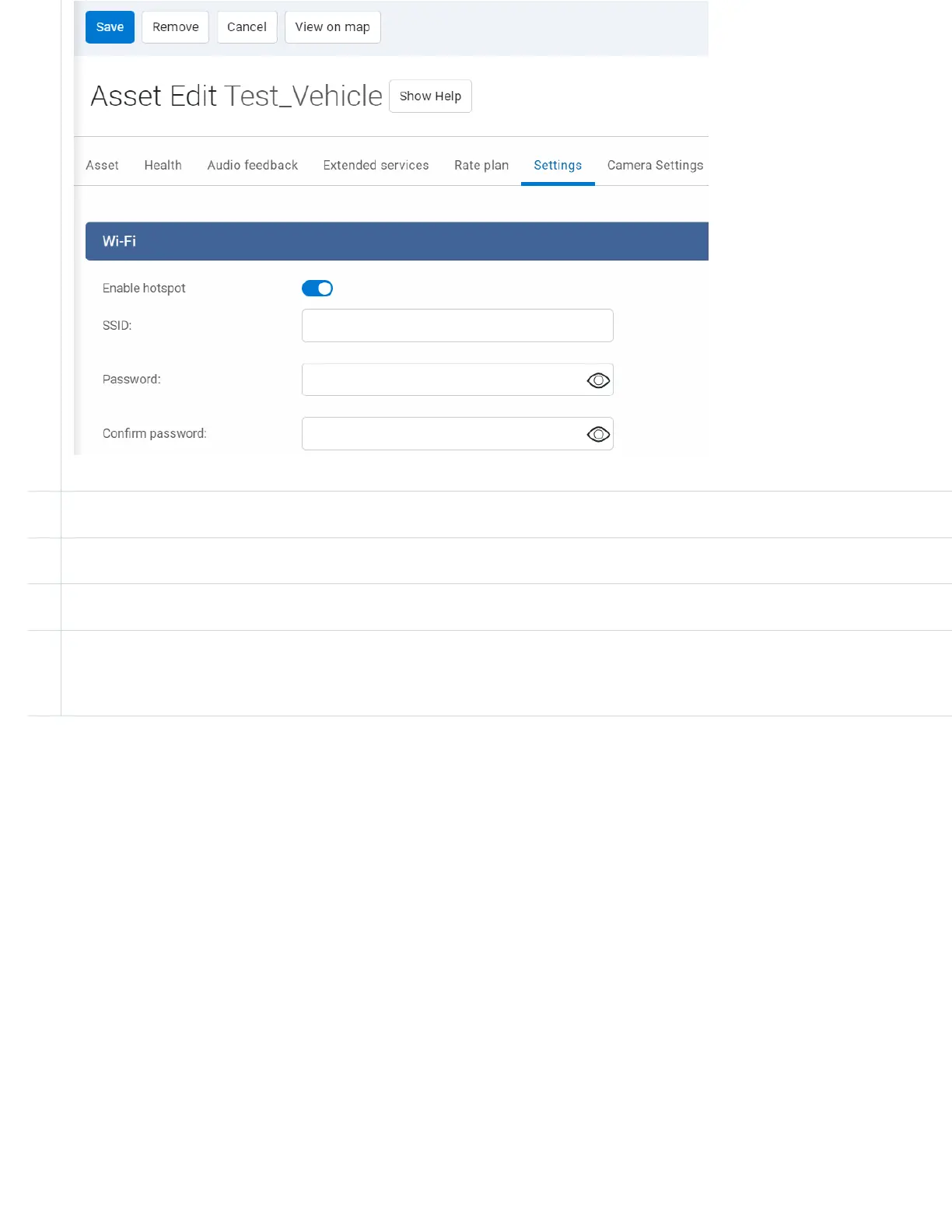
5 In the SSID field, enter a unique SSID. The information entered in this field indicates the Wi-Fi network name.
6 In the Password field, enter a unique password for the Wi-Fi network.
7 Click the Save button to save your changes.
8 On the desired mobile device, navigate to device settings then select the desired Wi-Fi network and enter the password.
Note: The Wi-Fi network name and password are the same as the information entered in Steps 5 and 6.
Using the GO9+ Wi-Fi hotspot
By default, the Wi-Fi hotspot will turn off when the vehicle's ignition is turned off, and the device goes into sleep mode. You can
extend this by using the “Turn External Devices Off” option in MyGeotab. Steps for enabling this are:
1. In MyGeotab, navigate to Vehicles & Assets in the main menu.
2. On the Vehicles & Assets page, select the desired vehicle from the list.
3. On the Asset Edit page, select the Settings Wi-Fi tab.
4. Click the Advanced drop-down menu and select the ‘duration to keep the device alive in the “Turn External Devices Off”
subsection. You can set this to immediately, 10 minutes, 1 hour or 4 hours and the Wi-Fi will stay on accordingly.
✱ NOTE: Using this feature to keep the Wi-Fi hotspot active may lead to vehicle battery drain.
✱ NOTE: Once you reach the monthly data usage limit, the hotspot data will turn off for the remainder of the month. The hotspot
data will be re-enabled on the first day of the next month and your data usage limit will reset. You are responsible for monitoring
your data usage. Upon reaching your monthly limit, and without warning, you may lose access to hotspot data. Geotab will not
be responsible or liable for any losses or damages arising from the disconnection of hotspot data once the monthly data usage
limit is exceeded.


 To Next Page