and installation comments. You can manually enter the Make,
Model, and Year fields or tap the search icon beside VIN to auto-
populate them. If you enter the Odometer value, you must select a
unit of measurement (km or miles). Use the Work order reference
field to enter the work order number. Enter Installation comments if
desired. Tap Finish installation to complete the installation.
✱ NOTE: For some vehicle makes and models, the auto-populate
option might not be possible.
Please see the MyInstall User Guide for more information.
Setting up the GO9+ Wi-Fi hotspot
Please ensure your MyGeotab database is on the latest version of the software.
To check your version of MyGeotab, do the following:
• In MyGeotab, navigate to Administration in the main menu and then click About.
• The MyGeotab version is listed at the top of the page.
Please ensure your device is connected, communicating, and on the ProPlus + Wi-Fi rate plan, then follow the steps below to
enable and connect to the Wi-Fi hotspot:
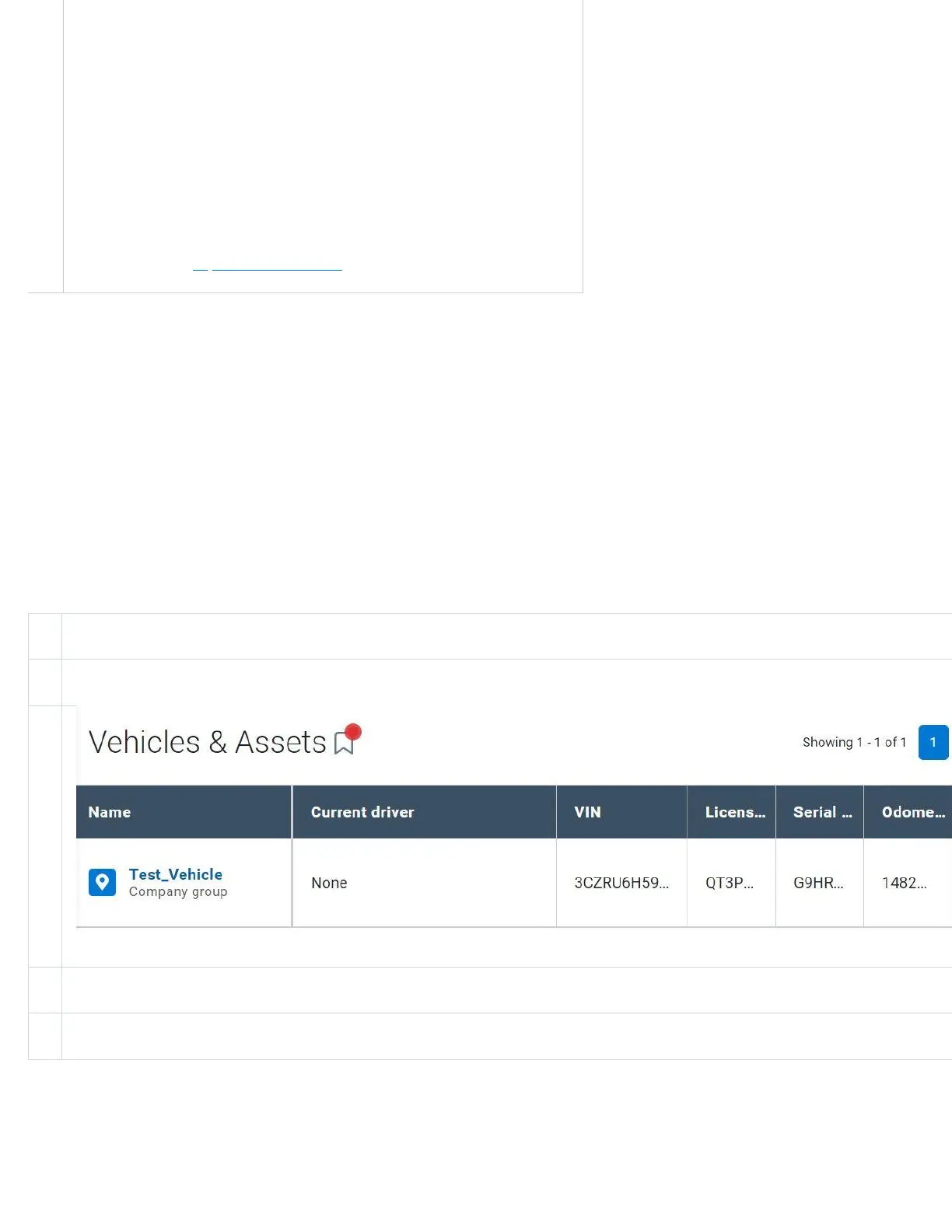
1 In MyGeotab, navigate to Vehicles & Assets in the main menu.
2 On the Vehicles & Assets page, select the desired vehicle from the list.
3 On the Assets Edit page, select the Settings tab.
4 Under the Wi-Fi drop-down menu , toggle the Enable hotspot toggle to On.


 To Next Page