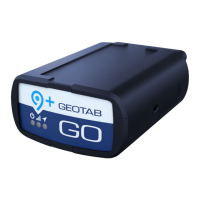
The device emits two quick beeps every 60 seconds during set-up.
Initial startup may take several minutes to complete.
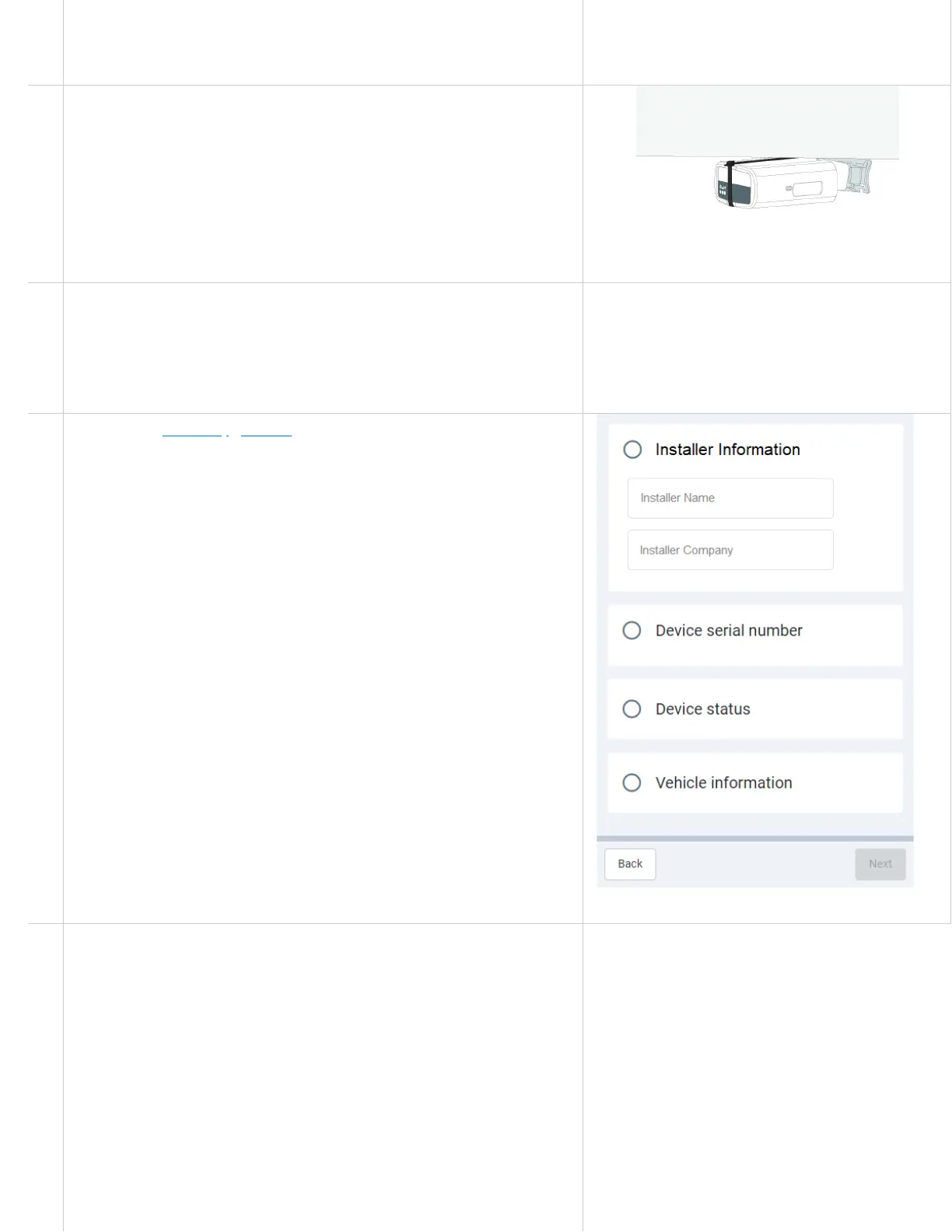
4 Once all three LEDs turn solid and you hear 10 quick beeps, secure
the device using the provided cable tie. Ensure there is always a
20cm separation between the driver and the device. This applies to
all users of the vehicle.
✱ NOTE: The device is considered installed when the Green and
Blue LEDs turn solid.
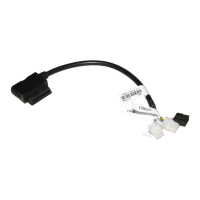
5 When performing under-dash installations with an extension
harness, make sure the antenna side points upwards — towards the
sky for faster GPS latch times. The GPS antenna in the GO9+ is
located on the bottom of the device.
6 Navigate to installmygps.com and open MyInstall (public) to verify
that the device is communicating. Under Installer Information, enter
your name and your company name, and then press Next. Under
Device serial number, enter your GO device serial number, found at
the bottom of the device, then press Validate.
7
8
The Device Status displays a PASS or FAIL label to indicate the
status of the device. The PASS status indicates that the device has
successfully communicated with the network in the last 24 hours.
The FAIL status indicates that the device has not communicated
with the network in the last 24 hours.
* NOTE: If the device is not communicating, please ensure the GO
device is installed correctly and try again.
Press Next to go to the Vehicle information section. Enter vehicle
related information such as the vehicle name, license plate, VIN,
make, model, year, odometer, engine hours, work order reference,


 To Next Page