13
4. Built-in Microphone
5. Speaker
6. Touchpad
7. Touch Pad Buttons
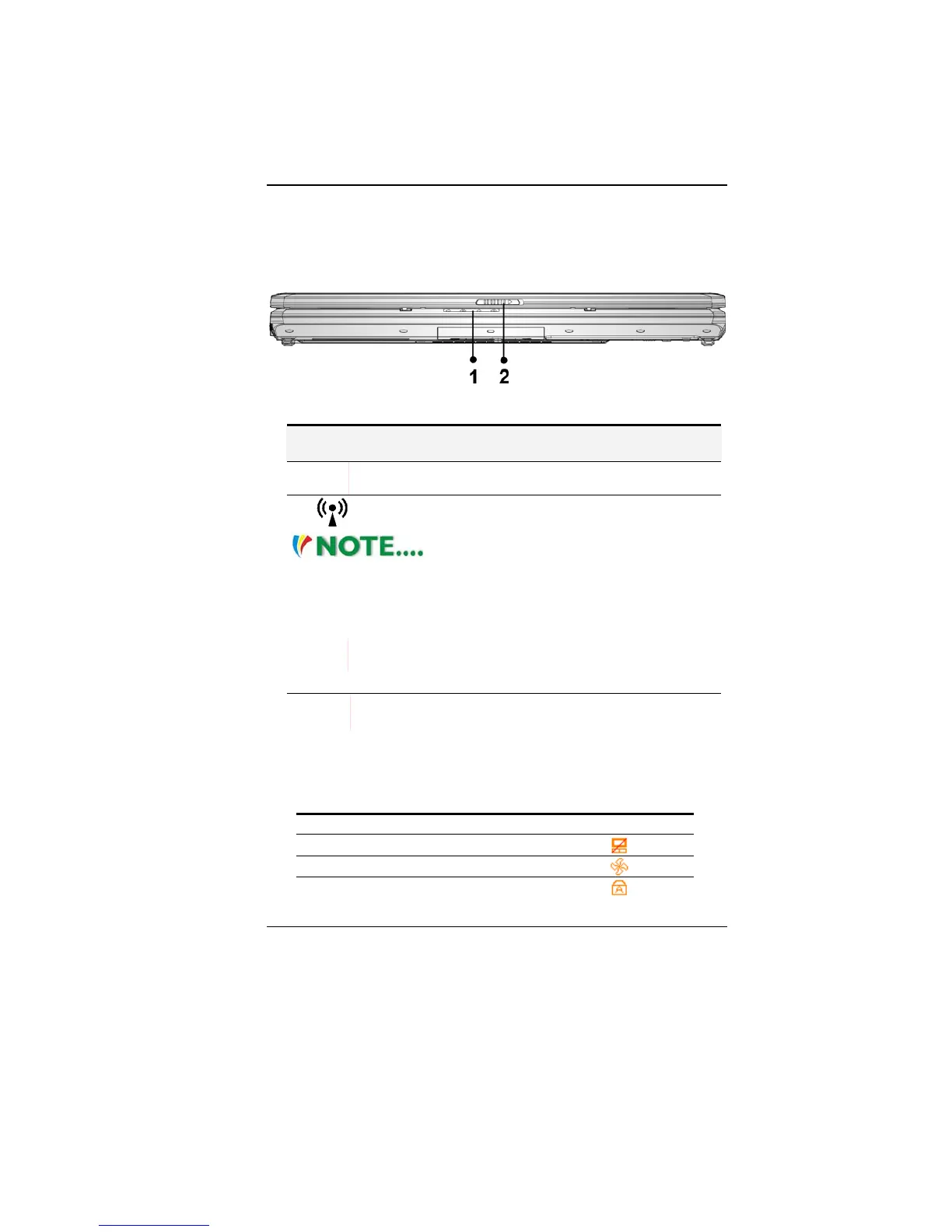
Front View
1. LED Status Indicator
System & Power Status Indicators
LED Graphic
Symbol
Indication
Green light indicates the system is ON. Blinking green
light indicates the notebook is in suspend mode.
Green light indicates the WLAN is active.
To enable the WLAN function, we
recommend that you execute the hot key combination of
Fn+F10 (the WLAN LED will lit) first before you install the
WLAN driver.
Blinking orange light indicates the battery is being
charged.
Blinking red light indicates the battery power is low when
the system is turned ON.
Persistent green light indicates the battery is Full.
Green light indicates the hard drive and/or optical drive is
being accessed.
2. LCD Latch
OSD (On Screen Display)
The On screen display for the other LED will only be activate and
shown on the screen unless you press the corresponding keys.
Function Key Description OSD Icon
Fn + F9 Touchpad On/Off
Fn + F2 Silent Mode On/Off
CAPS CapsLock



 To Next Page