P.23
Operation Instructions
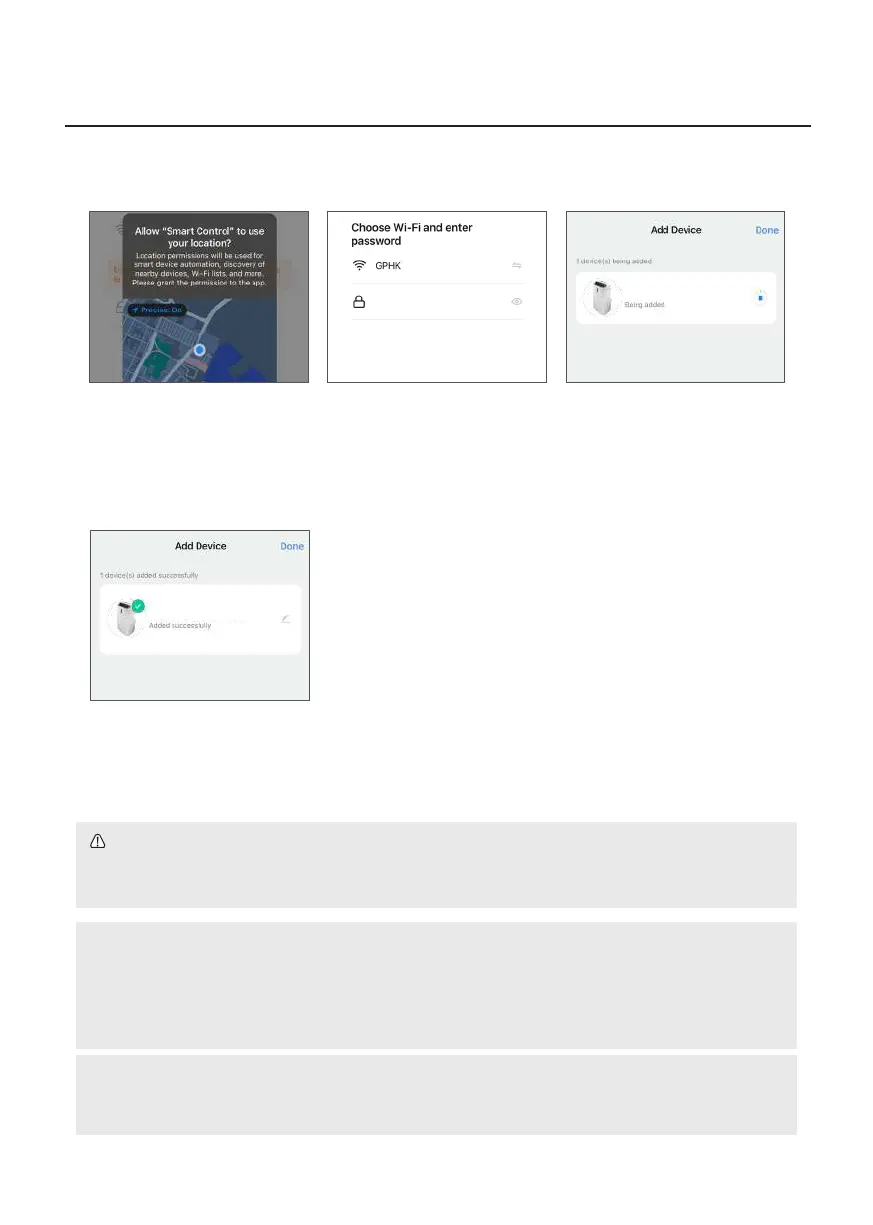
12. APP will show ”Being
Added”, the product and APP
will automatically pair up.
13. When pairing is completed,
APP will show “Added
successfully”. Click “Done” to
return to homepage.
WiFi Smart Portable Air Conditioner
WiFi Smart Portable Air Conditioner
10. Tap “Allow While Using App”
(if Location is already on, ignore
this step).
11. Select WiFi name and enter
your WiFi password, then
click “Next”.
WARNING!
If Bluetooth is turned off or App is not permitted to access Bluetooth, the product cannot be paired.
(Note: Even if Bluetooth is turned on, it does not mean the APP is allowed to access your Bluetooth.)
Note:
• The product can only be paired to one account at a time. If another user pairs their smartphone to
the product, the previous account will lose their control of the product.
• User who has already been paired can share their control rights with other users. For details, see
“E. Sharing Control”.
Note:
If APP cannot nd the product, or during Pairing Sequence, if APP shows an exclamation mark icon, it
means pairing is unsuccessful. Please use method 2 below for pairing.


 To Next Page