Template Module, Version 2.1, 11.08.2020 / Template Basiseinstellungen: Version X,X - xx.xx.xxxx
Settings
Gigaset GL7 / LUG IE-UK_INT en / A31008-N1199-L101-1-7619 / settings.fm / 7/4/22
64
Privacy & Security
From the Privacy & Security menu, configure the various settings for the
security of your mobile phone.
Setting up the Screen Lock
To protect your phone from being accessed, you can specify a 4-digit numer-
ical code that you need to enter when switching it on.
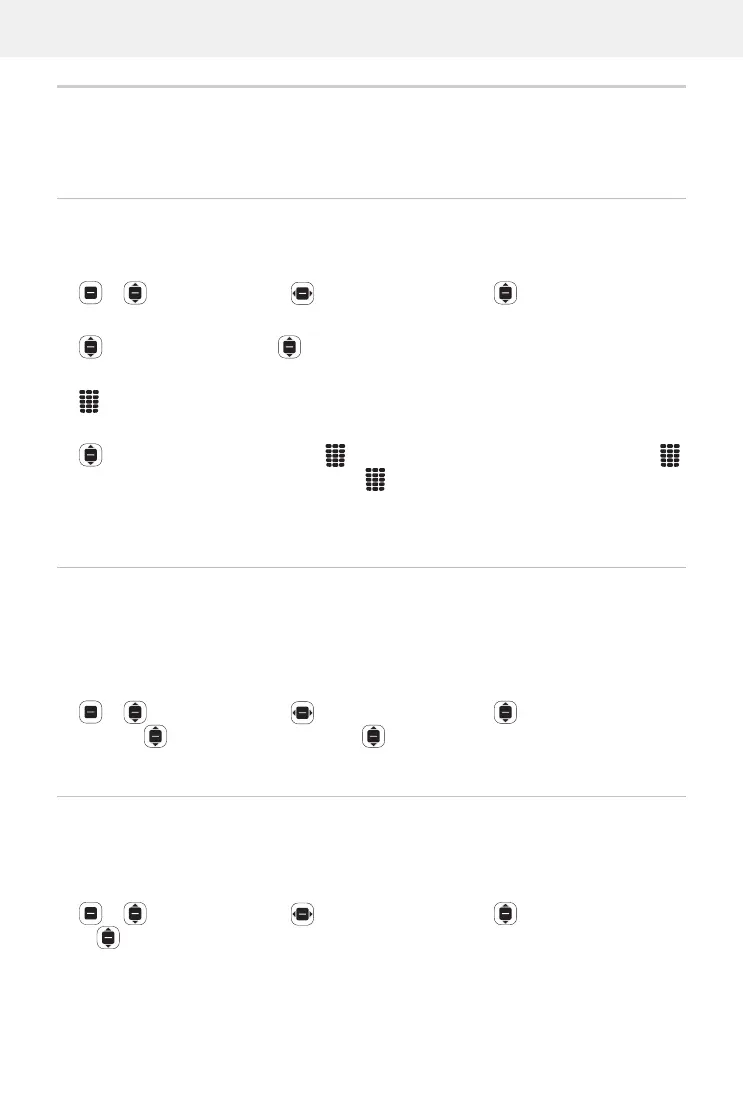
Settings OK Privacy & Security Screen Lock OK
Enable/disable screen lock:
Screen Lock OK Enable/disable the function OK
When you enable the function for the first time:
Enter the unblocking code Repeat the unblocking code Create
Change the unblocking code:
Change Passcode OK Enter the current unblocking code
Enter the new unblocking code
Confirm the new unblocking code
Change
Show messages on lo
ck screen: p. 61
Defining app authorisations
For every app installed, you can define which system functions they are
allowed to access and whether they need to ask beforehand every time.
The possible authorisations are dependent on the app selected (e.g. Ge
olo-
cation, Mi
crophone, Cameras, . . . )
Settings OK Privacy & Security App Permissions
OK Select the app OK Select the authorisation OK Set
the type of authorisation (Ask, Deny, Grant)
OK
Preventing web activities from being tracked
When you access the Internet, the device you use leaves its own profile - that
is used by providers to track your surfing behaviour. Tracking can be
permitted or prohibited.
Settings OK Privacy & Security Do Not Track OK
Permit or prohibit history Save


 To Next Page