①. Trend length
This label allows you to select the time duration of the trend graphs displayed. You can select either 1 min, 2 min or 4
min.
②. Compressed RESP waveform/RR trend
With this label, you can select to display the compressed respiration waveform or the RR trend. You can select either
RESP WAVE or RR.
③. Recording
You can select the REC label to print out the trend or the waveform displayed in the oxyCRG screen.
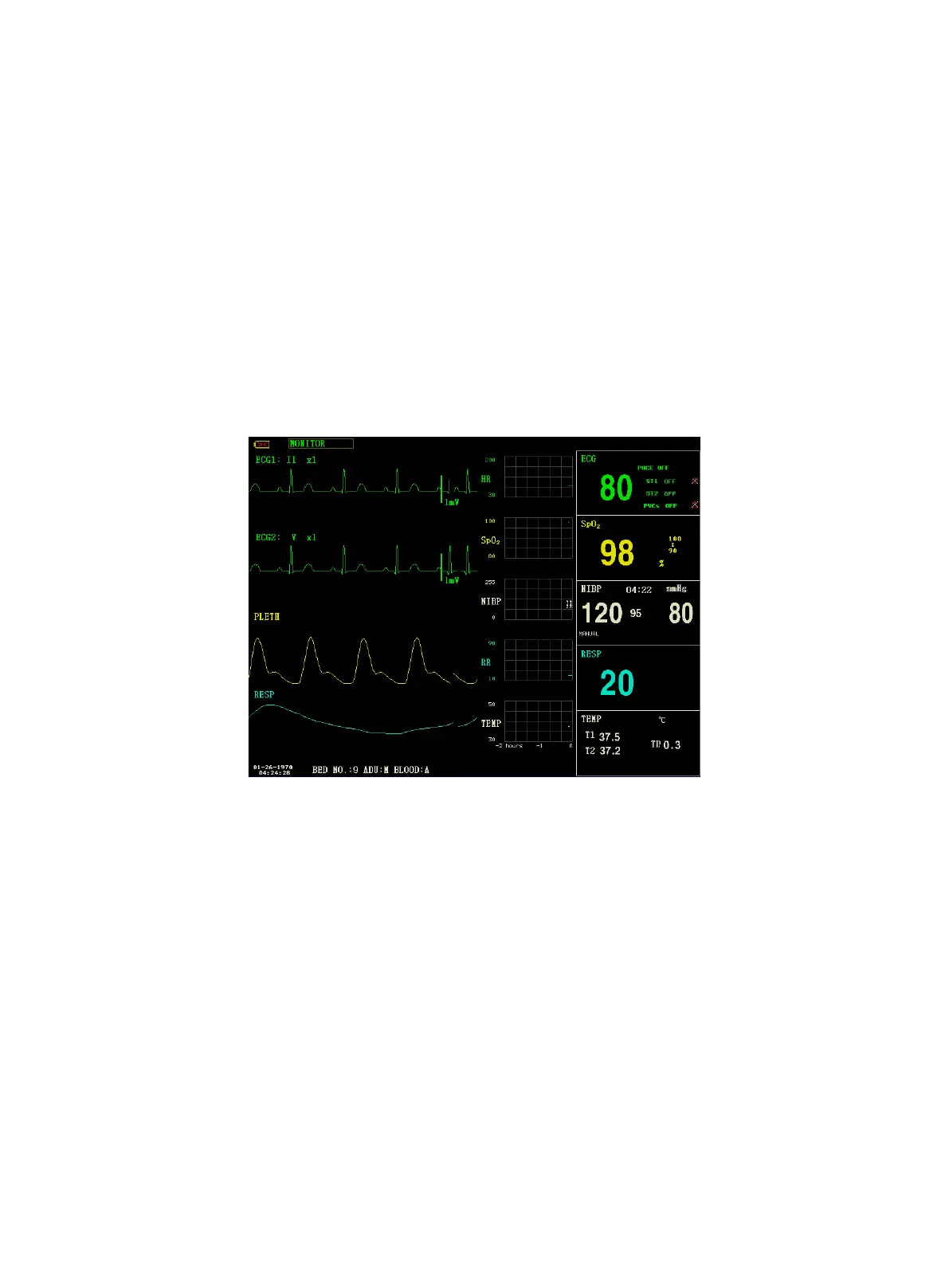
3. TREND SCREEN
If you want to enter the following interface, select "TREND SCREEN" and then select "EXIT" in "FACE SELECT"
menu.
Trend Screen
n Trend graph
In the waveform area, the trend graph is located on the right side of the corresponding waveform, displaying the trends
of one parameter of each module. The parameter labels, as well as their scales, are displayed on the left of the trend
graph.
n Trend length
The trend length, located below the trend graph, is 2 hours. In the trend graph, the scale reading at the right end of
X-axis is 0 hour, the reading at the left end is -2 hours.
n Selecting a trend parameter
If a module has multiple trend parameters, you can select one from the parameter label options of the corresponding
trend graph. The trend graph of the selected parameter will be displayed. For example, in the ECG trend graph, you can
select either from the parameter label options: HR, ST, PVCs.


 To Next Page