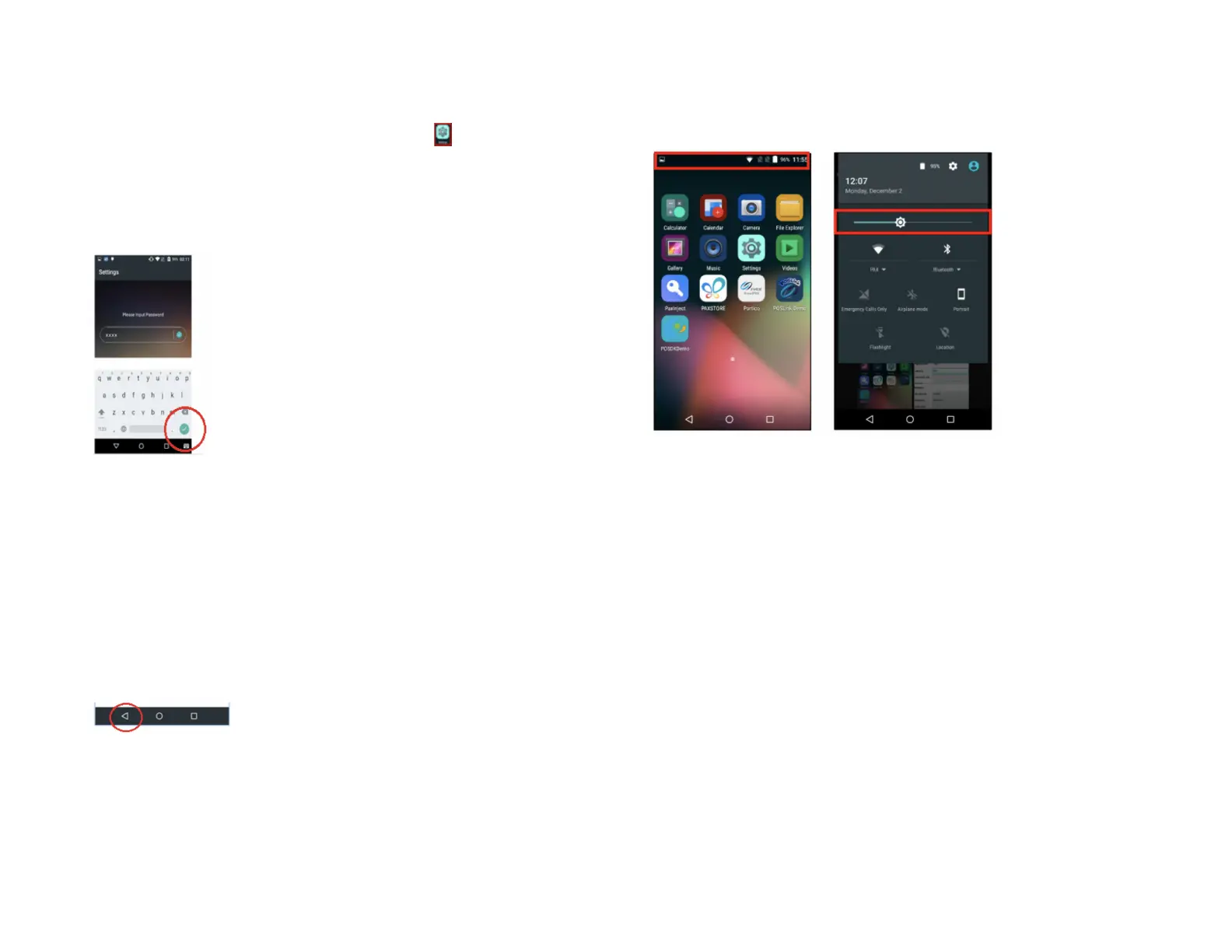
To change the brightness setting, you have 2 options:
Option 1:
1. At Android Home screen, tap the Settings icon.
2. Enter Password.
3. Tap the green checkmark.
4. Tap OK.
5. Scroll down to the Device Menu.
6. Tap on Display.
7. Tap on Brightness Level.
8. Press on the setting icon and slide left to right to adjust brightness.
9. Tap the Back icon 3 times to return to the Android Home screen.
Option 2:
Use your finger to slide the top navigation panel down. There you will find
the brightness slider where you can adjust the brightness.
Installation procedure
The terminal should be placed near a power outlet. The location should be
convenient to the user and should offer adequate ventilation and
protection. Place the terminal/optional base on a flat surface, plug the
power supply into a surge protector attached to an electrical outlet.
Do not place the terminal in an area with high temperatures, vibrations,
dust, dampness, or electromagnetic radiation (from a computer screen,
microwave oven, anti-theft barrier, etc.).
● To avoid accidental damage, secure cables and power cords.
● The terminal requires the following environment:
● Operating temperature of 10°C ~ 50°C (14°F ~ 122°F)
● 5% ~ 95% Relative Humidity, Non-Condensing


 To Next Page