User Access Management
User password
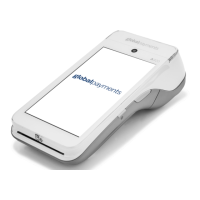
The default password for your PAX A920 terminal is “9876”, unless you
decide to change it. We strongly recommend you set your own password
on the device. Merchant needs to contact the customer care center for
support to change their password.
To change the User Password
1. At Main Menu screen tap on FUNC.
2. Tap on Settings icon.
3. Enter Password provided by a customer care center agent and tap
Enter.
4. Tap on Merchant Settings.
5. Scroll down and Tap on the User Password icon.
6. Enter Current Password.
7. Enter New Password.
8. Enter New Password Again.
9. Tap keyboard icon and tap Confirm.
10. Terminal Displays Password Reset Successfully.
11. Tap the back icon to return to Main Menu screen.
To password protect transactions
1. At Main Menu screen tap on FUNC.
2. Tap on Settings icon.
3. Enter Password and tap Enter.
4. Tap on Merchant Settings.
5. Scroll down and tap on transaction type to password protect and tap
on Protected.
6. Tap the back icon twice to return to Main Menu screen.
Clerk / Server ID
Clerk ID can be set up in the FUNC menu within the Operator menu.
There is a maximum of 200 available Clerk IDs. Each Clerk ID has an
associated name. There cannot be duplicate Clerk IDs. The Clerk ID is
between one (1) and 50 alphanumeric digits. The Clerk Name is between
one (1) to 19 alphanumeric characters.
To turn on Clerk / Server ID Prompt
1. At the Main Menu screen, tap on FUNC.
2. Tap on the Settings icon.
3. Enter your password and tap Enter.
4. Tap on Merchant Settings.
5. Scroll down and tap on Clerk /Server ID Prompt to turn prompt on.
6. Tap the Back icon twice to return to the Main Menu screen.
To set up the Clerk Name and ID
1. At the Main Menu screen tap on FUNC.
2. Tap on the Operator icon.


 To Next Page