WiFi
Internet
WiFi
Internet
<
WiFi
Internet
<
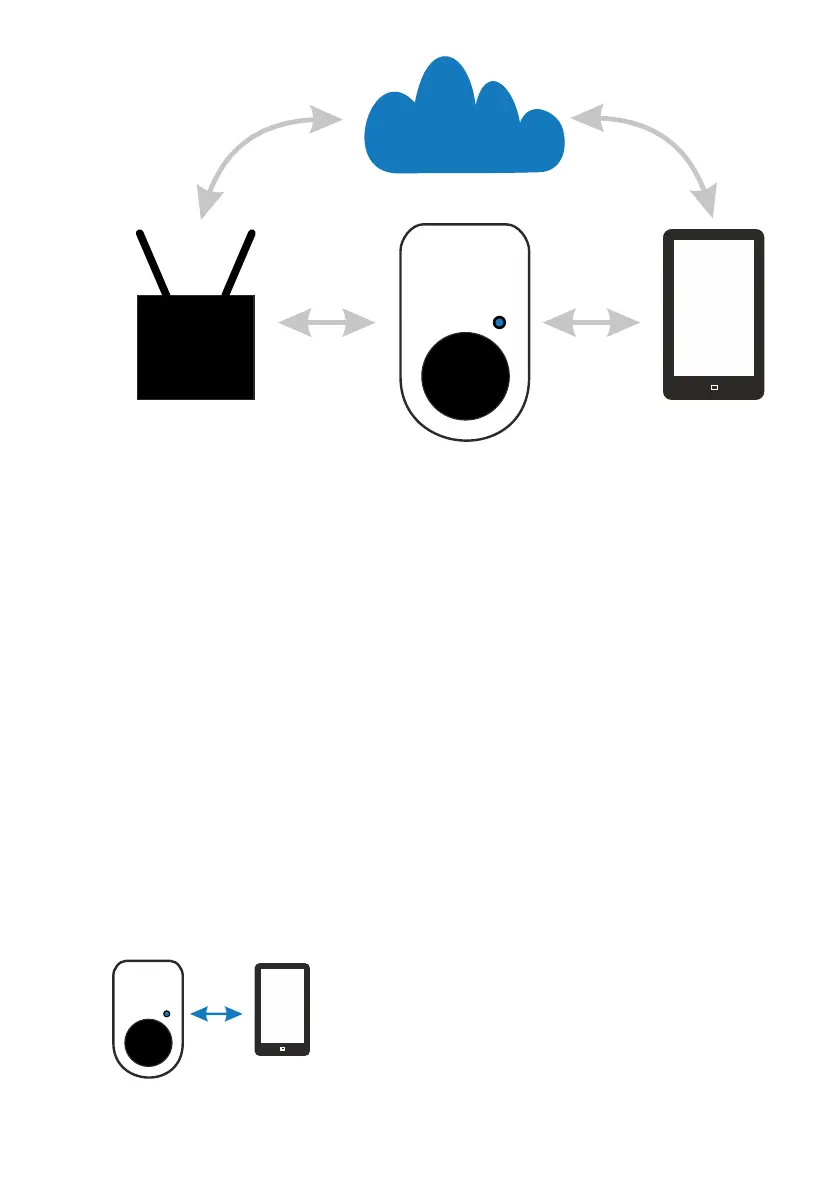
In order to use the WiFi function of the go-eCharger,
you always need a direct connection of your
smartphone with the charger to be able to set up the
connection. You can perform all operations through
the interactive graphic by touching the individual
items or connections, or you can use the "Setup
Wizard" on the following page.
Set up via the interactive graphic
Hotspot
Ÿ Tap on the box to connect to it via hotspot. You
should open the WiFi settings of your mobile
phone.
Ÿ Select the go-eChargers (go-e-XXXXXXXX) from
the list of displayed devices to connect it.
Ÿ After connecting, switch back to the go-eCharger
app. The arrow between the mobile phone icon
and the charger box should now turn blue.
Ÿ If there are problems, you should temporarily
switch off mobile data…
<
Page 20
If the connection between the loading box and the
app is established, you can connect the go-eCharger
to the Internet.
internet connection
Ÿ Tap the WiFi device. A pop-up window opens.
Ÿ Enter the SSID (device recognition) and the
password of your WiFi device into the popup
window and confirm with "Save".
The arrows between the go-eCharger, the WiFi
device and the Internet Cloud should now appear
blue.
Access to the loading box via the Internet
Ÿ End the hotspot connection between your mobile
phone and the charger box and reconnect to your
home wireless router in the mobile phone's WiFi
settings.
Ÿ Change back to the go-eCharger app.
Ÿ Tap on the Internet Cloud to start the connection
with the box.
Ÿ In the opened window enter the Cloud Token
which you find on the provided reset card and
confirm with "save".
The connection from the mobile phone via the
Internet Cloud and the WiFi router to the charging
box should now appear in blue.
Now you can access your go-eCharger from
anywhere, as long as your mobile phone and
charger box are connected to the Internet.
To switch between Internet access and hotspot, use
the WiFi settings of your mobile phone.
Page 21
WiFi



 To Next Page