7. Menu Introduction
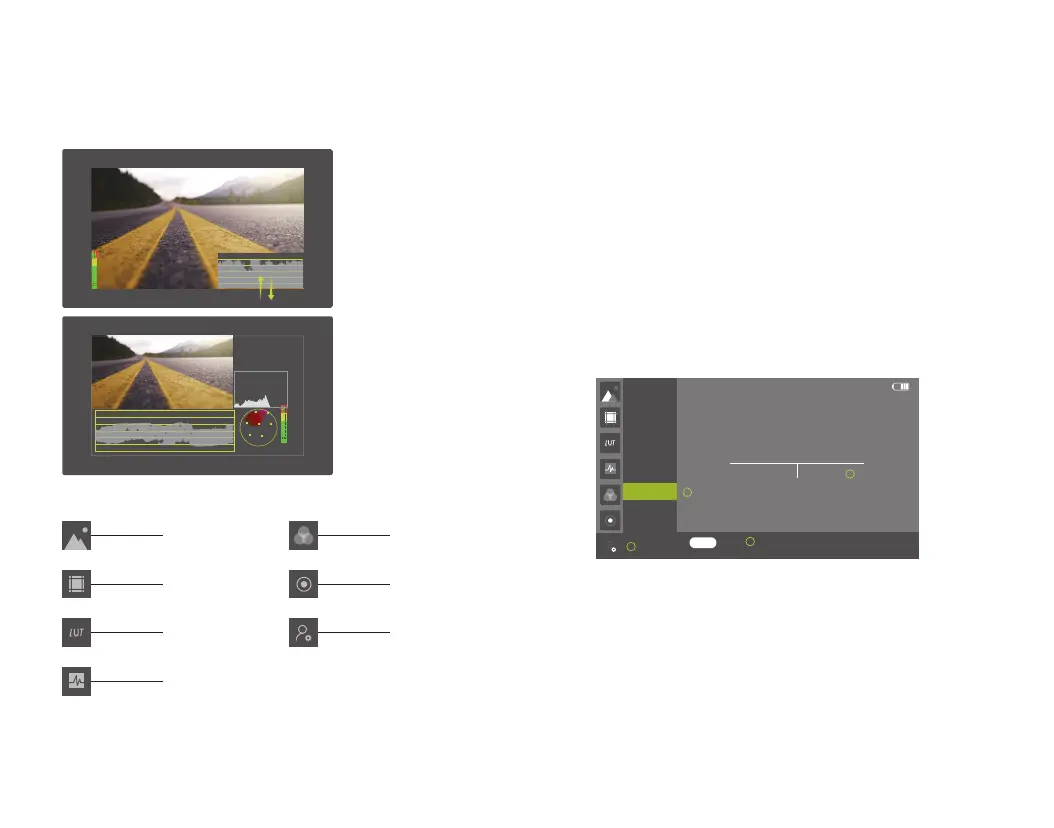
When the waveform is switched on, waveform will be displayed on the bottom
right of the screen. Slide the screen in a downward direction to hide the wave-
form while in an upward direction to display it. When the waveform is on, click
the waveform to switch Y/YUV/RGB graph.
6. Waveform
R
CyG
Mg
YI
B
0.75
0.5
0.25
0
Prepare a SD card whose file system is FAT32 or NTFS and an SD card
reader. If the PC has SD card slot, the reader is not needed.
Extract the upgrade files you copied to the root directory of SD card on the
PC side. There will be a xxxx.bin file(Do not change file name, otherwise,
the upgrade will fail.)
Insert the SD card into the slot of monitor with the face of connecting
finger towards the screen. Turn on the power.
Double click the main menu to enter "Settings" → "upgrade" → "upgrade
B x.x.xx" → "OK". Pay attention to the monitor warning. During the
upgrade process, keep the power being supplied and do not pull out the
card!
The screen will be black after upgrading finished. Please press the power
switch to turn on the monitor.
Note: If only upgrading the front-end program, please press the power
switch after the progress bar up to 100 and the screen went black.
If contains back-end program upgrade, the backlight will be blinking for
about 3 minutes after the progress bar up to 100. Press the power button
after the screen is completely black.
8. Product upgrade
Volume
Backlight
User Setting
Reset
Upgrade
Language/语言
1
2
3
4
B0.3.18
WARNING!
No Signal
Cancel OK
lt will last for 3 minutes, please keep the powe.
The screen will be turned off during processing
Upgrade
Waveform
Lut
Auxiliary function
Auxiliary composition
System setting
Shortcut button
Color setting
- 19 -
- 20 -
8.1
8.2
8.3
8.4
8.5


 To Next Page