22
This function will be used to find a lost or misplaced smartphone
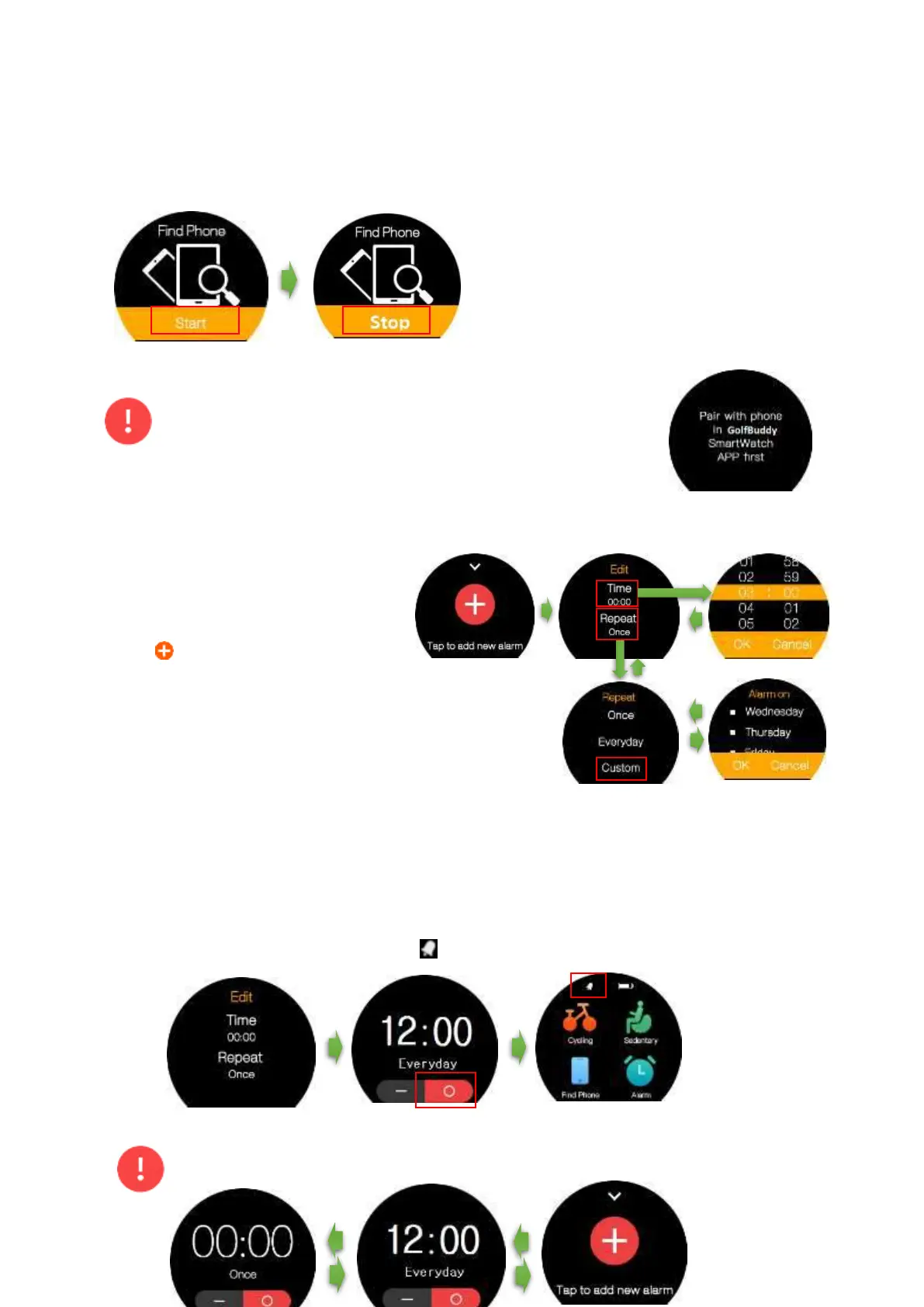
Tap “Find Phone” on the menu screen, and press the “Start” button. Then, the smartphone will
emit beep sounds and turn on the screen.
After locating your smartphone, press the
“Stop” button to end vibration and beep
sounds.
Your smartphone has been connected with the WTX via Bluetooth
before using “Find Phone”. If not, you can’t use this function until
you connect the WTX with your mobile phone using the GolfBuddy
Smartwatch application
.
4.7 Alarm
4.7.1 Set Alarm
Press to add alarm,
• On the “Edit” screen, press “Time” and
select time. Swipe the screen from left
to right to return to the “Edit” screen.
• Press “Repeat” and select the repetition
of the alarm with the choices of “Once”, “Everyday”, and “Custom”. If you tap “Custom”, you can
select the specific day of the week. You can also return to “Edit” screen by swiping the screen from
left to right.
• Swipe the “Edit” screen from left to right to complete the alarm setting. Once the alarm is set, t
he status bar will display the alarm icon
User can add and manage up to 5 alarms by sliding up or down on alarm screen.


 To Next Page