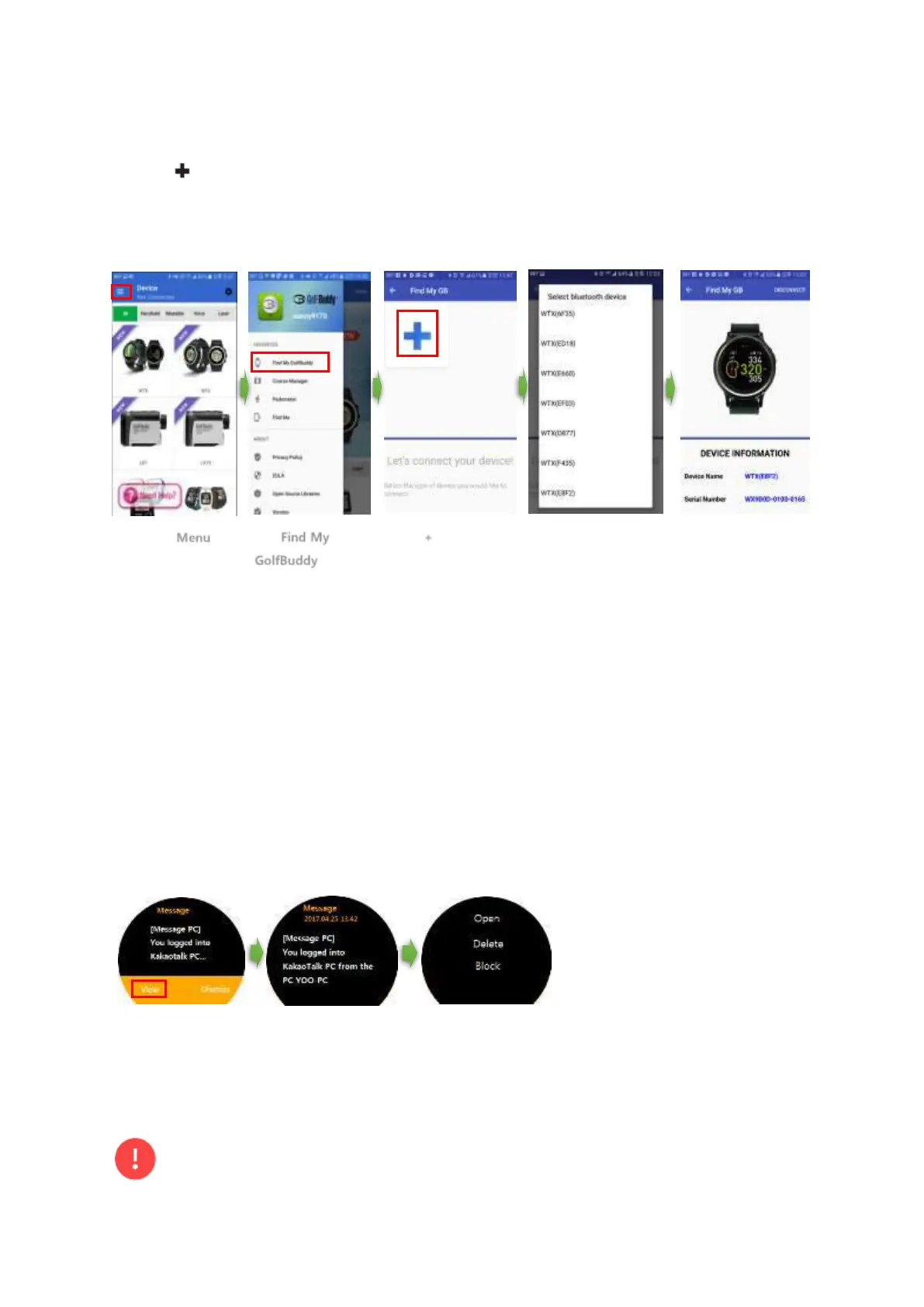
7
3. Log In and Select Find My Golfbuddy in the menu.
4. Tap to add the WTX which you want to connect to your mobile phone.
5. Tap your WTX among the found WTX list.
6. Follow the on-screen instructions to complete the connection.
2.7 Notifications
Before enabling notifications, you must connect your WTX to a compatible smartphone. The WTX
currently supports events, notifications, and messages from your smartphone. When you receive a
notification, the WTX will vibrate and the pop-up about the notification will appear on the screen.
Viewing Notifications
Tap “View” to view the notification’s detail and tap “dismiss” to view it later. The dismissed
notification can be viewed in Settings → Notifier.
For more information, see section 4.2.8.
Deleting Notification
Swipe the notification view screen from right to delete the current notification.
Remote Control Notification
Swipe the notification view
screen from left for remote
control notification.
• Open: View the notification
detail in your smartphone.
• Delete: Delete the notification in your smartphone
• Block: Block the current app notifications from next time. You can re-enable the notification
blocked in your smartphone.
•
The notification might appear on the screen of WTX periodically until you “Delete” it in
remote control notification menu or view it in your smartphone.
> Tap + button
to add your WTX
> Select your WTX
in the found list


 To Next Page