16 17
/ Camera Modes
VIDEO
To record video, verify that the camera is in Video mode. If the Video
icon [
] does not appear on your camera status screen, press the
Power/Mode button [
] repeatedly until it appears.
To Start Recording:
Press the Shutter/Select button [
]. The camera beeps once and
the red camera status lights flash while recording.
To Stop Recording:
Press the Shutter/Select button [
]. The red camera status lights
flash three times and the camera emits three beeps.
If the memory card is full or the battery is out of power, your camera
automatically stops recording. Your video is saved before the camera
powers off.
See Video Resolutions/FPS/FOV Modes in Camera Settings for
resolution settings.
PRO TIP: Want to see your videos and photos on the big screen?
Connect your HERO3+ Silver directly to your TV/HDTV. See Playback
for more information.
/ Camera Modes
OVERVIEW
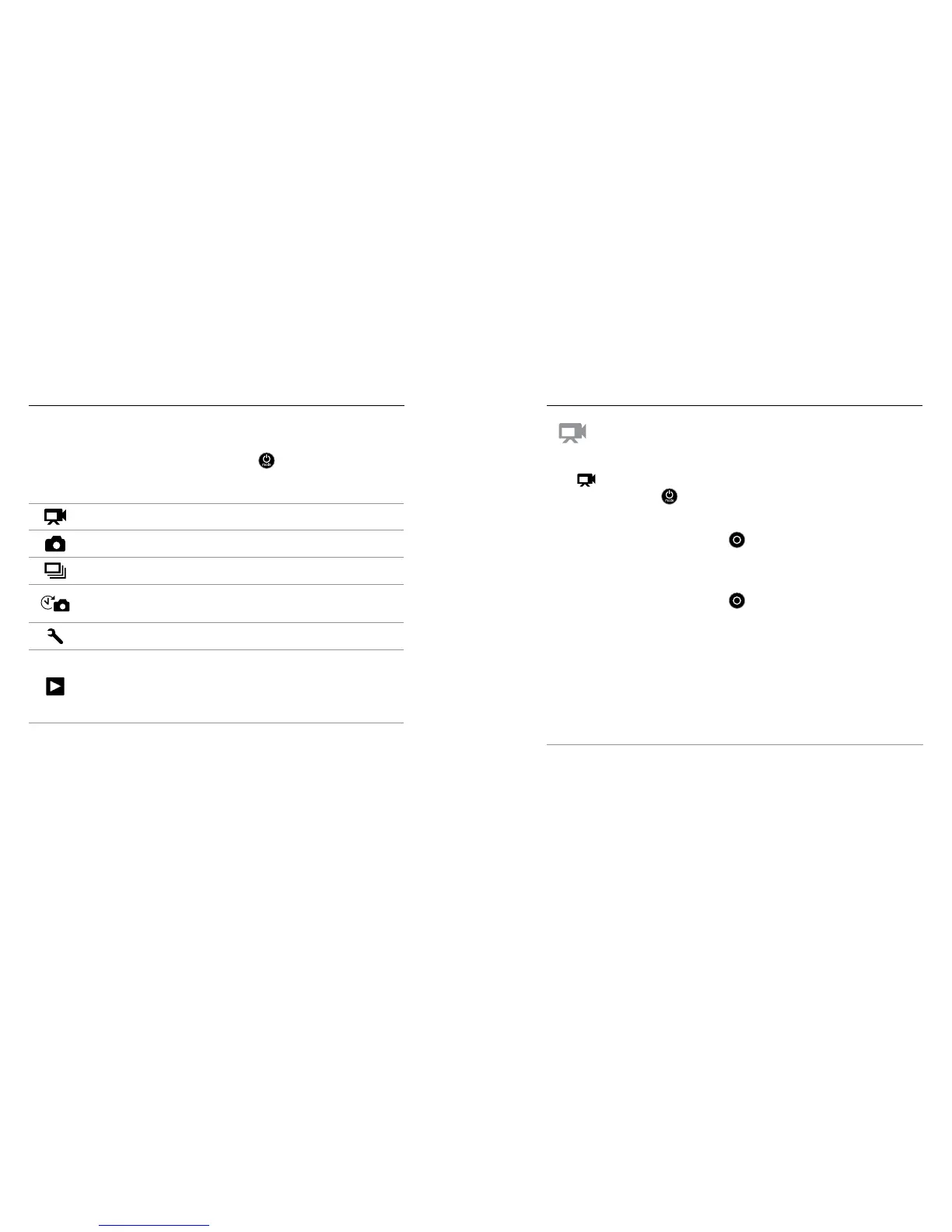
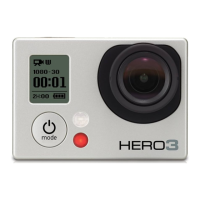
The HERO3+ Silver features several camera modes. To cycle through
the modes, press the
Power/Mode button [
] repeatedly
.
The modes appear in the following order:
Video Record video
Photo Capture a single photo
Burst Capture up to 10 photos in one second
Time Lapse
Capture a series of photos at timed
intervals
Settings Adjust camera settings
Playback
Play back video and photos. Appears
only if camera is connected to a TV or
LCD Touch BacPac (optional accessory,
sold separately).
PRO TIP: Use Burst to capture fast-moving subjects.


 To Next Page