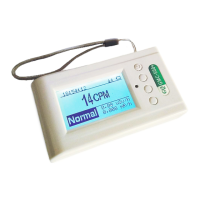
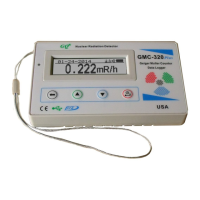
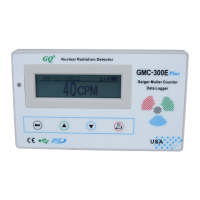
Hardware setup
There are four buttons on the front of the unit: Key1, Key2, Key3 and Key4 (from left to right)
1. Power up the unit. Pressing the Key4 (power) key for 3 seconds will turn on the unit.
Check the battery level. Charge the battery fully for first time use.
It may take a few hours to get the battery fully charged. Check the battery icon on the display, a fully
charged battery icon will be filled with solid color, without flashing.
2. Set date/time. Press the Key4 key to enter the menu and set the date and time. This is very
important for time stamping the recorded data. Do not skip this step. Most of the recorded data are
related to the date and time.
3. Set the backlight timeout in second, in order to minimize the power consumption.
Set the power savings mode. If the power savings mode is ON, then the LCD display will be turned
off after 30 second if no key is being pressed during this period.
4. Now the unit is ready to use. You should see the background CPM rate in absence of a radioactive
source.
Software set up (optional)
Before connecting the GMC-800 Geiger Counter to a computer, download the application software and
install the USB driver. Download these from: http://www.gqelectronicsllc.com.
1. For the Win 10/11, NO USB driver is needed to install. Other earlier Windows version may need an
USB driver in order to communicate with the application software.
Running GQGMCGeigerCounterUSBDriverV4.exe will install the USB driver.
2. GMCDataViewer.exe is for viewing the data on a computer.
For technical questions and support, please use the forum at the following link:
http://www.GQElectronicsLLC.com/forum
For the latest software, please visit our software download page:
http://www.gqelectronicsllc.com/comersus/store/download.asp


 To Next Page