INPUT STATUS
When the board is in standby, the status of the inputs is shown on the display:
DETECT INPUT ACTIVE (QUICK CLOSE)
ATTENTION: During pause, the display show the seconds countdown to closing.
If Mass mode is selected (see advanced menu), display show the number of entrance allowed.
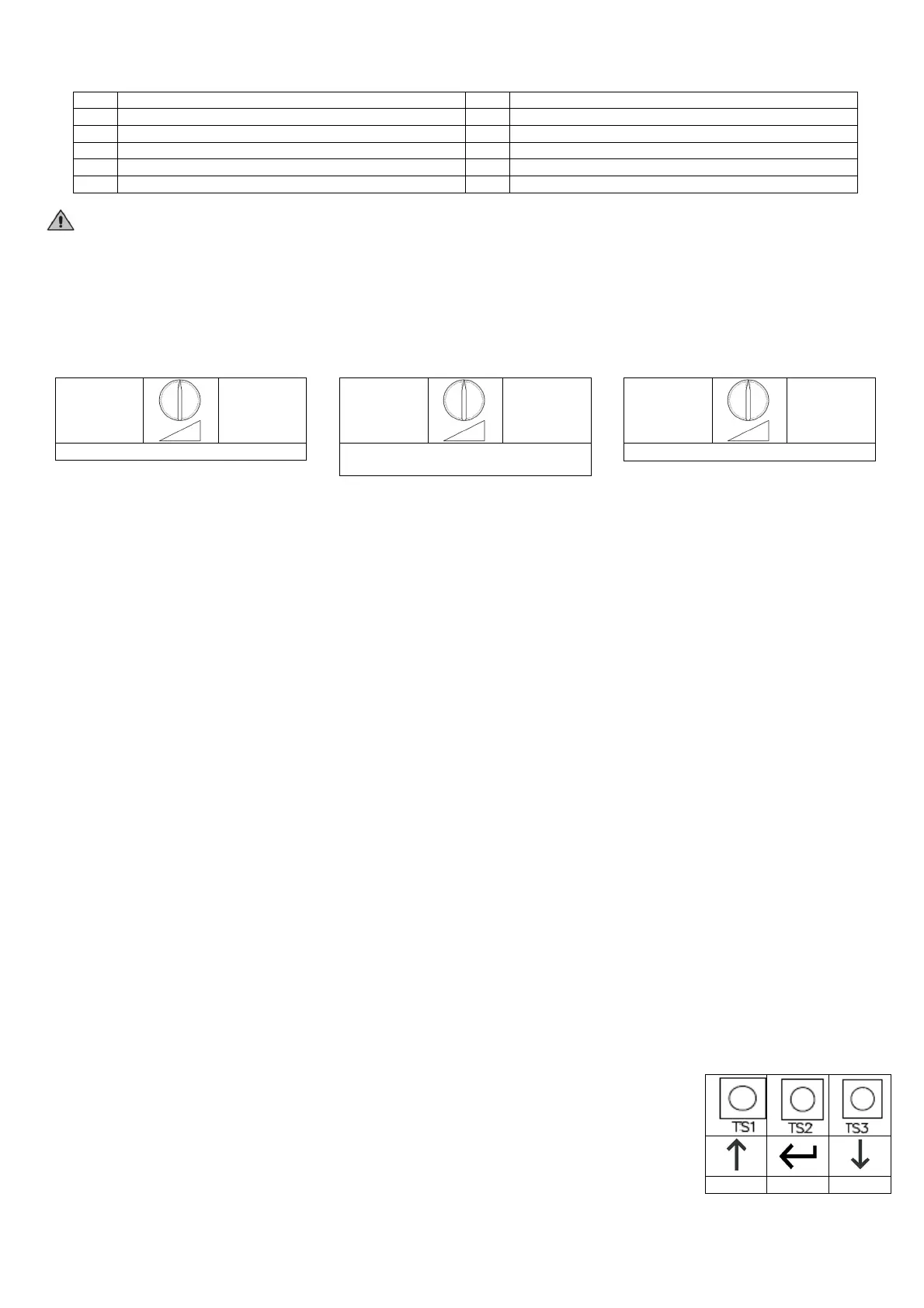
TRIMMERS
TR1 SD SPEED - Regulates the slowing down speed.
TR2 FORCE – Regulates the obstacle detection sensibility from 0% to 100%. ATTENTION: during the first 2 seconds of
running the control unit gives 100% of the power to the motor (starting power)
TR3 SD TIME –Regulates the slowing down lasting from 0 to 10 seconds (about)
SLOWER
FASTER
LESS
TORQUE
MORE
TORQUE
TR2 OBSTACLE DETECTION
SENSITIVITY
0 sec.
10 sec
SPECIAL FEATURES:
SELF PROGRAMMING
This board in most chases doesn't need any working time programming to work. If the working time hadn't been
programmed, at each first complete opening (from closing limit switch to opening limit switch.) after a power reset the board
will calculate itself a value for the current gate and sets the slowing down starting from next closing. This self-learned setting
can be deleted by resetting the board or by programming the working time.
QUICK PROGRAMMING
To quickly program the working times, keep pushed up till you read LT on the display (3 seconds). If the gate/barrier isn't
fully closed, it will close till the limit switch, then it will open to the Opening limit switch, and finally it closes once.
Attention: if you aren't sure about gate/barrier direction, set it in fully closed position before to start programming, the
board will assume the engaged limit switch as closing side, and will manage motor direction automatically (see “GD”
menu in advanced menu)
QUICK LEARNING OF REMOTE CONTROLS
Briefly press the down key (C1 appears on the display), then transmit a start / open command.
To enter a pedestrian command / close, briefly press the down key twice (C2 appears on the display).
To enter a command to switch on the courtesy light, briefly press the down key (on the display) 3 times C3 appears).
Auto Learning transmitters:
It's possible to learn transmitters quickly without using the base menu. To insert a new transmitter, transmit 3 times with
the new remote, making at least 1 second pause between each transmission. Then transmit 3 times with a transmitter
already in memory and then once with the new. When programming is done, the stop led on the keyboard flash once.
Attention: This function must be enabled, refer to “advanced menu AR”.
MASS ENTERING MODE
In this mode, if you push 5 times Open command (example), the control unit count 5 cars passing through the detect
sensor, then it closes the barrier. This mode must be enabled in advanced menu (MM). This mode can be enabled just
when automatic closing is disabled.
USE OF UP, MODE AND DOWN BUTTONS FOR PROGRAMMING
Control unit function programming is made within a special configuration menu, to which you can access and where you can
shift through DOWN, MENU and UP keys placed under the display. The configuration menu consists in a list of configurable
items; the display shows the selected item.
• By pressing DOWN, you will pass to the next item
• By pressing UP, you will return to the previous item
• By pressing together UP and DOWN buttons you exit from the function
• By pressing MODE, you can view the current value of selected item and possibly change it.
There are 2 main menus:
- BASE PROGRAMMING: only the useful parameters for a base programming are displayed.
- ADVANCED PROGRAMMING: parameters of the advanced menu are displayed.


 To Next Page
 Loading...