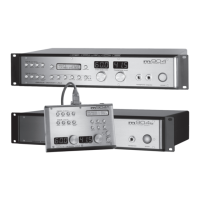
grace design m906
owner’s manual
20
grace design m906
owner’s manual
21
The mute switch is located to the immediate right of the dim switch. When this switch is pressed, all
audio output is muted, or cut, from the control room monitors. Note that mute will not affect the audio
feed to the headphone outputs.
When the mute switch is pressed, mute mode becomes active and the switch LED lights solid. When
pressed again, mute is exited and the switch LED is extinguished.
Channel Solo/Mute
The m906 provides the ability to solo or mute any one channel or any combination of channels in either
a stereo or 5.1 monitoring setup. Need to listen to the surround channels plus the center channel only?
No problem. Wish you could mute the sub? You got it. Channel solo/mute mode is an easy way to
accomplish these types of monitoring tasks.
The channel solo/mute function is provided via a row of seven bi-color, illuminated switches located
directly below the input digital switch row on the remote control unit. Operating channel solo/mute
couldn’t be easier…
First, select the mode of operation via the solo/mute switch. This switch is the last switch in the row and by
default it will be lit green, which indicates that solo mode is currently active. If you’d like to change this to
mute mode, simply press this switch and the switch led will light red, which now indicates that you’re in mute
mode.
To select a channel to solo or mute, simply press the relevant channel switch. When you do this, the associated
switch LED will light solid. Again, green shows solo while red indicates mute. These switches are additive, which
simply means that you can add channels by pressing the relevant channel switches without disengaging the
previous selections. For instance, if you’re in solo mode and want to solo the left surround channel, (LS) right
surround (RS) and sub, you simply press each of these channels’ switches. If you set the solo/mute master
mode switch to ‘mute’ at this point, these selected channels will be muted. To clear selected channels, simply
press each of them again, which will also extinguish the switch LEDs.
Using the Talkback Feature
The m906 provides a balanced talkback microphone input on the rear panel of the mainframe unit via
a female XLR connector. This talkback mic input is essentially a single channel from our model 801R
preamp. Not bad, huh?
After you’ve plugged in a talkback mic, you can set the gain for the mic preamp and turn on 48v
phantom power, if needed. By the way, when you rst power-up a new m906, the talkback mic preamp
gain will be set to +30dB and 48v will be set to ‘off’. To change the gain and 48V phantom settings:
Press the CAL switch. The switch LED ashes, which indicates you’re now
in CAL mode.
Press the TALKBACK switch. Once you do this, the main level/edit LED
display will show the current mic amp gain level in dB and the LCD screen
will read ‘set preamp gain’ (screenshot 5).
To increase the mic amp gain, rotate the main level encoder in a clockwise direction. As you do this, you’ll see
talkback mic amp gain setting
screenshot 5


 To Next Page