EasyManua.ls Logo

Grandstream Networks GXP 1625 - User Manual

Grandstream Networks GXP 1625
14 pages
Print Icon
To Next Page IconTo Next Page
Loading...
1 | P a g e
VOIP-PBX System Documentation
Service managed and maintained by:
Customer Service: (215) 634-2997
support@richmondtt.com
1515 Market Street
Suite 1200
Philadelphia, PA 19103
Question and Answer IconNeed help?

Do you have a question about the Grandstream Networks GXP 1625 and is the answer not in the manual?

Overview

This document provides a comprehensive guide to the VOIP-PBX System, primarily focusing on Grandstream VoIP phones and the Grandstream Wave softphone application. The system is managed and maintained by Richmond Tech and Telecom (RT&T) and Pennsylvania Telephone Company (PTC).

Voicemail System (Comedian Mail)

The voicemail system, named Comedian Mail, offers a range of features for managing messages and greetings.

  • Accessing Voicemail:

    • From your own phone: Dial *97 or press the envelope button on compatible devices.
    • From someone else's phone: Dial *98, listen for prompts, enter your extension number (mailbox), and then your password (default is 1234).
  • Main Menu Options:

    • 1: Listen to messages in the currently selected folder.
    • 2: Change folders.
    • 3: Advanced options for message delivery settings.
    • 0: Mailbox options to change greetings.
    • *: Repeat menu options.
    • #: Exit the voicemail system.
  • Mailbox Options:

    • 1: Record your unavailable message (heard when you are away).
    • 2: Record your busy message (heard when you are on another call).
    • 3: Record your name.
    • 4: Record your temporary greeting (for extended absences).
    • 5: Change your password.
  • Message Playback Options:

    • Before playback:
      • 1: Skip over the date and time the message was received.
    • During playback:
      • *: Rewind message by 3 seconds.
      • #: Fast forward message by 3 seconds.
      • 0: Pause or resume message playback.
    • After playback:
      • 1: Go to the first message in the current folder.
      • 2: Change folders.
      • 3: Advanced options (details below).
      • 4: Go to the previous message in the folder.
      • 5: Replay the current message.
      • 6: Go to the next message in the folder.
      • 7: Delete or undelete the message.
      • 8: Forward message to another user on the system.
      • 9: Save the message to a different folder.
      • 0: Mailbox options.
      • *: Replay the prompt.
      • #: Exit the voicemail system.
    • Note: Messages can be replayed, skipped, deleted, or saved while playing by pressing the corresponding key.
  • Advanced Options (after playback):

    • 1: Record and send a message directly to the sender's mailbox.
    • 3: Play the message envelope.
    • 5: Leave a message for another user on the system.
    • *: Return to the main menu.

Grandstream VoIP Phone Quick Reference Guide (GXP 1625, GXP 2130, GXP 2160 Handsets)

This section outlines common commands and provides diagrams for Grandstream GXP series phones.

  • Most Used Commands (may vary by model):

    • Voicemail Message Retrieval (envelope icon)
    • Mute/Do Not Disturb (crossed-out speaker icon)
    • Hold (pause icon)
    • Transfer (two arrows icon)
    • Conference Call (three people icon)
    • Contacts (address book icon)
    • Home (house icon)
    • Speaker (speaker icon)
    • Intercom/Paging (megaphone icon)
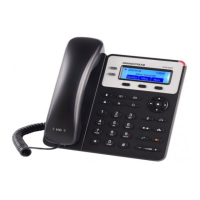
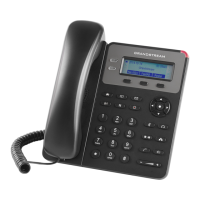
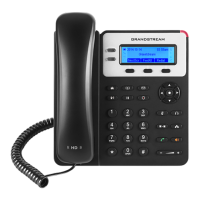
  • GXP 1625 Overview Diagram:

    • Line Key: Used for line selection.
    • Message Waiting Indicator: Light that indicates new messages.
    • Softkey: Programmable buttons below the screen.
    • Record: Button for recording.
    • Menu/OK Key: Central button for menu navigation and confirmation.
    • Navigation Keys: Up, down, left, right arrows for menu navigation.
    • Mute: Button to mute the microphone.
    • Headset: Button for headset use.
    • Conference: Button to initiate a conference call.
    • Transfer: Button to transfer a call.
    • Speaker: Button to activate speakerphone.
    • Send: Button to place a call.
    • Volume: Buttons to adjust volume.
    • Phonebook: Button to access contacts.
    • Home Button: Returns to the home screen.
    • Page/Intercom: Button for paging or intercom.
    • Hold: Button to place a call on hold.
    • Standard Keypad: Numeric dial pad.
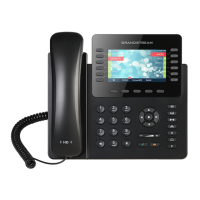
  • GXP 2160 Overview Diagram:

    • Similar features to GXP 1625, with additional Multi-Purpose keys for various functions.
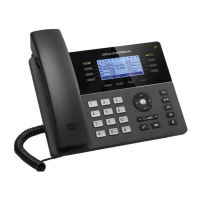
  • GXP 2130 Overview Diagram and Keypad Usage Tips:

    • Message Waiting Indicator: Light that indicates new messages.
    • Line keys: Used for line selection.
    • Soft keys: Programmable buttons below the screen.
    • Menu/OK Key: Central button for menu navigation and confirmation.
    • Volume: Buttons to adjust volume.
    • Speaker: Button to activate speakerphone.
    • Send: Button to place a call.
    • Standard Keypad: Numeric dial pad.
    • Message: Button for messages.
    • Contacts: Button to access contacts.
    • Hold: Button to place a call on hold.
    • Navigation keys: Up, down, left, right arrows for menu navigation.
    • Transfer: Button to transfer a call.
    • Conference: Button to initiate a conference call.
    • Headset: Button for headset use.
    • Mute: Button to mute the microphone.
    • Multi-Purpose keys: Additional programmable keys.
    • Keypad Usage Tips:
      1. Access the MENU by pressing the round MENU button.
      2. Navigate the menu using UP/DOWN and LEFT/RIGHT buttons.
      3. Press the round MENU button to confirm a selection.
      4. The phone automatically exits MENU mode with an incoming call, when the phone goes off-hook, or if left idle for 60 seconds.

Call Parking System

The Call Parking system allows users to place a caller on hold in a "parking lot" so that another extension can retrieve the call. The system is configured with 8 parking lots, numbered 71 through 78.

  • A. Parking a Call Using Auto-Lot Assignment:

    1. Press the TRANSFER key (on screen or physical button).
    2. Dial *2 + 70. The attendant will announce the parking lot number (e.g., 71). The call will then leave your phone.
  • B. Parking a Call Using Manual Assignment:

    1. Press the TRANSFER key (on screen or physical button).
    2. Dial *2 + 7x (where x is the desired lot number, e.g., 75). The call will then leave your phone.
  • C. Parking a Call Using Speed Dial Keys (equipped phones):

    1. Use the auto-attendant method (section A) or;
    2. Press the TRANSFER key, then press any of the available (unlit) park speed dial keys (labelled 71-78).
  • D. Retrieving a Parked Call:

    • Using speed dial key (equipped phones): Pick up the handset or press the corresponding Speed dial key (e.g., Park 71) to take the call via speakerphone.
    • Using the dial pad (phones not equipped with speed dial keys): Pick up the Handset and dial the extension number where the call is parked (e.g., 71).

Conference Calling (3+ way calls) Instructions

The PennTelco system supports up to 8 parties on a single conference call.

  • Procedure:
    1. While on a call with the first party, press the CONFERENCE BUTTON on your phone.
    2. The first party will be placed on hold.
    3. Using the second line key on your phone, dial the number of the second party you want to join.
    4. After the second party has been called, press the CONFERENCE BUTTON again to merge the calls.
    • To end the conference, hang up. To remove a single party, use the on-screen keys (varies by phone model) to "KICK" them from the conference.

System Feature Codes

A list of dial codes for various system functions:

  • Voicemail Retrieval: *97 (from your phone) or *98 (from any phone, then password 1234).
  • Voicemail playback: 4 (go back), 6 (skip forward), 7 (delete).
  • Voicemail menu: 0 (options menu), then 1, 2, or 3 to record greetings.
  • Paging: 999 + # key.
  • Night mode on/off: *280 + # to activate/deactivate.
  • Call parking: *2 + 70 to park call. Attendant announces parking slot number (e.g., 71#).
  • Attended call transfer: *2 + extension number (rings other extension, introduce call, then hang up).
  • Blind transfer: ## + extension number then hang up (sends call directly to another extension).
  • Echo test: *43.
  • Speaking clock: *60.
  • Intercom single extension: *80 + extension number (called party auto-answers on desk phones only).
  • Wake up Call: *68.
  • Last call trace: *69.
  • Call Forward Activate: *72 + # (listen for voice prompts from operator) + 1-xxx-xxx-xxxx to enable.
  • Call Forward All Deactivate: *73.
  • Call blocking: *30 + 1-XXX-XXX-XXXX + #.
  • Call blocking - Last Caller: *32.
  • Unblock caller: *31 + 1-XXX-XXX-XXXX + #.
  • Transfer direct to voicemail: Press TRANSFER, then the Transfer button on screen changes to BLNDTRSF for Blind transfer, then dial * + the extension number.
  • ChanSpy: 555.

SMS Text Messaging

The system allows sending and replying to SMS text messages via a web portal.

  • 1. Replying to a received text message:

    1. Text messages are sent to your number via email. Click the hyperlink in the email body (on PC or smartphone).
    2. In the new browser window, verify your phone number in the "YOUR PHONE NUMBER" field (pre-populated) and the original sender's number.
    3. Enter your text message.
    4. Click "SEND SMS MESSAGE" (button disables after clicking).
    5. A confirmation will appear in the results section. (Success message example: "result=success^error=^parts=1^fee=-0.01^smsid=f6131a181f572bbe8179a731c5202d5e26f47a4d").
    6. Error message example: "result=error^error=destination phone number is missing or invalid."
  • 2. Sending a text message:

    1. Go to https://www.penntelco.com/rcpenntelcosmssender.html.
    2. Fill in your PennTelCo phone number and the recipient's number.
    3. Type a message (up to 160 characters).
    4. Click "Send message." There will be a short delay before results are visible.

Sending an outbound fax using E-Fax

If your service plan includes E-Fax, you can send faxes electronically via a web portal without a physical fax machine.

  • Procedure:
    1. Log in to the web portal at yourdomain.penntelco.com.
    2. Enter your Username and Password.
    3. On the fax tab, click the "Send Fax" button.
    4. In the "SEND FAX" window:
      • A. Enter the recipient's 10-digit phone number (e.g., 12155551212) in the "Destination" field.
      • B. Choose the resolution (quality) and toggle the coversheet button if needed.
      • C. Attach a document by clicking the green "Upload Document" button or dragging and dropping the file into the "Drag new documents here" pane. The system accepts PDF or TIFF files.
      • D. Click "Send" when complete.

Grandstream Wave/Softphone Configuration

Grandstream Wave is a free softphone application developed by Grandstream Corporation, available for Android, iPhone, and iPad devices.

  • Disclaimer:

    • Not all cellular carriers support VoIP over cellular networks (T-Mobile does not). 4G cellular service is optimal.
    • Softphone performance is best over WiFi. Call quality issues (choppiness) may occur when traveling during a VoIP over cellular call.
    • The GS Wave app may need to be restarted when switching between WiFi and cellular connections.
    • If users frequently change environments, disabling WiFi on the cellular device is recommended.
  • Installation:

    • iPhone: Go to the App Store, search for "Grandstream Wave," and download/install.
    • Android: Go to the Google Play Store, search for "Grandstream Wave - Video" (ensure it's the "Video" version, not the regular Grandstream Wave).
  • Account Configuration:

    • PennTelco will provide your extension number and password.
    1. After opening the app, go to "Settings" (bottom right), then "Account Settings," then "ADD NEW ACCOUNT."
    2. Choose "SIP Account."
    3. Enter an "Account name" (e.g., "Bob's work account").
    4. "SIP Server" will be yourcompany.penntelco.com (provided by PennTelco).
    5. "SIP User ID" and "SIP Authentication ID" will be your extension number.
    6. "Password" will be provided.
    7. "Voicemail UserID" will be *97.
  • Advanced Configuration (if needed):

    • After adding the account, go back to Settings/Account Settings, tap on your account, and make the following changes:
      1. Set "Transmission Protocol" to TLS.
      2. Set "Unregister Before New Registration" to Unregister ALL.
      3. Set "DNS mode" to A RECORD.
      4. Set "NAT Traversal" to STUN.
      5. Return to the Main settings screen and tap on "Advanced Settings."
      6. In "Advanced Settings," enable "random port."
      7. For "Stun server settings," enter: stun.l.google.com:19302.
      8. Disable "WiFi Only" in Network Settings.
    • Finally, for iPhones: Go to settings/Background App Refresh and enable refresh for GS Wave.

Grandstream Networks GXP 1625 Specifications

General IconGeneral
BrandGrandstream Networks
ModelGXP 1625
CategoryIP Phone
LanguageEnglish

Related product manuals