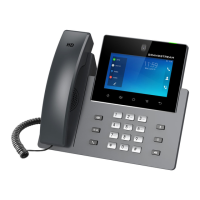
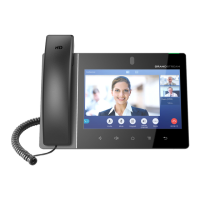
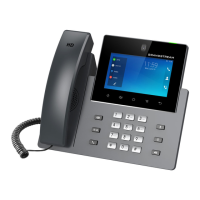
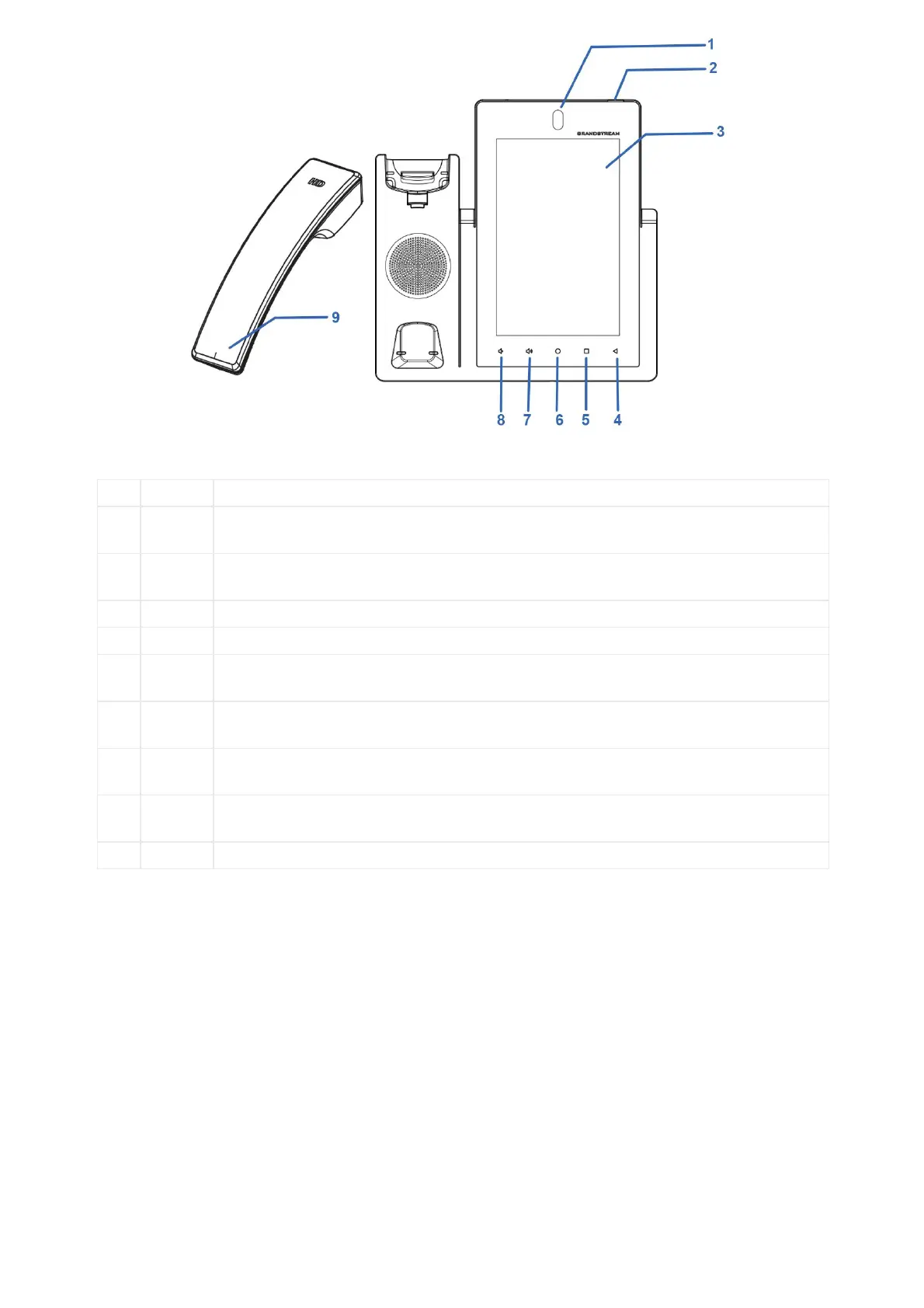
Figure 7: GXV3470 Front View
1
Front
Camera
Mega pixel front camera. The angle can be adjusted, and the camera can be blocked by scrolling
up/down the wheel on the back of the camera.
2
MWI LED
Indicator
To indicate message status, call status and phone’s system status using the LED indicator.
3
LCD 7″ (1280×800) capacitive (5 points) IPS LCD touch screen.
Tap to go back to the previous menu.
5
Menu
Press MENU key to access phone’s display settings, edit widgets and thread manager. Or press and
hold on the MENU key for 2 seconds to enter managing application interface directly.
6
Home
Tap to go back to Home screen; or touch and press for about 2 seconds to take a screenshot of
phone’s screen.
7
Up
Tap to turn up the call volume and media volume.
8
Down
Tap to turn down the call volume and media volume.
Off hook to use handset as the audio channel for calls and media.
Table 11: GXV3470 Front View
• Back View


 To Next Page
 Loading...