Page 16
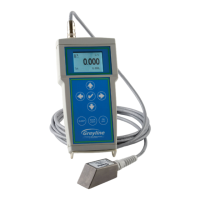
PTFM 1.0 Portable Transit Time Flow Meter
DATA LOGGING
Setup
Select Data Logging from Menu Selections.
Log Site ID Enter a number from 00 to 99. The site ID will become part of
the downloaded file name to help distinguish downloads from
different instruments. Press to store the setting.
Mode Select Velocity (e.g. ft/sec or m/sec). Flow (e.g. USGPM or
l/sec). Press to store the setting.
Set Date Press or to scroll and select Month, Day and Year. Press
to store the setting.
Set Time Press or to select the current time in Hours, Minutes and
Seconds. Press to store the setting.
Interval Press or to select the logging interval.
Press to store the setting.
Log Select Start then to start logger. Select Stop then to stop
logger. Select Delete then to clear all previous logging
sessions.
RETRIEVE LOG FILE
Install Greyline Logger on your PC or laptop. Refer to the Help menu in the
program for detailed instructions.
- Connect the PTFM 1.0 to the PC using the supplied USB cable.
- Install the USB driver program from the install CD.
- Start the Greyline Logger Software.
- Select "xxxx scan for USB instruments xxxx" in the drop down window at the
top of the main window. PTFM 1.0 will be indicated.
- Click the download icon to start transferring data.
- Downloaded data appears in a pop-up window.


 To Next Page
 Loading...