Need help?
Do you have a question about the GUSTARD DAC-X26 and is the answer not in the manual?
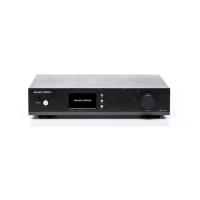
Button to turn the device on/off.
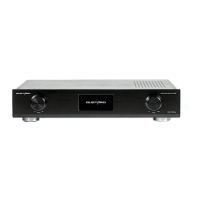
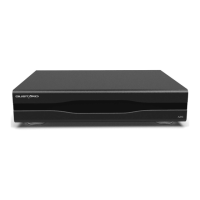
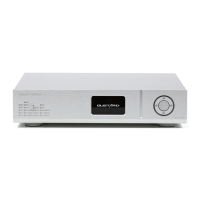
Screen displays status; D-pad navigates inputs, volume, and menus.
RCA and Balanced outputs for audio signals.
USB, IIS, Coaxial, and Optical inputs for digital audio.
AC power connector and international voltage switch.
OLED screen shows input, format, sample rate, and volume.
D-pad selects input channels and adjusts volume (-90dB).
Access and adjust PCM filter, DSD filter, GPLL, NOS, Phase, Brightness.
Select VIVID, GENTLE, or COMPOSITE PCM filter types.
Adjust DSD filter cutoff frequencies (47K, 50K, 60K, 70K).
Choose from Normal, HIGH, BYPASS, or CDT Opt. GPLL modes.
Control Non-OverSampling mode behavior for digital inputs.
Adjust analog phase polarity and screen brightness.
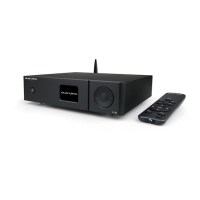
Buttons for input selection, menu, D-pad navigation, volume, and mute.
Important usage guidelines and precautions for the remote.
Obtain driver from CD/website; supports Windows 7/8/10.
Use rear USB 2.0 ports for optimal high-speed signal transfer.
Run setup, follow wizard prompts, restart device if needed.
Click "Finish" to complete the driver installation.
Install ASIOProxy and SACD components for DSD playback.
Select Gustard USB Audio and ASIO Native for DSD output.
Configure Foobar2000 to use DSD output mode.
Install the ASIO component if the ASIO option is not visible.
Install the SACD component if the SACD tool option is missing.
Address conflicts between ASIOProxy and SACD component versions.
Lists sample rates supported by COAX, AES, OPT, USB, and IIS.
Details frequency response, noise, distortion, and output levels.
Includes power, dimensions, weight, and USB OS support.
Outlines the 2-year free warranty and lifetime maintenance policy.
Lists conditions that void the product warranty.
 General
| Type | DAC |
|---|---|
| USB Interface | XMOS XU216 |
| Analog Outputs | RCA, XLR |
| PCM Support | Up to 32-bit/768kHz |
| Digital Inputs | USB, Coaxial, Optical |
| Chipset | ESS ES9038PRO, XMOS XU216 |
| Power Supply | Linear Power Supply |
| DSD Support | Up to DSD512 (Native) |
| Dynamic Range | >129dB |

 To Next Page