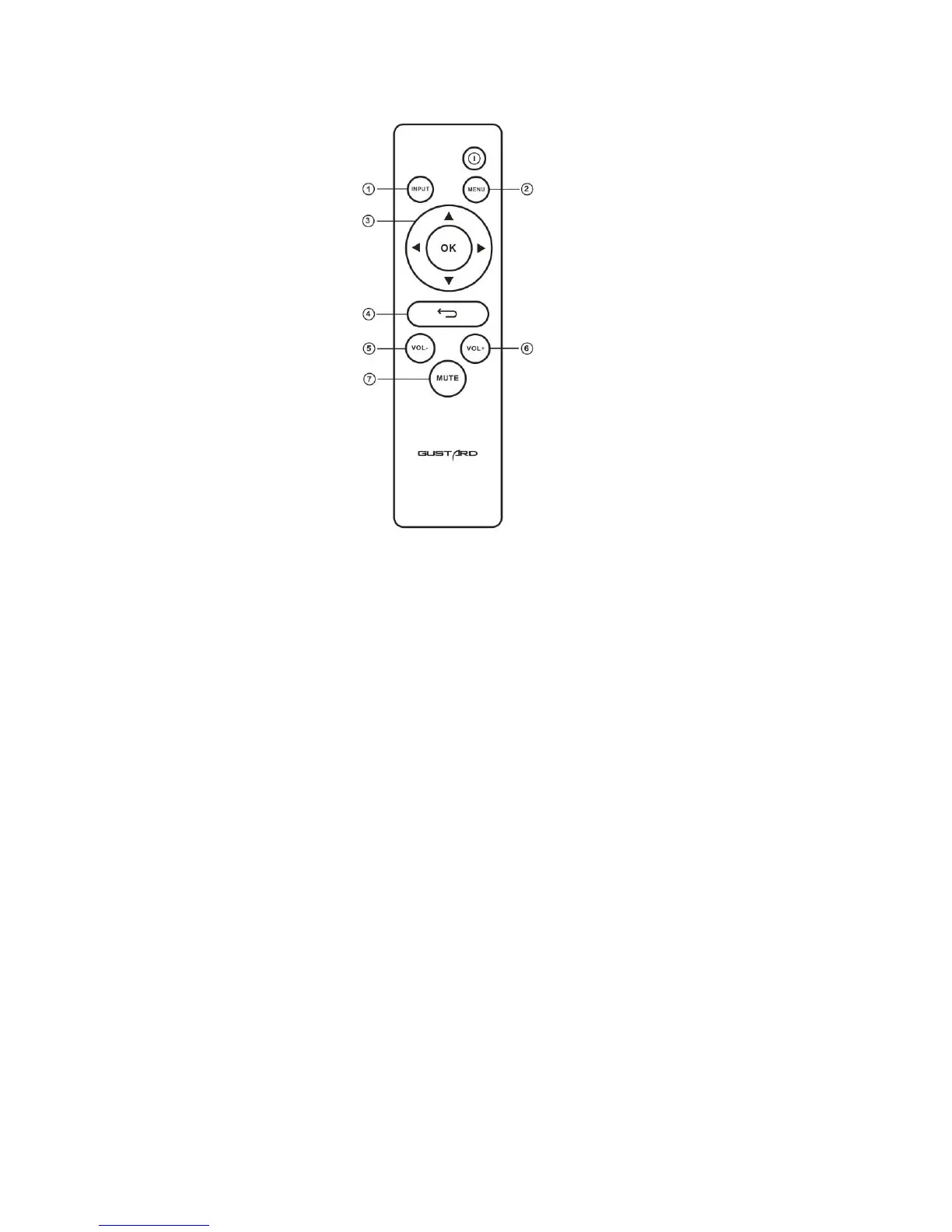
IR Remote control
① Input selection button: Press this button once, the digital input channel of DAC-X26 will switch to the next
one, and the digital input channel will cycle in the order of COAX-AES-USB-IIS-OPT.
② Menu button: Press this button once to enter the setup menu of the DAC-X26, press this button again to exit
the setting menu.
③ D-pad and OK button:After entering the setting menu of the DAC-X26, use the up/down of the D-pad to switch
the function to be adjusted, and adjust the options by left/right. Press OK to confirm the result and return
to the main page.
④ Back button: Returns to the main page state.
⑤ Volume minus button: When the DAC-X26 is in the main page state, press this button to decrease the volume.
⑥ Volume plus button: When the DAC-X26 is in the main page state, press this button to increase the volume.
⑦ Mute button: In the non-mute state, press this button once, the DAC-X26 will be muted; press this button
again to unmute.
Note: ● The operating distance varies depending on the angle. ● If there is something between the remote control
and the IR sensor, it may not operate normally. ● If the remote control will not be used for a long time (one
month or longer), remove the battery. ● If the battery Leaking, please thoroughly clean all the residues in the
battery compartment and install new batteries. ● When using other devices controlled by infrared rays, using
this remote control may operate these devices by mistake.


 To Next Page