EasyManua.ls Logo

GUSTARD DAC-A22 - User Manual

GUSTARD DAC-A22
21 pages
Print Icon
To Next Page IconTo Next Page
Loading...
Gustard
DAC-A22
High-performance Audio DAC
User Manual
Question and Answer IconNeed help?

Do you have a question about the GUSTARD DAC-A22 and is the answer not in the manual?

Summary

Front Panel Controls

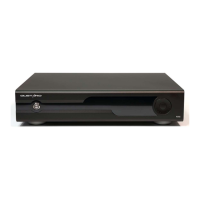
Front Panel Overview

Description of the power switch, screen, and function button on the DAC-A22's front panel.

Rear Panel Connections

Overview of all output and input ports located on the rear of the DAC-A22.

Voltage Selection Switch

Information and warning regarding the international voltage selection switch on the rear panel.

Display and Menu Navigation

OLED Screen Status Display

Details the real-time status information shown on the DAC-A22's OLED screen.

Digital Input Channel Selection

Instructions for selecting between the six available digital input channels on the DAC-A22.

Volume Adjustment

How to adjust the digital volume attenuation using the turntable control.

Accessing the Settings Menu

Guide to entering and navigating the DAC-A22's settings menu using buttons.

Advanced Settings and Filters

PCM Filter Options

Detailed explanation of the six PCM digital filter types and their sonic characteristics.

DSD Filter Configuration

Information on DSD filter bandwidths (L-BW/H-BW) and their automatic switching with sampling rate.

Advanced Configuration Options

Signal Processing Settings

Adjustments for jitter processing modes and digital receive bandwidth.

Interface and Output Settings

Configuration for USB interface mode and analog output phase inversion.

Screen Brightness Adjustment

How to adjust the brightness of the OLED display screen.

IR Remote Control Operation

Remote Control Button Functions

Detailed explanation of each button on the GUSTARD DAC-A22 IR remote control.

Remote Control Usage Notes

Important notes on operating distance, battery handling, and potential interference.

Windows Driver Installation

Driver Installation Prerequisites

Recommended PC connection methods and initial steps for driver installation.

Initial Device Detection

What to expect when connecting the DAC-A22 to a Windows PC for driver setup.

Windows Driver Installation Process

Running the Setup Program

Instructions for launching the Gustard USB Audio Driver setup executable.

Installation Wizard Steps

Navigating the Gustard USB Audio Driver installation wizard using 'Next' and 'Install' buttons.

Completing Windows Driver Installation

Troubleshooting Installation Prompts

How to resolve prompts during installation, such as 'Setup requires that the device is...'.

Completing Driver Installation

Finalizing the driver installation process by clicking the 'Finish' button.

Foobar2000 DSD Playback Setup

Installing ASIOProxy Component

Steps to install the ASIOProxy component required for DSD playback in Foobar2000.

Accessing Foobar2000 Preferences

How to open the Preferences window in Foobar2000 to configure settings.

Foobar2000 Component Management

Adding Foobar2000 Components

Steps to install necessary components like ASIO and SACD support in Foobar2000.

Selecting Component Files

Instructions on selecting the correct component files (.fb2k-component) to install.

Foobar2000 Configuration Restart

Applying Component Changes

Confirmation prompt for restarting Foobar2000 after applying component changes.

Re-accessing Preferences

Opening the Foobar2000 Preferences window again after the restart.

Foobar2000 ASIO Driver Configuration

Configuring ASIO Driver

Setting up the foo_dsd_asio driver, selecting Gustard USB Audio and ASIO Native.

Foobar2000 Output and SACD Settings

Configuring Output Device

Selecting the ASIO:foo_dsd_asio device in the Output preferences.

Setting SACD Output Mode

Selecting DSD as the output mode in the SACD preferences for playback.

Foobar2000 DSD Playback Troubleshooting

ASIO Option Missing in Output

Troubleshooting step for when the ASIO option is not visible in Foobar2000's Output preferences.

Foobar2000 SACD Option Troubleshooting

SACD Option Missing in Tools

Troubleshooting for missing SACD option in Foobar2000 preferences due to missing component.

Foobar2000 Component Version Conflicts

Component Version Conflicts

Resolving errors caused by conflicting versions of ASIOProxy and SACD decoding components.

Foobar2000 DSD Playback Solutions

Resolving Component Version Conflicts

Solutions for ASIOProxy/SACD component conflicts, including updates or version downgrades.

Product Specifications

Digital Input Channel Specifications

Supported sample rates and formats for COAX, AES, OPT, USB, and IIS inputs.

Analog Output Performance

Details on frequency response, DNR, crosstalk, THD+N, IMD, output level, and impedance.

General Product Specifications

Information on power supply, consumption, dimensions, and weight.

Product Warranty Information

Free Warranty Service Details

Information on the 2-year free warranty and lifetime maintenance policy.

Conditions for Beyond Warranty Service

Circumstances under which warranty service is no longer provided or incurs fees.

Overview

The GUSTARD DAC-A22 is a high-performance audio DAC designed for discerning audiophiles. This user manual provides a comprehensive overview of its features, technical specifications, and operational guidelines.

Function Description

The DAC-A22 serves as a digital-to-analog converter, transforming digital audio signals into high-fidelity analog output. It supports a wide array of digital input channels and formats, making it versatile for various audio setups. The device features an OLED screen for real-time status display and menu navigation, allowing users to monitor input channels, encoding formats, sample rates, and volume levels.

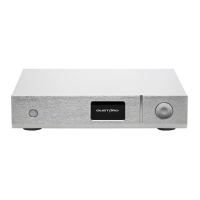
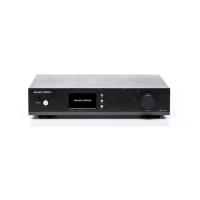
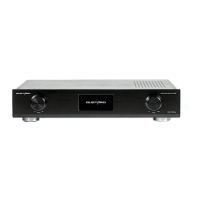
Front Panel Features:

  • Power Switch: A simple push-button mechanism to turn the device on and off.
  • Screen: An OLED display showing current operational parameters such as input channel, encoding format, sample rate, and volume.
  • Turntable (Rotary Encoder): Used for adjusting digital volume attenuation or navigating and modifying options within the menu. Rotating counter-clockwise attenuates volume, while clockwise rotation increases it. Volume can be adjusted from 00dB to -90dB across 90 digital positions.
  • Function Button: A short press cycles through digital input channels (COAX, AES, USB, IIS, OPT, BT). A long press enters or exits the settings menu. Within the menu, a short press cycles through items, and the turntable adjusts options.

Rear Panel Features:

  • Right/Left Balanced Output: XLR outputs for balanced audio connections.
  • USB Input: For connecting to a computer or other USB audio sources.
  • BT ANT: Bluetooth antenna connection for wireless audio streaming.
  • IIS Input: For high-resolution audio input.
  • Coaxial Input: Standard S/PDIF coaxial digital input.
  • Optical Input (Square): Standard S/PDIF optical digital input.
  • Right/Left RCA Output: Unbalanced RCA outputs.
  • AES/EBU Input: Professional-grade digital audio input.
  • AC Power Connector: For connecting to mains power.
  • International Voltage Switch: Crucial for selecting between 115V and 230V operation. Warning: Both switches must be set to the same voltage simultaneously to prevent damage to the power transformers.

The DAC-A22 offers a detailed settings menu accessible by long-pressing the function button. Menu items include:

  • PCM Filter: Offers 6 types of digital filters: SHARP, SLOW, SUPER SLOW, SHORT SHARP, SHORT SLOW, and LOW-d SHOT. Each filter provides different attenuation characteristics, influencing the sound's perceived sharpness, smoothness, and extension. The manual recommends SHORT SHARP for general use.
  • DSD Filter: Provides two bandwidth options: L-BW (low bandwidth) and H-BW (high bandwidth). The cutoff frequency automatically adjusts based on the DSD sampling rate. For DSD256 and DSD512, bandwidths are fixed.
  • JITTER ATTEN MODE: Offers MODE1 and MODE2, which adjust filter bandwidths for jitter processing. MODE2 has a higher bandwidth. MODE1 is recommended.
  • DIR Digital receive bandwidth: Adjusts the bandwidth of traditional digital input interfaces (COAX/AES) to match various front-end equipment. Options include NORMAL (44.1-192k, DOP64) for CD players and older equipment, and HIGH (44.1-384k, DOP64/DOP128) for newer digital players and interfaces.
  • USB INTERFACE MODE: Allows selection between WIN PC mode (for Windows systems with dedicated drivers supporting NATIVE DSD) and MAC / PI mode (for macOS, Linux, Raspberry Pi, and ROCK 64, also supporting NATIVE DSD).
  • Phase invert (Analog output phase inverting switch): Offers DISABLE (RCA positive phase, XLR American standard: 1 ground, 2 hot, 3 cold) and ENABLE (RCA inverted phase, XLR Japanese/European standard: 1 ground, 2 cold, 3 hot).
  • Brightness: Adjusts the OLED screen brightness across 8 levels.

Important Technical Specifications

Digital Input Channels Supported Sample Rates:

  • COAX: PCM 16-24bit/44.1-384kHz; DSD DOP64-DOP128
  • AES: PCM 16-24bit/44.1-384kHz; DSD DOP64-DOP128
  • OPT: PCM 16-24bit/44.1-192kHz; DSD DOP64
  • USB: PCM 16-32bit/44.1-768kHz; DSD DOP64-DOP256; NATIVE DSD: DSD64-DSD512
  • IIS: PCM 16-32bit/44.1-768kHz; DSD DOP64-DOP256; NATIVE DSD: DSD64-DSD512

USB Input Supported Operating Systems:

  • Windows 7 SP1/WIN8/WIN10 (32-64bit)
  • macOS
  • Linux

Analog Output Performance:

  • Amplitude Frequency Response: 20-20kHz /+-0.1dB
  • DNR: 128dB
  • Crosstalk: -137dB @ 1kHz
  • THD+N: <0.0004% 20-20kHz
  • IMD: <0.0008%@-3dBFs
  • RCA Output Level: 3Vrms (VOLUME 00dB)
  • RCA Output Impedance: 100 ohms
  • XLR Output Level: 6.0Vrms (VOLUME 00dB)
  • XLR Output Impedance: 100 ohms

Other Specifications:

  • AC Power Supply: AC 115V/230V 50/60Hz
  • Power Consumption: <30W
  • Dimensions: Width 330mm * Height 65mm * Depth 260mm (Excluding protrusions)
  • Weight: 7Kg (including packaging)

Usage Features

Remote Control:

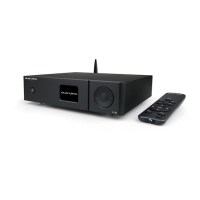
The DAC-A22 comes with a new remote control. To operate the DAC-A22, press and hold the "DAC" key for more than 3 seconds to enter DAC operation mode. "AMP" and "STREAM" modes are for other GUSTARD products.

  • Mute Button: Toggles mute on/off.
  • Menu Button: Enters/exits the setup menu.
  • D-pad and OK Button: Navigates menu items (up/down) and adjusts options (left/right). OK confirms selections.
  • Back Button: Returns to the main page.
  • Volume Minus/Plus Buttons: Decreases/increases volume on the main page.
  • Note: Operating distance varies. Obstructions can affect performance. Remove batteries for long-term storage. Clean battery compartment if leakage occurs.

Windows Driver Installation:

  1. Driver Source: Drivers are provided on a CD or can be downloaded from www.gustard.cn.
  2. USB Connection: For desktop PCs, use a native USB2.0 port on the rear panel for optimal performance. Connect the DAC-A22 to the computer via USB and power it on.
  3. Installation Process: Run the Gustard_USBAudio_v1A_2018-10-15_setup.exe program. Follow prompts, clicking "Yes" for User Account Control.
  4. Troubleshooting: If the installer prompts "Setup requires that the device is...", restart the DAC-A22 or re-plug the USB cable.
  5. Completion: Click "Finish" after successful installation.

DSD Playback Settings using foobar2000:

  1. ASIO Proxy Installation: Run ASIOProxyInstall-0.7.2.exe from the foobar2000_DSD_0.7.X folder and complete the installation.
  2. Foobar2000 Preferences: Open Foobar2000, go to File -> Preferences.
  3. Component Installation:
    • Navigate to Components on the left.
    • Click Install... on the bottom right.
    • Select foo_input_sacd.fb2k-component and foo_out_asio.fb2k-component from the foobar2000_DSD_0.7.X folder.
    • Click Open, then Apply.
    • Restart Foobar2000 when prompted.
  4. ASIO Configuration:
    • Go to Playback -> Output -> ASIO.
    • Double-click foo_dsd_asio.
    • In the foo_dsd_asio v0.7.2 window:
      • ASIO Driver: Select "Gustard USB Audio".
      • DSD Playback Method: Select "ASIO Native".
      • Configure other settings as shown in the manual's red box (e.g., DSD to DSD Method: None, PCM to DSD Method: None, DSD/PCM Transition: 50 ms).
      • Close the window.
  5. Output Device Selection:
    • Go to Playback -> Output.
    • Device: Select "ASIO: foo_dsd_asio".
  6. SACD Output Mode:
    • Go to Tools -> SACD.
    • Output Mode: Select "DSD".
    • Click OK to complete the setup.

DSD Playback Troubleshooting (foobar2000):

  • Missing ASIO Option: If ASIO is not shown under Playback -> Output, it means the ASIO component is not installed. Drag foo_out_asio.fb2k-component into the components list in preferences, click Apply, and restart foobar2000.
  • Missing SACD Option: If SACD is not shown under Tools, it means the SACD component is not installed. Drag foo_input_sacd.fb2k-component into the components list in preferences, click Apply, and restart foobar2000.
  • Playback Error ("The process receiving or sending data has terminated"): This indicates a version conflict between ASIOProxy and the SACD decoding component. Ensure both are compatible versions (e.g., 0.7.X). Solutions include updating the SACD component, reinstalling a new official Foobar2000 version, or installing an older compatible ASIOProxy version (e.g., ASIOProxyInstall-0.6.5.exe).

Maintenance Features

Product Warranty:

  • Free Warranty: 2-year free warranty and lifetime maintenance from the purchase date. Covers failures due to component quality or manufacturing defects under normal use.
  • Freight: Manufacturer covers freight only from mainland China. Overseas freight and taxes are the user's responsibility, to be negotiated with the dealer.

Beyond Warranty Service (Circumstances not covered by free warranty):

  • Exceeding the predetermined warranty period.
  • Mismatch between model, barcodes, purchase date, actual product, and warranty card.
  • Unauthorized modifications to circuits, components, or self-repairs without GUSTARD technician permission.
  • Damage caused by natural forces.
  • Damage due to environmental conditions beyond permitted use.
  • Damage due to incorrect use or improper storage (e.g., high voltage causing circuit burns, physical bumps, water/oil/liquid damage, excessive dust, oxidation, corrosion).
  • Individual component damage, cosmetic damage due to human factors, or firmware modifications by unauthorized users beyond the warranty period.

Post-Warranty Maintenance:

GUSTARD commits to providing reasonable maintenance fees for out-of-warranty repairs (excluding large area components or circuit boards burned beyond repair). Users are responsible for freight, maintenance costs, and material costs.

GUSTARD DAC-A22 Specifications

General IconGeneral
BrandGUSTARD
ModelDAC-A22
CategoryMedia Converter
LanguageEnglish

Related product manuals