EasyManua.ls Logo

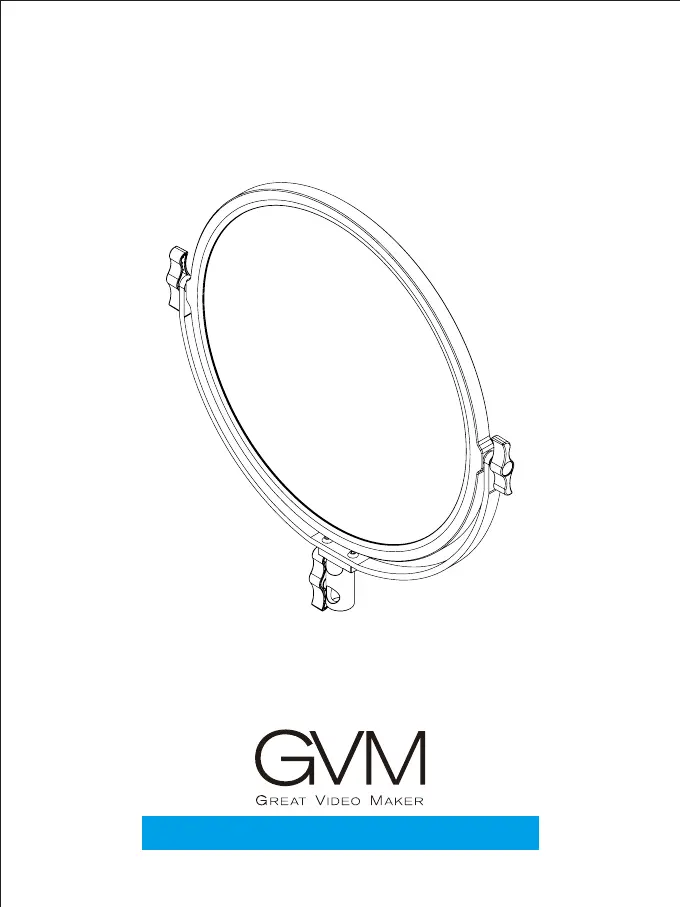
GVM GVM-Y30D160 - User Manual

GVM GVM-Y30D160
18 pages
Print Icon
To Next Page IconTo Next Page
Loading...
GVM-Y30D160 / GVM-Y60D256

Questions and Answers

  • R
    rodriguezleeAug 11, 2025
    Why my GVM Lighting Equipment cannot connect to the APP even with a successful WiFi connection?
    • C
      Cody RayAug 11, 2025
      If the WiFi is successfully connected, but the device cannot connect to the APP, check if the 'Switch Device' type in the APP main menu is switched to 'Singe/Double color temperature light'. You can do this by clicking APP main menu, then Switch device, and finally Singe/Double color temperature light.
  • B
    Brandon CampbellAug 19, 2025
    What to do if my GVM GVM-Y30D160 Lighting Equipment is on, but the display and lights are not?
    • M
      marthawoodAug 19, 2025
      If your GVM Lighting Equipment is on but the display and lights are off, it might be due to the mobile app turning it off. To resolve this, press the 'ON/OFF' button again.
  • Y
    yyangAug 26, 2025
    How to fix the brightness/color temperature knob if it's out of control on GVM GVM-Y30D160 Lighting Equipment?
    • R
      Richard PowellAug 26, 2025
      If the brightness or color temperature knob on your GVM Lighting Equipment is out of control, press the 'MODE' button once to switch the mode from slave to master.
  • J
    Jennifer WalkerSep 3, 2025
    How to troubleshoot if the switch indicator does not light up on GVM Lighting Equipment?
    • C
      Cynthia StewartSep 3, 2025
      If the switch indicator on your GVM Lighting Equipment does not light up, ensure the adapter is securely connected to the power plug and charge the battery before use.

GVM GVM-Y30D160 Specifications

General IconGeneral
ModelGVM-Y30D160
TypeLED Video Light
Color Temperature3200K-5600K
Power30W
CRI≧97
TLCI≧97
Brightness Adjustment Range0-100%

Related product manuals