Section 4 User interface and navigation
N O T I C E
Do not use writing tips of pens or pencils or other sharp objects to make selections on the screen or damage to
the screen will occur.
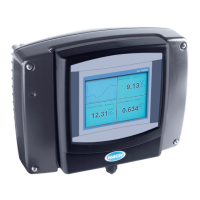
Figure 13 shows an overview of the home screen. Refer to Table 5 for the descriptions of the icons in
the display.
The instrument display is a touchscreen. Only use a clean, dry finger tip to navigate the functions of
the touchscreen. To prevent unwanted touchs, the screen is automatically lock after a period of
inactivity. Touch the screen and swipe up to set the screen back to operation again.
Note: Go to the General configuration menu to disable the Screen lock setting or to set the Waiting time for the
inactivity period.
Figure 13 Main screen
1 Measurement window: shows a device data, push
on the tile to show the device detail window.
4 Prognosys icon (optional)
2 Diagnostic bar: shows system messages and alarm
conditions, push on the bar to see the system errors
and warnings. Shows pending tasks and information
about the system
5 Carousel icon: swipe on the screen to left or right to
show other screen views.
3 Status bar
Table 5 Icon descriptions
Icon Description Icon Description
Push to show the Main menu. 3G/4G signal strength. Shows when a
USB box with a cellular modem is
connected to the controller.
Claros connection USB connection. Shows when a USB
flash drive is connected to the
controller. Blinks when there is data
transmission.
WiFi connection. Shows when a USB
box with a WiFi adapter is connected
to the controller.
Remote user. Shows when a remote
user is connected to the controller.
Screen lock. Shows when the screen
is locked.
13
Swipe up to unlock the
screen.
Push to enter a submenu or go back
to the previous menu.
When in a sub menu, push to go to
the main screen.
13
The Screen lock option is enabled by default.
22 English



 To Next Page