EasyManua.ls Logo

Hach SC4500 - User Manual

Hach SC4500
64 pages
Print Icon
To Next Page IconTo Next Page
Loading...
DOC343.52.90690
SC4500
08/2022, Edition 3
User Manual

Table of Contents

Other manuals for Hach SC4500

Questions and Answers

  • T
    Tiffany OdonnellAug 19, 2025
    What to do if my Hach SC4500 will not power up?
    • A
      Allison RobinsonAug 19, 2025
      If the Hach Controller isn't powering up, ensure the power cable is securely connected to the controller and that all power connections are properly terminated. Verify that the power strip, line power, and wall plug are correctly plugged in. Also, confirm that the controller is connected to the appropriate power source: 100-240 VAC for AC controllers or 18-28 VDC for DC controllers.
  • A
    Ashley WilsonAug 21, 2025
    What to do if my Hach Controller firmware update failed?
    • C
      Christian WilsonAug 21, 2025
      If the firmware update on your Hach Controller failed, remove the USB flash drive and redo the firmware update process. Download a new firmware update file, ensuring it exceeds 300 Mb.
  • E
    Erica SmithAug 23, 2025
    What to do if my Hach Controller restore firmware failed?
    • S
      Sean BaileyAug 23, 2025
      If the Hach Controller firmware restore failed, and you received error code 1, try to restore the firmware again. If you see error codes 2, 3, 5, or 6, a firmware restore is not possible. If you get error code 4, it means you can only revert to the firmware version installed before the update; downgrading further isn't allowed.
  • M
    Megan StrongAug 26, 2025
    Why is my Hach Controller showing 'Unknown device connected'?
    • M
      Michele AdkinsAug 26, 2025
      The 'Unknown device connected' message on your Hach Controller may appear because the rotary switch of the sensor module is not set correctly, so set the rotary switch of the sensor module to the correct position for the sensor type. Another cause could be that too many devices are installed. Make sure that only two input devices are connected to the controller. Also, make sure that the analog module and the digital sensor are not connected to the same channel. Check the sensor and the sensor cable for damage. Disconnect the sensor, wait 15 seconds, then connect the sensor again. Finally, make sure that the sensor version is applicable to the controller.
  • E
    Eric HoffmanAug 27, 2025
    Why is the Claros connection icon crossed out on my Hach SC4500 Controller?
    • L
      Lori ManningAug 27, 2025
      If the Claros connection icon is crossed out on your Hach Controller, and you have internet access, ensure the controller is provisioned in Claros if it's the first time connecting. If it was previously connected, try turning the controller off and then on again. Examine the controller connectivity.
  • H
    Heather LeeAug 30, 2025
    What to do if my Hach Controller does not recognize the USB flash drive?
    • K
      Kelly GregoryAug 30, 2025
      If the Hach Controller isn't recognizing the USB flash drive, verify that it's formatted with FAT32 and has a minimum capacity of 350 Mb. Note that the USB port on the controller is compatible with USB 2.0 devices; USB 3.0 devices are also compatible but will have USB 2.0 transfer speeds. Try using a more recent USB flash drive.
  • T
    timothymoralesSep 1, 2025
    How to fix navigation issues on the Hach Controller touchscreen?
    • D
      Daniel BarberSep 1, 2025
      If you're experiencing navigation issues on the Hach Controller touchscreen, clean the screen. The manufacturer recommends regular cleaning. Make sure that the screen is locked during cleaning to prevent unwanted touches.
  • S
    Scott LindseySep 3, 2025
    Why is the NTP service unreachable on my Hach SC4500 Controller?
    • K
      katelynpayneSep 4, 2025
      If the NTP service is unreachable on your Hach Controller, ensure that there are no restrictions to external access in the controller network. Contact your IT department to verify that the network has access to the internet NTP service. Also, ensure that UDP port 123 is open and the Pool.ntp.org address is approved in the network.
  • K
    Krystal RogersSep 6, 2025
    Why is the Claros icon off on my Hach SC4500?
    • W
      Wesley FosterSep 6, 2025
      If the Claros icon is off on your Hach Controller, it could be due to no internet access. For cellular internet access: Examine the controller connectivity, examine the cellular signal strength (move the USB box to a location with higher signal strength), examine the SIM card settings (provider, APN etc.), make sure that prepaid SIM card has credit, and make sure that the SIM card data volume is not exceeded. Another reason could be no access to Claros. Make sure that the sensors and devices are correctly connected and provisioned in Claros.
  • H
    hicksgilbertSep 8, 2025
    Why is there no relay activation on my Hach Controller?
    • E
      Elijah MurraySep 8, 2025
      If there is no relay activation on your Hach Controller, make sure that the relay connections are secure, the relay wiring is correct, and the relay configuration is correct. The relay should energize and de-energize as selected.

Summary

General Information and Safety

Safety Information

Details on hazard warnings, precautionary labels, and compliance certifications.

Product Overview

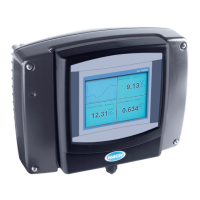
Description of the SC4500 controller, its features, connections, and optional modules.

Product Components

Identification of physical parts and hardware included with the SC4500 controller.

Installation Guide

Installation Guidelines

General advice for controller installation, placement, and environmental considerations.

Mechanical Installation

Procedures for attaching the instrument to walls, poles, or panels.

Electrical Installation

Guidance on connectors, ESD, power, relays, and expansion module wiring.

Device Connection and Final Steps

Connecting measurement devices and closing the controller cover.

Startup and Operation

User Interface and Navigation

Explanation of the main screen, measurement window, and navigation.

Startup and Initial Settings

Menu structure, initial settings, and network connection setup.

Controller Configuration and Operation

Setting up controller parameters, sensors, outputs, and network connectivity.

Advanced Operation Features

Using Prognosys, Claros, network buses, license keys, and instrument info.

Maintenance, Troubleshooting, and Support

Maintenance Procedures

Guidance on cleaning, unlocking the cover, and component replacement.

Troubleshooting Common Problems

A guide to diagnosing and resolving common controller and sensor issues.

Parts, Accessories, and Appendices

Lists of replacement parts, accessories, and telegram tag information.

Hach SC4500 Specifications

General IconGeneral
Power Supply100-240 VAC, 50/60 Hz
Operating Temperature-20 to 60 °C (-4 to 140 °F)
EnclosurePolycarbonate
ConnectivityEthernet, USB
Enclosure RatingIP66, NEMA 4X
CommunicationHART, Profibus
Measurement ParameterspH, ORP, conductivity, dissolved oxygen, turbidity

Related product manuals