Excel-EN Installation, Commissioning & Operating Manual Approved Document Ref: UI-XLEN-01 Issue 7.0
28
SETUP & PROGRAMMING
OPTION 4. Disable Battery Monitoring (EN54!) & Disable Battery Hi Z Monitoring (EN54!)
OPTION 5. Setup Internal PCB Confi guration
The battery monitoring may be disabled for applications where this is appropriate such as non fi re alarm
use or where no battery backup is required. Note: There is no remote PSU fault input available on the
Excel-EN.
With the zone 4 fi re LED lit, the amber, fault LEDs will show the current setting.
LED 1 OFF = monitored batteries (default). LED 1 ON = batteries un-monitored.
LED 2 OFF = no Hi Z monitoring LED 2 ON = battery Hi Z monitored (default)
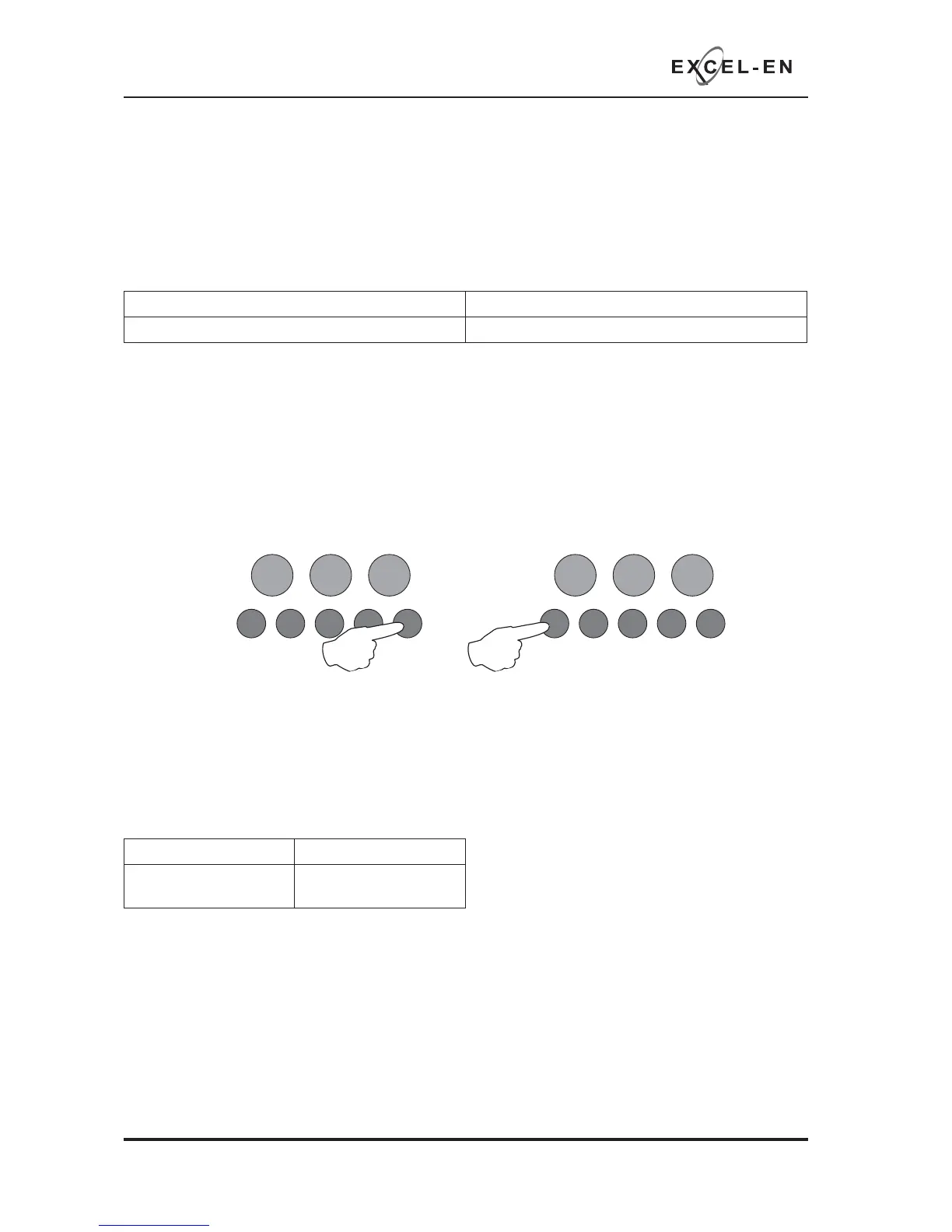
Press the ENTER button, zone 1 fi re LED will pulse to indicate ‘edit mode’ for std battery monitoring.
Use button 1 to toggle between pulsing fi re LEDs 1 & 2 for editing std or Hi Z battery monitoring as per
above.
Now use button 2 to change the setting indicated by the amber fault LED as per above.
When fi nished press the ENTER button again and the zone 4 fi re LED will return to steady ‘view mode’.
Press button 1 to move to next option or hold button 1 for 3 seconds to exit programming mode 2-1-2-3.
The control panel monitors all internal PCBs for correct function. If adding or removing any of the additional
extension zone cards, the panel must be programmed for the new confi guration.
With the zone 5 fi re LED lit, the amber, fault LEDs will show the current confi guration setting. Each of the
2 possible additional zone cards are represented by LEDs 1 - 2 as per table below.
RESOUND SILENCE RESET
ENTER
1234
Disable
Mode
Test
Mode
Mute
Buzzer
Test
Lamps
RESOUND SILENCE RESET
ENTER
1234
Disable
Mode
Test
Mode
Mute
Buzzer
Test
Lamps
Press the ENTER button, zone 1 fi re LED will pulse to indicate editing of 1st additional PCB as per table
above. Use button 1 to move to the fi re LED for the relevant PCB as per table.
Now use button 2 to change the setting indicated by the amber fault LED (LED ON = PCB included, OFF
= not included).
When fi nished press the ENTER button again and the zone 5 fi re LED will return to steady ‘view mode’,
with the amber, fault LEDs showing the new confi guration.
Press button 1 to move to next option or hold button 1 for 3 seconds to exit programming mode 2-1-2-3.
LED 1 (ON) LED 2 (ON)
Extension zone card 1
(zones 5 - 8)
Extension zone card 2
(zones 9 - 12)



 To Next Page