23
16.5 Software update
Improvements and new features are always constantly
being developed for the software used in our radios to
resolve potential errors, increase the range of functions,
and so on. We recommend that you always install any
available updates on your radio.
Proceed as follows:
• Press [
] (7) to go to the system settings.
• Use [POWER/VOLUME/ENTER/NAVIGATE] (11)
to navigate to the "Software update" menu item.
• Select Automatic updates (YES) to allow the radio
to automatically check for new software updates
on a regular basis. (Recommendation)
• Choose Check now to manually start a check for
software updates.
Warning
• Make sure that the device has a stable power
supply before you start a software update.
• Power supply failure during a software update
can cause irreparable damage to the radio.
Note
• Available updates and instructions on how to install
them can be found at:
www.hama.com -> 00054227, 00054228, 00054229,
00054230
16.6 Info
To check the current software version, radio ID and device
designation of your radio, proceed as follows:
• Press [
] (7) to go to the system settings.
• Use [POWER/VOLUME/ENTER/NAVIGATE] (11)
to navigate to the "Info" menu item.
• Conrm the selection by pressing [POWER/VOLUME/
ENTER/NAVIGATE] (11).
Note
If you require assistance from customer support,
please let the agent know the current software version.
Problems are frequently resolved through software
updates, and your query may be resolved by comparing
your software version with the last software version
available.
If updates are available, these can be found at
www.hama.com with the corresponding article number
or designation of the radio.
You may nd update instructions in the article's
download area.
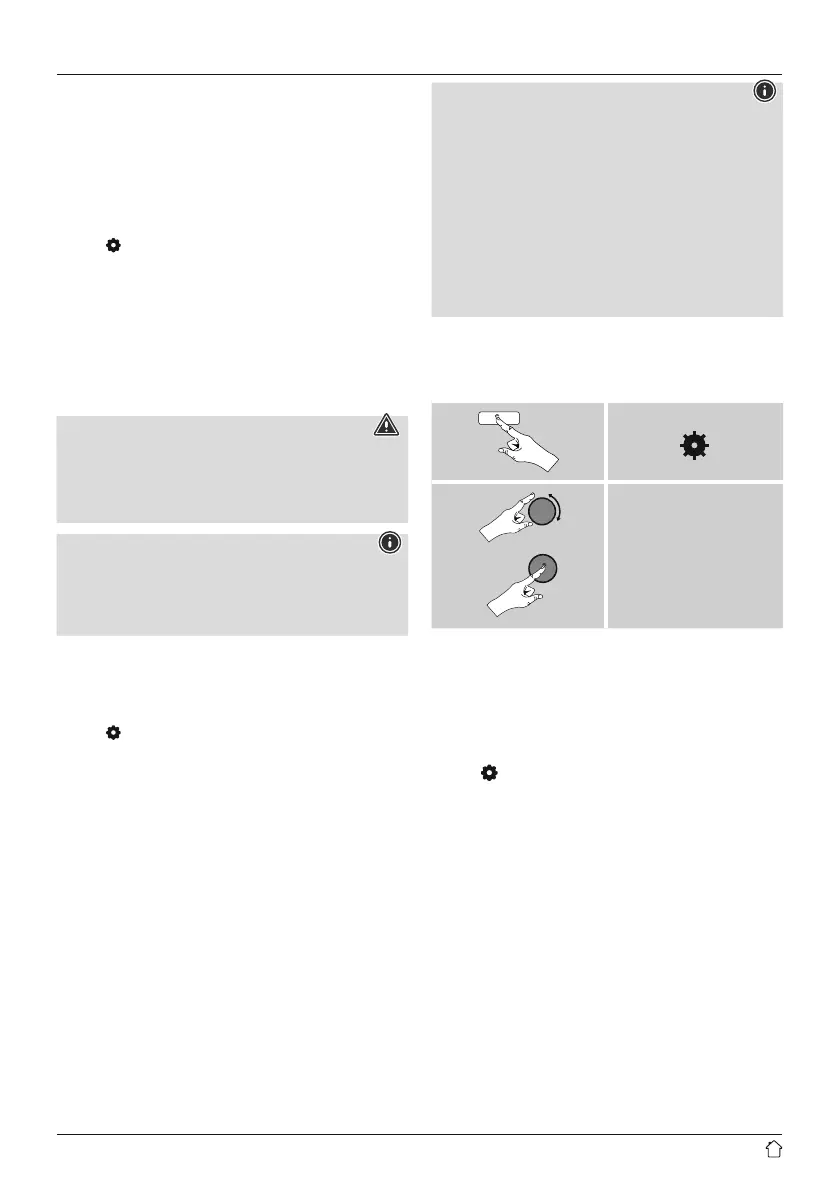
16.7 Setup wizard
The setup wizard (see Setup wizard) can be restarted
at any time as follows:
[ ]
System settings
Setup wizard
16.8 Backlight
Manual settings
The backlight can be congured for each operating mode
(Operation Mode, Standby Mode) separately.
Proceed as follows:
• Press [ ] (7) and navigate to the "Settings" menu item.
• Select "Backlight" and conrm by pressing [POWER/
VOLUME/ENTER/NAVIGATE] (11).
• For the Operation and Standby modes, select from
various brightness settings.
Automatic settings (Sensor)
With the sensor enabled, the backlight is automatically
adjusted to the environment and its brightness.
In complete darkness (for example, at night in the
bedroom), the backlight completely turns off.


 To Next Page