© 2018 mPTech. All rights reserved. HAMMER 4+
15
Torch
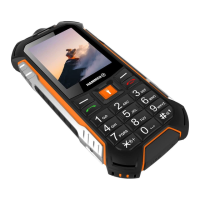
To turn on the flashlight, press and hold the <Torch> button on the side of the phone.
You can use it any time and while using any phone application.
Attention:
The light emitted by the LED has a strong focus therefore it is
unadvisable to look directly into the light. Not following this instruction may cause
damage to your eyesight.
Call history
To view the call history (what calls were made, received, etc.), select [Menu] > [Calls]
> [Call History]. The following positions are placed in submenu:
• Missed calls
• Dialled calls
• Received calls
• Delete call logs
• Call timers
• Text msg. counter
• GPRS counter
To enter one of the listed options one has to select it from the list and press <OK>.
Audio Player
Audio player is launched by pressing [Up] button or: [Menu] > [Multimedia] > [Audio
player]. This application allows you to play music files in MP3, AAC, AMR, APE, M4A,
WAV formats. To let the phone add songs to the playlist, they should be saved in the
"My Music" folder in the phone's memory. Phone's memory is limited so we recommend
using microSD memory card. Songs in there should also be situated in catalogue "My
Music". If the files have already been saved there, the first time you start the player,
it will scan the mentioned folder on the card and add all the songs found in it. Select
[List] > [Options] > [Refresh list] to play the newly added files on the card.
Listening to the audio player too long or too loud can cause hearing damage.
To enjoy the audio player use the following buttons:
When the audio player is on, in the bottom left corner an option [Options] where all
available songs will appear. More audio player options can be found in [Options] >
[Channel list] > [Settings].
• [Player settings] - you can choose from: Pre. playlist, List auto gen., Repeat,
Shuffle, Background play.
• [Display settings] - you can change: Skin (appearance of the player), Spectrum
Display, Lyrics display (karaoke mode).
• [Sound effects] - you can change: Audio effect (Equalizer, Reverb, 3D surround,
Off), Bass enhancement, Play speed ( you can speed up or slow down the
playback tracks).


 To Next Page