© 2017 mPTech. All rights reserved. HAMMER Bow+
21
Taking pictures
To take a photo one should open the camcorder app by entering: [Menu] >
[Multimedia] > [Camcorder]. When you start the camera, place the subject
you wish to photograph in the frame, and then press <OK> to take a photo.
Photos will be saved automatically in the phone memory in the "Photos"
file. You can change the memory to your microSD card in the camera
settings. You can view the pictures you have taken and all other by entering
[Menu] > [Multimedia] > [Gallery].
Recording videos
To record a video choose [Menu] > [Multimedia] > [Camcorder] <down>
which will switch the camcorder into the video mode. Then place the
recorded object in the camera frame and press the <OK> button to start
recording. Videos are saved by default in a “Videos” file on the phone
memory. You can change the memory to your microSD card in the camera
settings. To watch recorded videos enter: - [Menu] > [Multimedia] >
[Multimedia player]. Press <up> to go back to camcorder functions again.
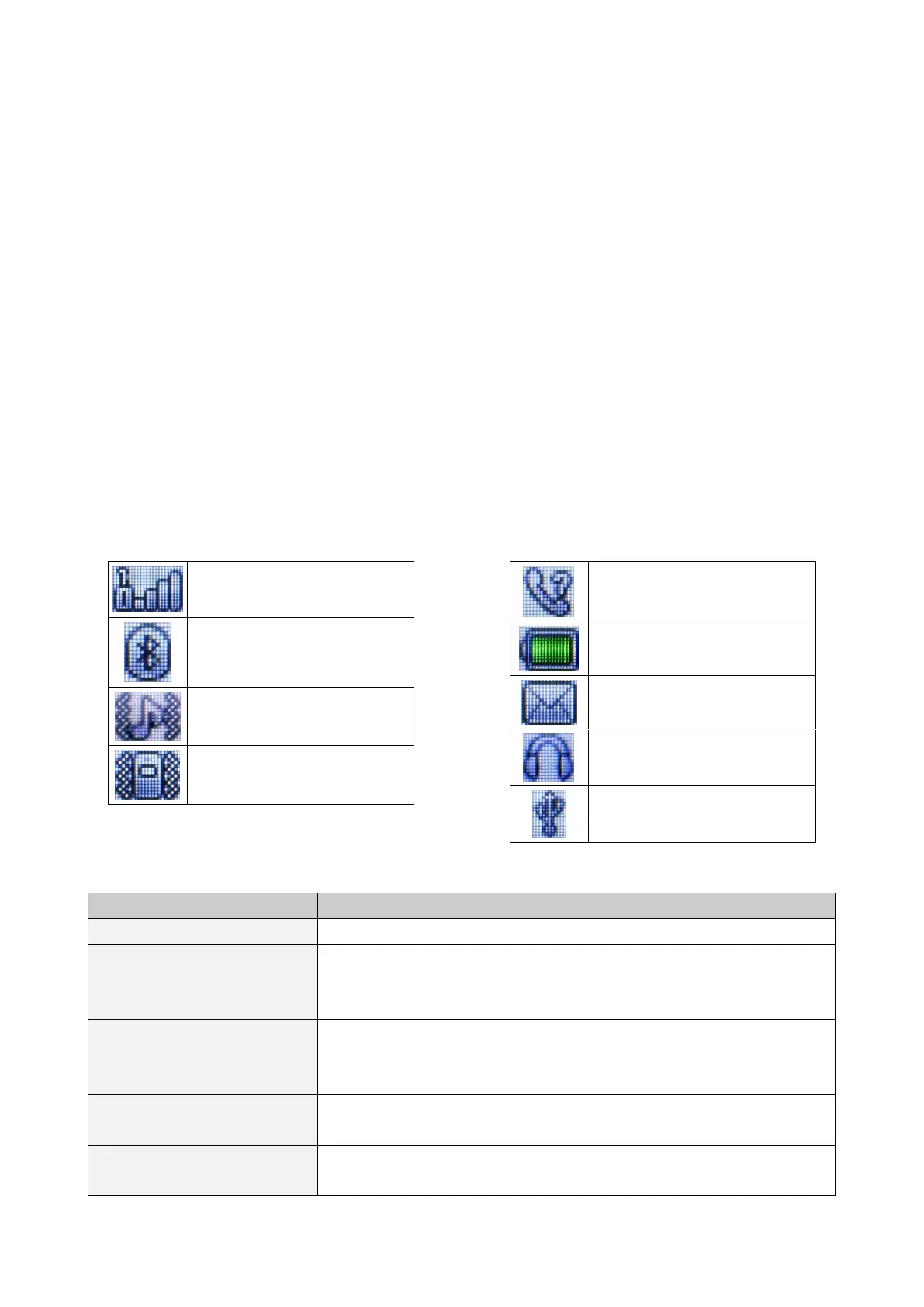
Phone icons
In areas where signal or reception is weak, calls may
not be possible. Also receiving calls may not be
possible. Move to another location and try again.


 To Next Page