using controller mode
28_ using controller mode
M
`
You can use the <Controller> mode speaker as the zone device after performing <Device Registration> as with other
speakers.
`
You should not use the <Controller> mode speaker and audio server (SPA-S1000) simultaneously in the same network.
If a speaker and microphone are repeatedly registered, the device may not be controllable.
Register Source Device
Speakers can be registered as source devices for broadcasts. <Source> means one speaker set as a
source device.
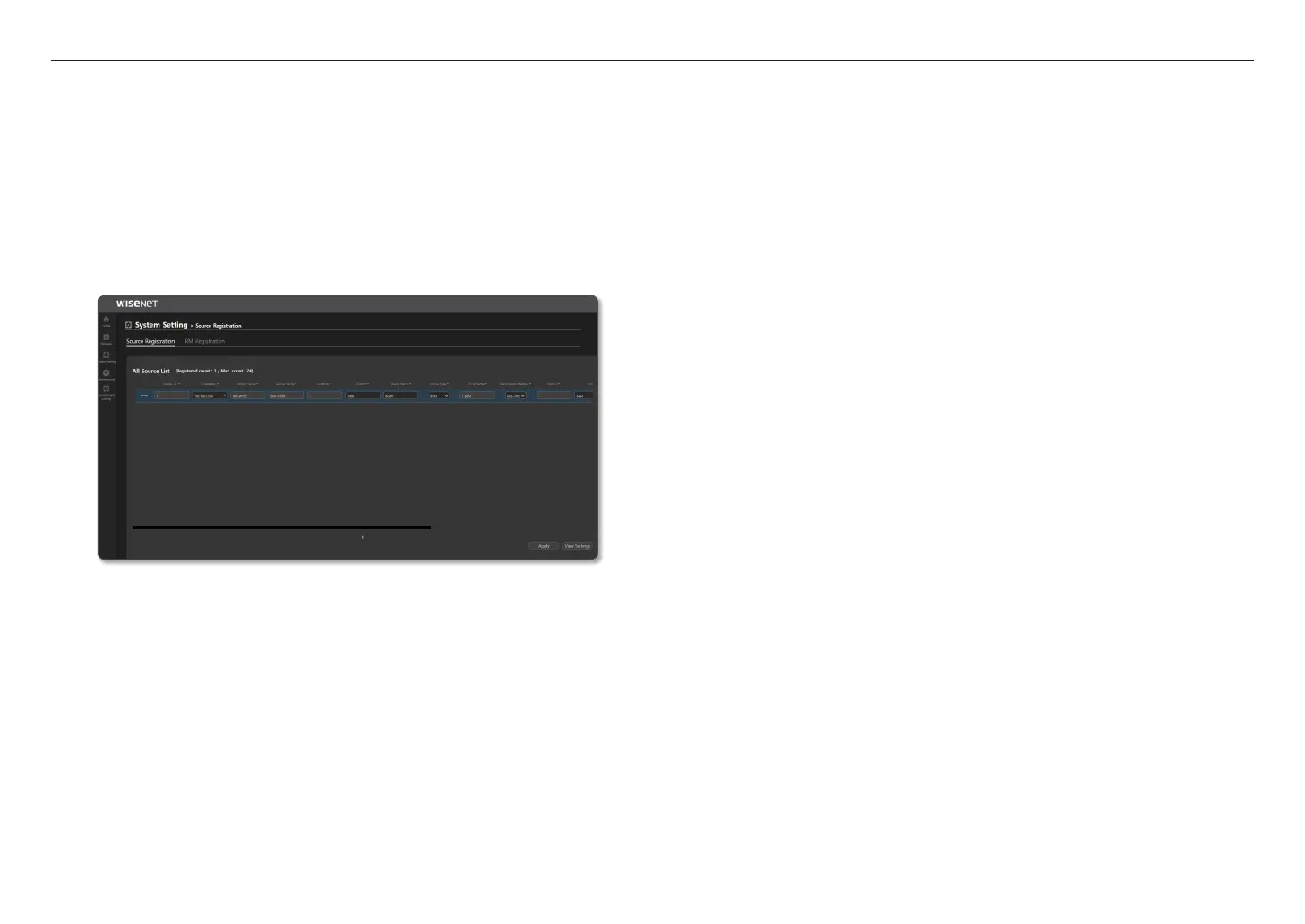
1. On the Home screen, click <System Setting>
;
<Source Registration>.
2. Select <Source Registration> and set the following items:
~
Source ID: Up to 24 source devices can be registered while the registered count is displayed.
Click the [+] icon to create a list, and click the [ - ] icon to remove the list.
Names such as s1, s2, and s3 are displayed on the website menu.
~
IP address: An IP address of speakers to be used as a source. If you select an IP address, Model Name,
Device Name, and Device Location will be displayed.
~
Priority: The user prioritizes sources. The smaller the number is, the higher its priority is.
(Initial value 3000, input value 1000~9999)
M
`
While broadcasting by selecting either source speakers (with 3000 source registration priority) or zone speakers in
<Button Mode>, if a schedule time of an event priority is set as "2000" in the <Annual Scheduler> comes up, the
<Button Mode> broadcast will stop and the schedule broadcast will start.
Conversely, if you select a speaker that a priority of a source speaker is "1000" in <Button Mode> and broadcast, the
<Button Mode> broadcast will be kept since the schedule priority in <Annual Scheduler> is higher.
~
Source Name: Inputs or changes the name of a source.
~
Source Type: Selects BGM or TTS.
~
CH & Name: If you select BGM, 1 BGM will be shown. If you select TTS, 2 TTS will be shown.
~
Transmission Method: If you select UNICAST, <Trans IP> will be deactivated, and the device’s IP
address will be used. You can enter the <Port> number in the input window
automatically or manually, and it should not overlap with another device.
If you select MULTICAST, a MultiCast IP address (e.g., 224.124.0.
⁎
) and <Port>
number are automatically allocated to the <Trans IP>.
If you enter the IP address and port directly in the device, be cautious that it does
not overlap with automatically assigned information.
- UNICAST : Up to 20 broadcasts are possible with the UNICAST network.
- MULTICAST : In a MULTICAST network, you can simultaneously broadcast to up to 256 devices
(when the control mode is set to UDP).
M
`
The maximum broadcasting count can change depending on the setup of <Operate>
;
<Control Mode>.
`
You have to select <Transmission Method> in consideration of the network environment being used.
`
The maximum broadcasting count may be limited depending on the network environment's configuration.
~
CTRL: The CTRL box should be checked to activate the <Source Control> window of the source
Device in <Operate>
;
<Button Mode>.
- To use it as the sound audio device in the <System Setting>
;
<Annual Scheduler>, the CTRL
box should be deactivated.
~
CTRL IP : The device List for remote control is provided in the <Button Mode>, so select the same IP
as the registered device.
~
Device Name: Displays the name of a control device.
~
CTRL Type : If you set a source type as <BGM>, select <file_player>, and if you set a source type as
<TTS>, select <tts_player>.
~
I/O CH : If you set a <CTLR Type> as <file_player>, “1” will be displayed, and if you set as <tts_player>, “2”
will be displayed.
~
Icon: Selects an icon (BGM or TTS) and color of a source.
If <User Icon> images are directly uploaded on PC, you can select one from the <Icon> list.
3. Once set, click the [Apply] button.
4. If you click the [View Settings] button, the set value can be saved as a CSV file.



 To Next Page