Need help?
Do you have a question about the Happymodel Mobula6 1s and is the answer not in the manual?
Binding the Mobula6 to a Frsky transmitter, detailing LED states and CLI commands for different Betaflight versions.
Setting up the receiver mode in Betaflight Configurator, selecting SPI RX support and FRSKY provider for D16/D8 modes.
Configuring the arm/disarm switch on the transmitter and verifying the arming status via flight controller LED and FPV display.
Methods to switch VTX channels using Betaflight CLI commands or the OSD Menu via transmitter stick inputs.
Steps to check ESC status and flash firmware using BLHeliSuite, including connecting the flight controller and selecting the target.
Procedure for updating the flight controller firmware, including driver installation, DFU mode, and using Betaflight Configurator.
Setting up a transmitter switch for the 'Flip over after crash' function in Betaflight Configurator to re-orient the drone.
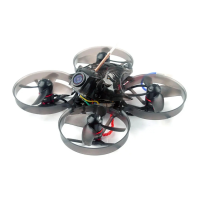
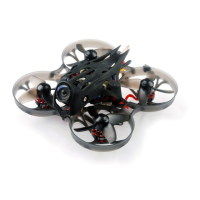
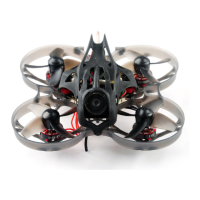
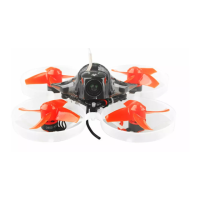
The Happymodel Mobula6 is a 1S 65mm brushless whoop drone, designed for both beginners and experienced pilots seeking a lightweight and agile flying experience. This drone comes in a BNF (Bind-N-Fly) version, meaning it's ready to fly once bound to a compatible radio transmitter.
The Mobula6 features an integrated AIO (All-In-One) Crazybee F4 Lite flight controller with a built-in 5.8G VTX (Video Transmitter), providing a compact and efficient design. This integration simplifies wiring and reduces the overall weight, contributing to its extreme lightness. The drone is equipped with 0802 brushless motors, available in two KV options (25000 for Race Edition and 19000 for Regular Edition), offering smooth and powerful flight performance. The included Runcam Nano3 camera, a lightweight 1/3 CMOS 800TVL camera, delivers clear video feedback for FPV (First-Person View) flying. The camera angle is adjustable, allowing pilots to customize their field of view. The drone is compatible with 1S Lipo/LIHV batteries, and a 300mAh 30C LIHV battery is included, along with a USB charger.
To get started, power on the Mobula6. The red LED at the bottom of the flight controller will blink slowly, indicating it's in bind mode. For Betaflight firmware 3.5.7, you can press the bind button on the flight controller, and the red LED will become solid, confirming bind mode. Alternatively, for Betaflight 3.5.7, connect the drone via USB to a computer, open the CLI (Command Line Interface) tab in Betaflight Configurator, and type "frsky_bind." For Betaflight 4.0.X, use "bind_rx_spi," and for Betaflight 4.1.X or 4.2.X, use "bind_rx."
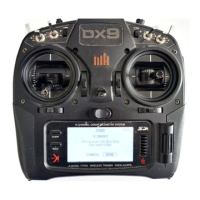
Next, turn on your Frsky Taranis transmitter. Navigate to the BIND OPTION in the SETUP MENU. Select the receiver mode (D16 for Frsky_X or D8 for Frsky_D) that matches your Betaflight receiver configuration. The manual recommends using D8 mode. Press "ENT [Bind]" on the transmitter to initiate binding. The red LED on the flight controller will blink slowly, indicating successful binding. Once bound, exit the binding mode on your transmitter, and the red LED on the flight controller will become solid, signifying normal operation.
In the Betaflight Configurator, go to the Configuration tab and set the Receiver mode to "SPI RX Support." Then, select "FRSKY_X Provider" for FRSKY D16 MODE or "FRSKY_D Provider" for FRSKY D8 MODE. It's crucial not to enable Serial RX, as the Crazybee flight controller integrates an SPI BUS Receiver.
The default Arm/Disarm switch for the Mobula6 is AUX1 (Channel 5), but this can be customized in the Betaflight Configurator. To set up the arming switch on your Frsky transmitter (e.g., Taranis X9D+), go to the MIXER interface and assign "SA" or "SB" switch to Ch5 for ARM/DISARM. The default channel map for the Mobula6 Frsky version is TAER1234. Ensure your transmitter's channel map matches this configuration to enable arming. Toggling the AUX1 switch will cause the green LED on the flight controller to become solid, indicating the motor is armed. You should also see "Armed" displayed on your FPV Goggles or Monitor. Always ensure the Mobula6 is level before arming for safe operation.
There are two methods to switch VTX channels. The first method involves using the Betaflight CLI. For example, to set VTX band to 3 and channel to 1 (5705M), type "set VTX_band=3," "set VTX_channel=1," and then "save." The second method involves disarming the Mobula6 and then moving the transmitter sticks (THR MID + YAW LEFT + PITCH UP) to enter the OSD Menu. From there, navigate to "Features," then "VTX SA" to set the VTX Band and channel.
To activate the "Flip over after crash" function, assign one channel of your radio transmitter to this function in the Modes tab of Betaflight Configurator. The default switch for "Flip" is AUX4 (Channel 8).
To maintain optimal performance, you can check and flash the ESC (Electronic Speed Controller) firmware. First, download the latest BLHeliSuite from the provided link. Connect the flight controller to your computer via USB. Open your computer's Device Manager and locate the Ports section. Ensure the COM port serial number is below 255; if not, you may need to adjust it in the advanced settings of the COM port properties.
Open BLHeliSuite and select "SILABS BLHeli Bootloader (Cleanflight)" from the third tab. Choose the correct serial COM port and click "connect." You can then flash the new BLHeli_s firmware. The firmware target for the Mobula6 is "O-H-05."
To update the flight controller firmware, install the latest STM32 Virtual COM Port Driver and the STM BOOTLOAD Driver (STM Device in DFU MODE). Open Betaflight Configurator and select "Crazybee F4 FR" as the firmware target, then choose the desired firmware version.
There are two ways to enter DFU Mode:
After entering DFU Mode, use Zadig tools to replace the drivers from "STM32 Bootloader" to "WINUSB Driver." Reconnect the flight controller to your computer, open Betaflight Configurator, and proceed with loading and flashing the firmware.
 General
| Weight | 20g |
|---|---|
| Wheelbase | 65mm |
| Input Voltage | 1S LiPo |
| FPV Frequency | 5.8GHz |
| Flight Controller | Crazybee F4 Lite |
| Motors | 0802 19000KV |
| Camera | Caddx ANT Lite |
| Battery | 1S 300mAh LiPo |
| Propellers | 31mm |
| Receiver Options | Frsky |
| VTX | 25mW |


 To Next Page