USE ONLY HAYWARD GENUINE REPLACEMENT PARTS
9
After the MSP is accepted, the OmniLogic will be linked to your account. You’ll be able to access the
OmniLogic at any time from your browser by logging into your account at haywardomnilogic.com.
For mobile devices, an app must be downloaded from your device’s app store. Go to www.hayward.
com for more information on the availability and function of mobile apps.
Troubleshooting
1. The PWR and LAN LEDs are not lit.
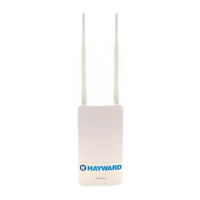
This is an indication that the HLWLAN is not connected to the OmniLogic. Perform the following:
• Make sure that both ends of the ethernet cable are firmly connected; one side in the HLWLAN
and the other in the PoE Injector (see Installation Steps 3 and 4).
• Make sure that the PoE Injector cable is firmly inserted in the HLBASE Main Board (Installation
Step 2).
• Verify that the OmniLogic has power and that there is no break in the ethernet cable.
2. There is no “Local IP” address (page 7)
This is an indication that the HLWLAN is not connected to the home network.
• The HLWLAN may be mounted too far away from the home’s router/access point or there may
be too many obstructions between them. Using a Wifi capable phone, tablet or laptop, verify that
other mobile devices can connect from that same location as the HLWLAN.
• If other devices can connect, the most likely cause is an error in the configuration settings.
Reconnect the HLWLAN to the home’s access point by following the procedure on page 7.
• If other devices cannot connect to the wireless network, consider relocating your router/access
point or moving the HLWLAN closer using a longer outdoor rated ethernet cable.
3. Web enabled devices cannot connect to the OmniLogic
• Verify that you have an internet connection at your router/access point. Temporary outages
with Internet Service Providers (ISPs) are not uncommon and the OmniLogic will be offline until
service is restored.
• Have any changes been made to your home network? Any changes to your home network
(router replacement, SSID name change, changes in security settings, IP reservation, etc.) may
require you to repeat the configuration steps on page 7.
• Have you removed power from the OmniLogic or made changes that require it to reboot? If so,
give the HLWLAN some additional time to reconnect to the home network.
For further information or technical support, visit our website at www.hayward.com.

 To Next Page
 Loading...