16
To reverse looper playback, tap the button next to the Playback field and then turn the encoder.
Tip: Create eerie effects by recording layers in reverse then switching back to normal playback.
To set the looper’s location, tap the button next to the Playback field and then turn the encoder to place it
before (Pre) or after (Post) the signal chain. Moving the looper to the Pre position enables you to edit your rig
without having to play the same riff over and over again
To exit the looper and return to the main screen, press the Exit footswitch. If the looper is playing, playback
will continue.
To re-enter the looper, press the Looper footswitch again.
Tip: Use this feature to create different effect configurations (adjust parameters, activate/deactivate models, etc.)
for each layer, creating a multi-textured performance. You can also switch rigs while using the looper and use a
different rig for each layer.
Global Settings
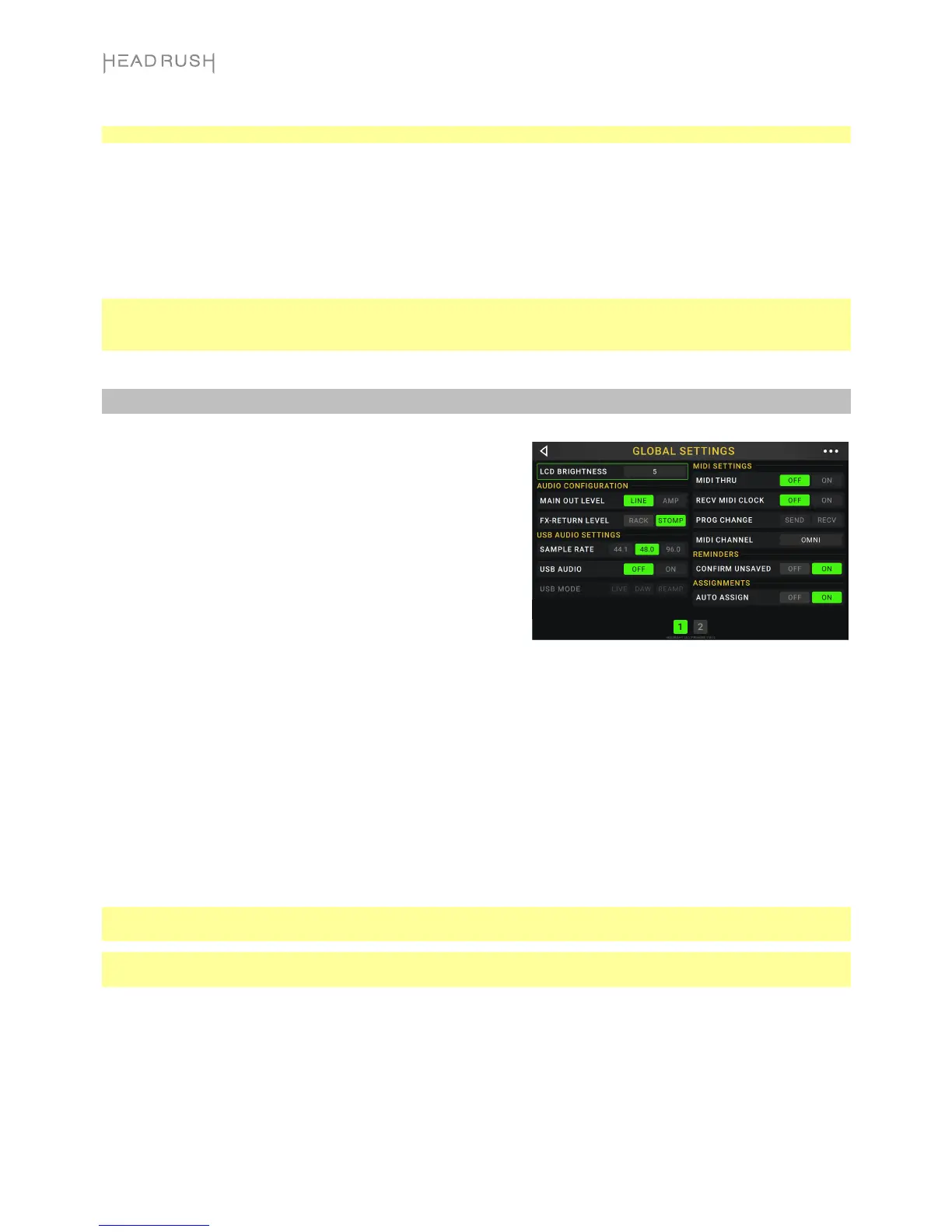
Use the global settings to configure the HeadRush Gigboard’s
overall operation.
To show the global settings, tap the button in the
upper-right corner of the screen, and tap Global Settings.
To select each page of the global settings, tap the
number at the bottom edge of the screen.
LCD Brightness: This setting determines the brightness of the
main display. Tap this field, turn the encoder to select 1 (dim)
through 5 (bright), and then press the encoder.
Audio Configuration:
Main Out Level: This setting determines the signal level sent to the main Outputs (1/4"/6.35 mm, TRS). When
set to Line, the output level will be +18 dBu. Use this setting if you are connecting the HeadRush Gigboard
to a full-range, flat-response amplifier, PA speaker, mixer, or audio interface. When set to Amp, the output
level will be +6 dBu. Use this setting if you are connecting the HeadRush Gigboard to a traditional guitar
amplifier.
FX Return Level: This setting determines the signal level received by the FX Return Input (1/4"/6.35 mm,
TRS). When set to Rack, the output level will be line level, +18 dBu. Use this setting if you are connecting a
rack effects processor in the HeadRush Gigboard's FX-Loop. When set to Stomp, the output level will be
+6 dBu. Use this setting if you are connecting a traditional guitar pedal ("stompbox") in the FX-Loop.
USB Audio Settings:
Note: Please download the full HeadRush Gigboard User Guide at headrushfx.com to learn how to configure
your DAW.
Important note for Windows users: Before connecting the Headrush Gigboard to your computer, download and
install the necessary drivers from headrushfx.com/support.
Sample Rate: This setting determines the sample rate of the USB audio signal: 44.1 kHz, 48.0 kHz or 96.0 kHz.
Remember to select the same sample rate as the one in your DAW. Also, set it before opening your DAW.
USB Audio: This setting determines whether or not HeadRush Gigboard is sending a USB audio signal over a
USB connection. Tap On to enable sending of the USB audio signal with the selected Sample Rate. Tap
Off to disable the USB audio signal. (To change the Sample Rate, set USB Audio to Off first, select the
correct sample rate, set USB Audio to On again, and restart your DAW.)


 To Next Page