9
Saving a Rig
If you have changed the rig at all since loading it, you will see an asterisk () next to its name at the top of the
screen. You can save these changes to this rig, save these changes as another rig, or discard them altogether.
To save a rig, tap Save in the upper-right corner.
To save your changes to the current rig, tap Save.
To save your changes as a new rig, tap Save New Rig, use the
keyboard that appears to enter a name, and then tap Save.
To return to the previous screen without saving, tap Cancel at
any time.
To discard any changes you’ve made to the rig, tap the button in the upper-right corner, and tap Discard
Changes.
Adjusting Settings
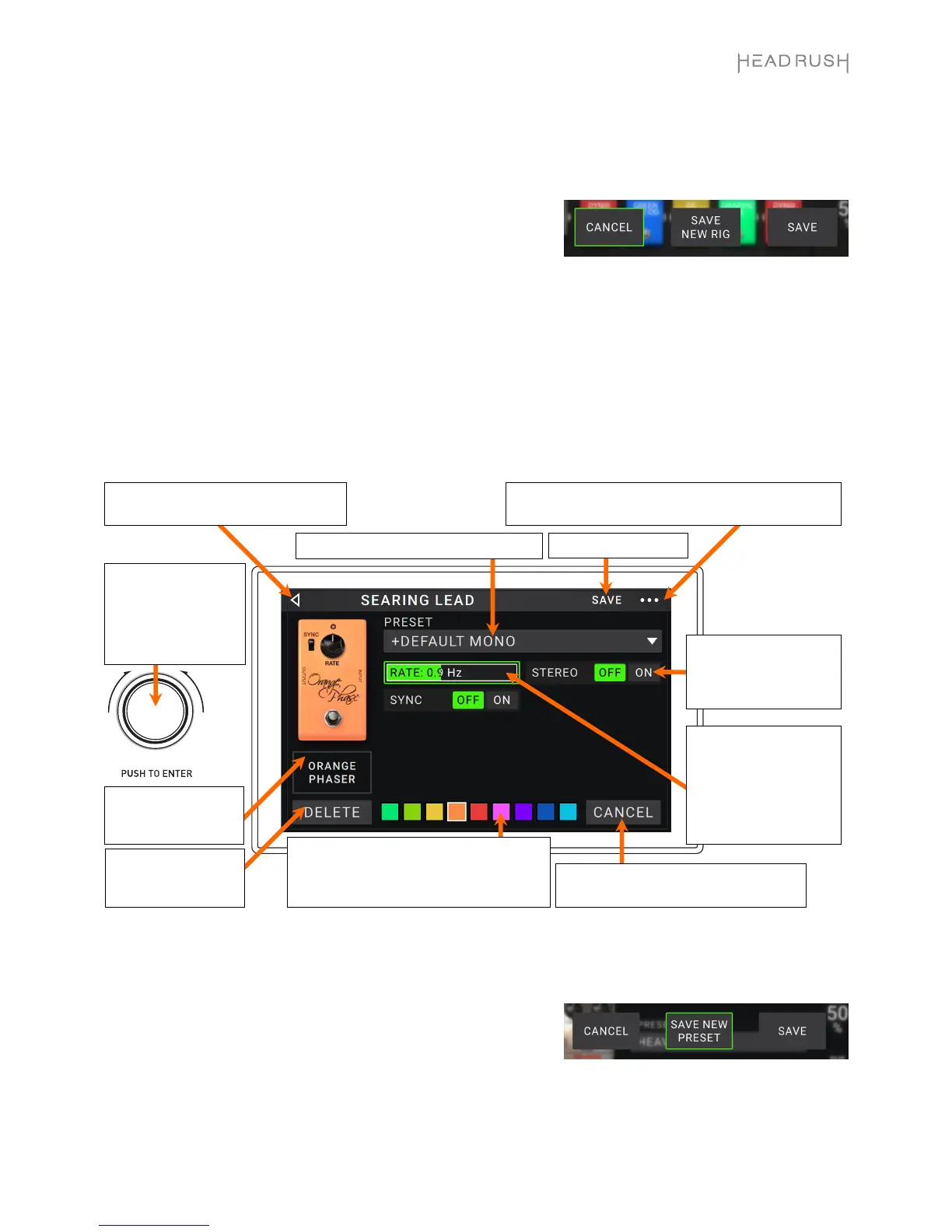
To adjust the settings of a model in your rig, double-tap it to open its settings screen.
Saving a Preset
To save a preset, tap Save in the upper-right corner.
To save your changes to the current preset, tap Save.
To save your changes as a new preset, tap Save New Preset, use
the keyboard that appears to enter a name, and then tap Save.
To return to the previous screen without saving, tap Cancel at
any time.
Tap the Preset menu to select a preset. See Savin
a Preset.
Tap this button and tap Discard Changes to discard
any changes you’ve made since opening this screen.
Tap Delete to
unassign the model
from the slot.
Tap a color to assign it to this model. That
color will be shown on the main screen, in
the Hardware Assign screen, and in the
f


 To Next Page