Using the Hog iPC Configuration Panel
26 Hog iPC Handbook
You can remove, or disable, the monitor’s touch functionality by right clicking on the device in
the touchscreen device selection box and selecting Remove. The touch functions of the
associated touchscreen will cease operation until the touchscreen is detected again using the
Detect Touchscreens button.
Monitor 3
Press the 3rd monitor button to enable an optional DVI or VGA touchscreen or monitor
connected to the DVI port on the back of the console. Select a resolution for the external
monitor from the list to the right of this button. If an Aspen or ELO touchscreen is attached to
the DVI port and its USB is connected, then it will appear in the touchscreen box as device 3.
When a 3rd monitor is enabled in the Hog iPC Configuration Panel for use with Hog 3PC, no
further configuration is required within Hog 3PC.
Note: When using the 3rd monitor with Hog 2PC, it is suggested that you
disable the default positions button in the Start-Up OS tab of the
Hog
iPC Configuration Panel prior to launching Hog 2PC.
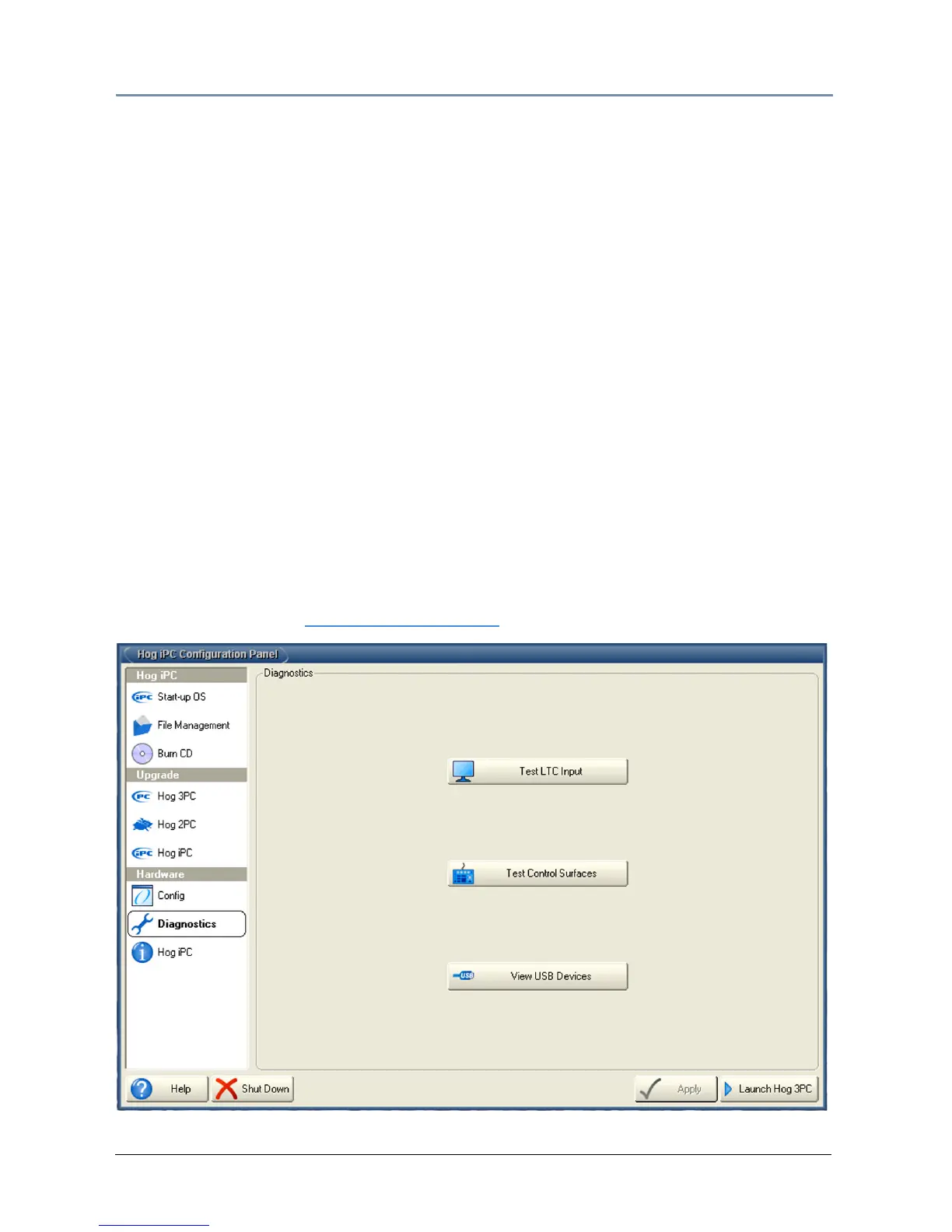
Hardware Diagnostics
Selecting the Diagnostics tab opens a screen with buttons to access diagnostic displays for
several functional categories. These tests are primarily for use by authorized HES technicians.
For further details email
support@flyingpig.com.


 To Next Page