34 T560MANK5.DOCX
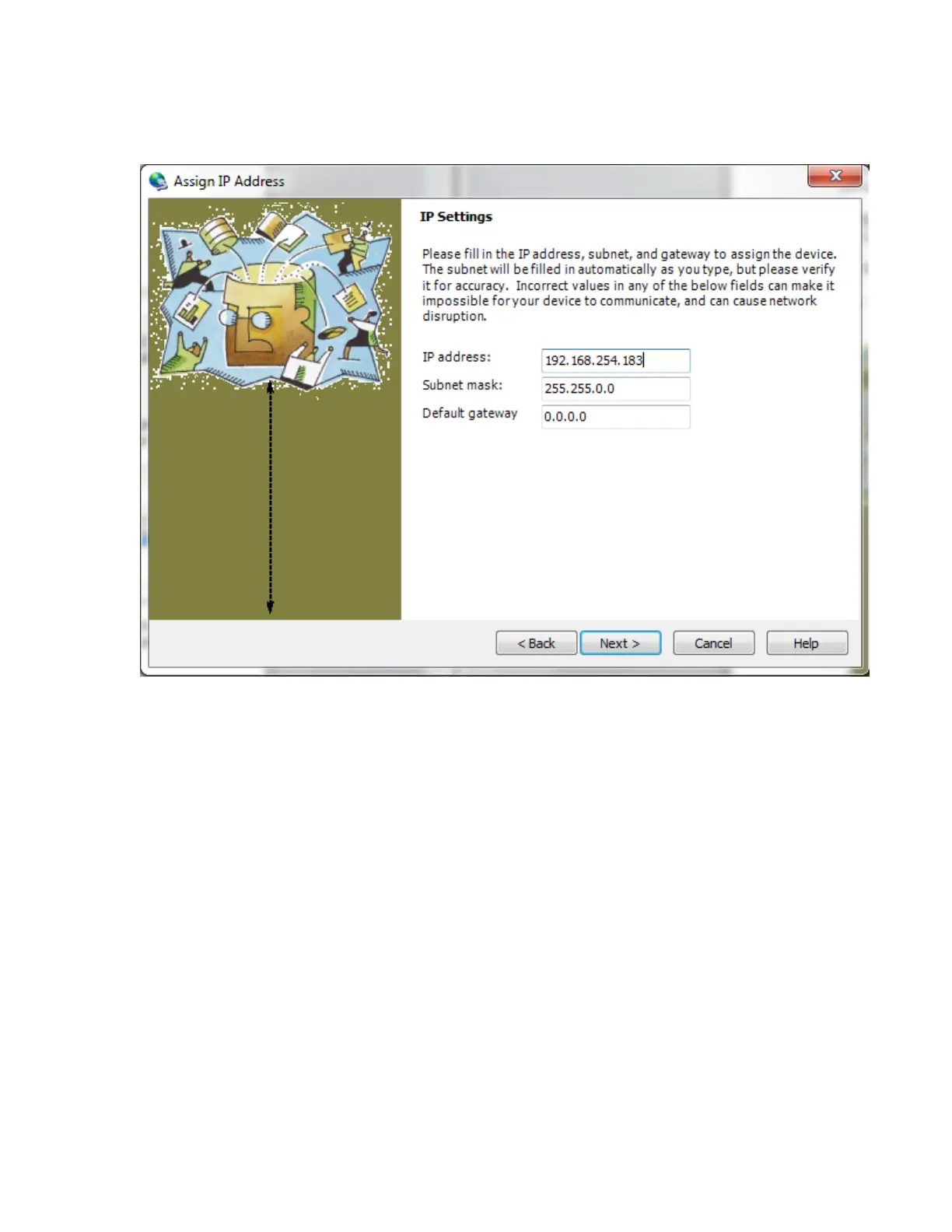
To assign a static IP address, click on the T560, and then click on the Assign IP button.
After clicking the button, the Lantronix DeviceInstaller IP address assignment pane should
appear:
Figure 6-2. IP address assignment pane
Once the IP address has been identified or assigned, a web browser (preferably the web
browser provided by DeviceInstaller) can be used to access the XPort module as a web
page; just type the IP address into the browser’s address bar, after which settings may be
edited. Initially, no user name or password need be entered; simply leave both fields blank
and hit Enter. The web page interface can also be used to change the IP address.
6.3.
Factory XPort Settings
The following images represent the setup in which the XPort in the T560 is shipped.



 To Next Page