14
The configuration of a Google account is essential to use
all the features and services of your Android phone, such
as access to Google Play™, synchronization of contacts
or your calendar. If you don’t have Gmail or any other
Google Account, go ahead and create one.
15
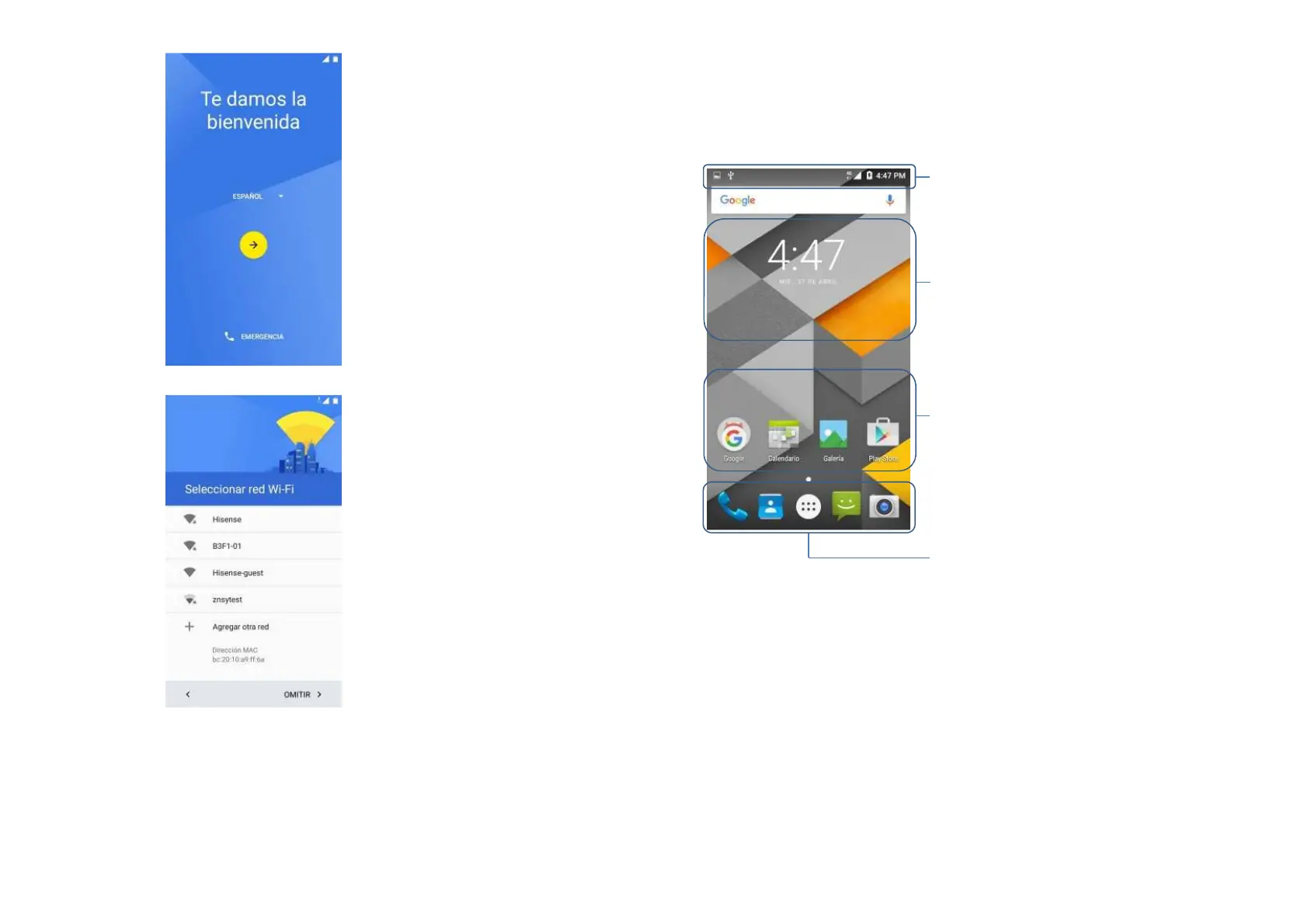
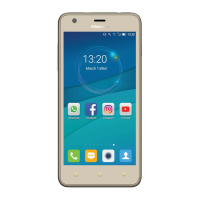
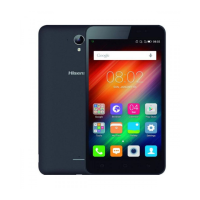
Home screen
Home screen is the starting point for many applications
and functions. It allows you to add items like application
icons to give you quick access to applications.
Notifications panel
Notifications alert you the arrival of new messages,
calendar events, and alarms, as well as ongoing events,
such as when you are on a call.
When a notification arrives, its icon appears at the top of
the screen. Icons for pending notifications appear on the
left, and system icons such as Wi-Fi or battery strength
shown on the right.
Status Bar: Shows phone's status
information including the time,
signal strength, battery status, and
Widget: Widgets are
self-contained applications that
can be accessed on the Home
screen or an extended home
screen. Unlike a shortcut, the
Widget appears as an on-screen
application.
icon (application, folder, etc.) to
open and use it.
Quick Key Area: Provides
one-touch access to the
function in any home screen
canvas.


 To Next Page