19
Locking the screen orientation
For optimal viewing e
xperience, the screen orientation changes automatically to portrait or
landscape format depending on how you hold the tablet. You can disable automatic screen
rotation and lock the screen in portrait or landscape mode.
Note: Some apps may not support automatic screen rotation and are designed to work only
in one orientation.
1. Change the screen to the desired orientation.
2. Touch Action Center button in the notification area to access the Action Center.
3. Touch Rotation lock icon to lock or unlock screen rotation.
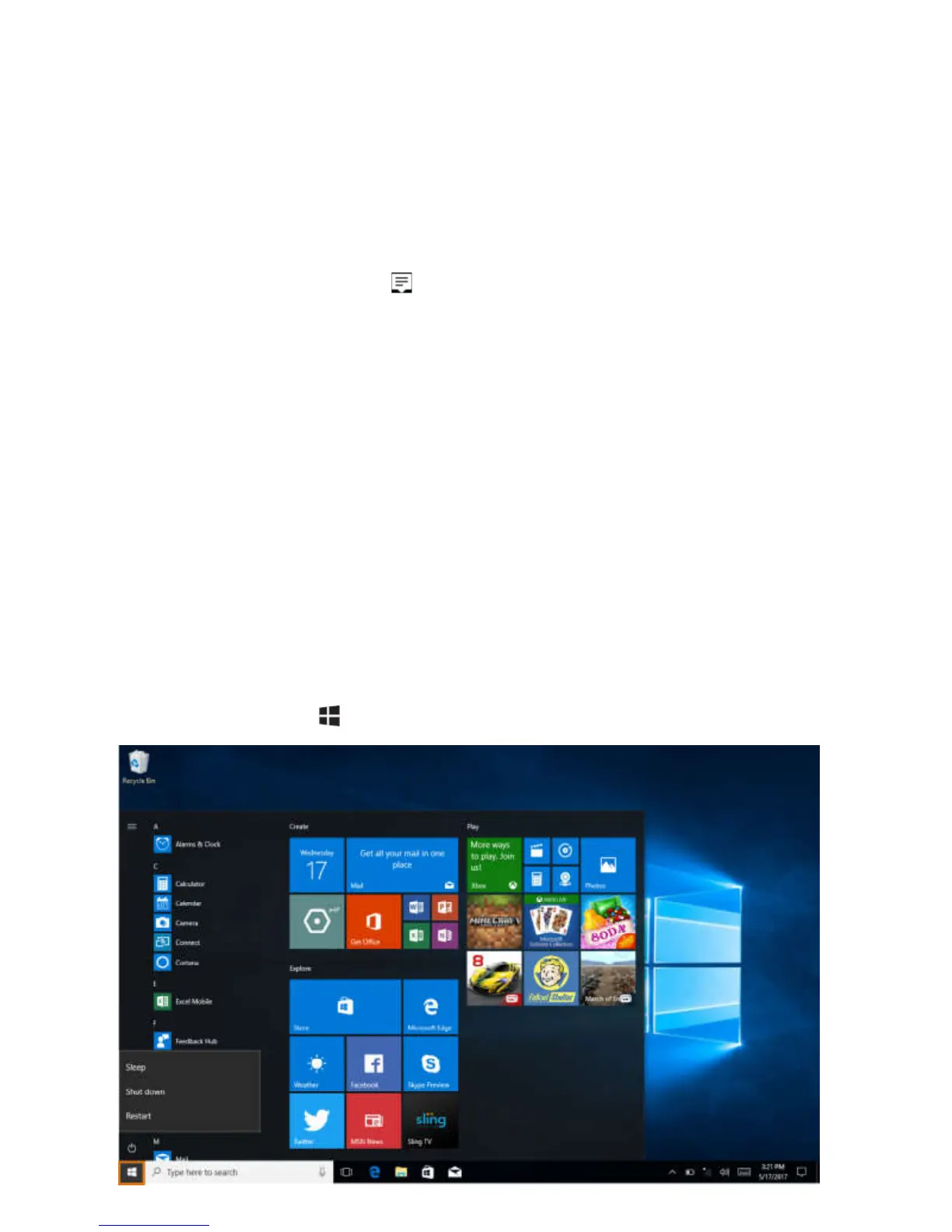
Windows 10 Start Screen
The Windows
10 Start screen displays a list of default and custom Live Tiles, which act as a
shortcut to Mail, Microsoft Edge, Weather app, Calendar, Windows Store, and other installed
apps.
Live Tiles on your Start screen change and update in real time to show news and sports up-
dates, weather updates, social-networking feeds, and so on.
The tile
-based user interface gives you direct access to your most recently used apps, emails,
photos, music, videos, contacts, updates from social-networking sites, and frequently viewed
websites. You can pin your favorite apps as tiles to customize the Start screen.
You also can personalize the Start screen by setting your favorite picture as the wallpaper.
Accessing the Start screen
When your
computer boots into Windows, the Start screen appears by default. To access the
start screen from any other window or app, use any of the following methods:
1. Touch the Sta
rt button
in the lower left corner of th
e screen.
18



 To Next Page