15Making Connections
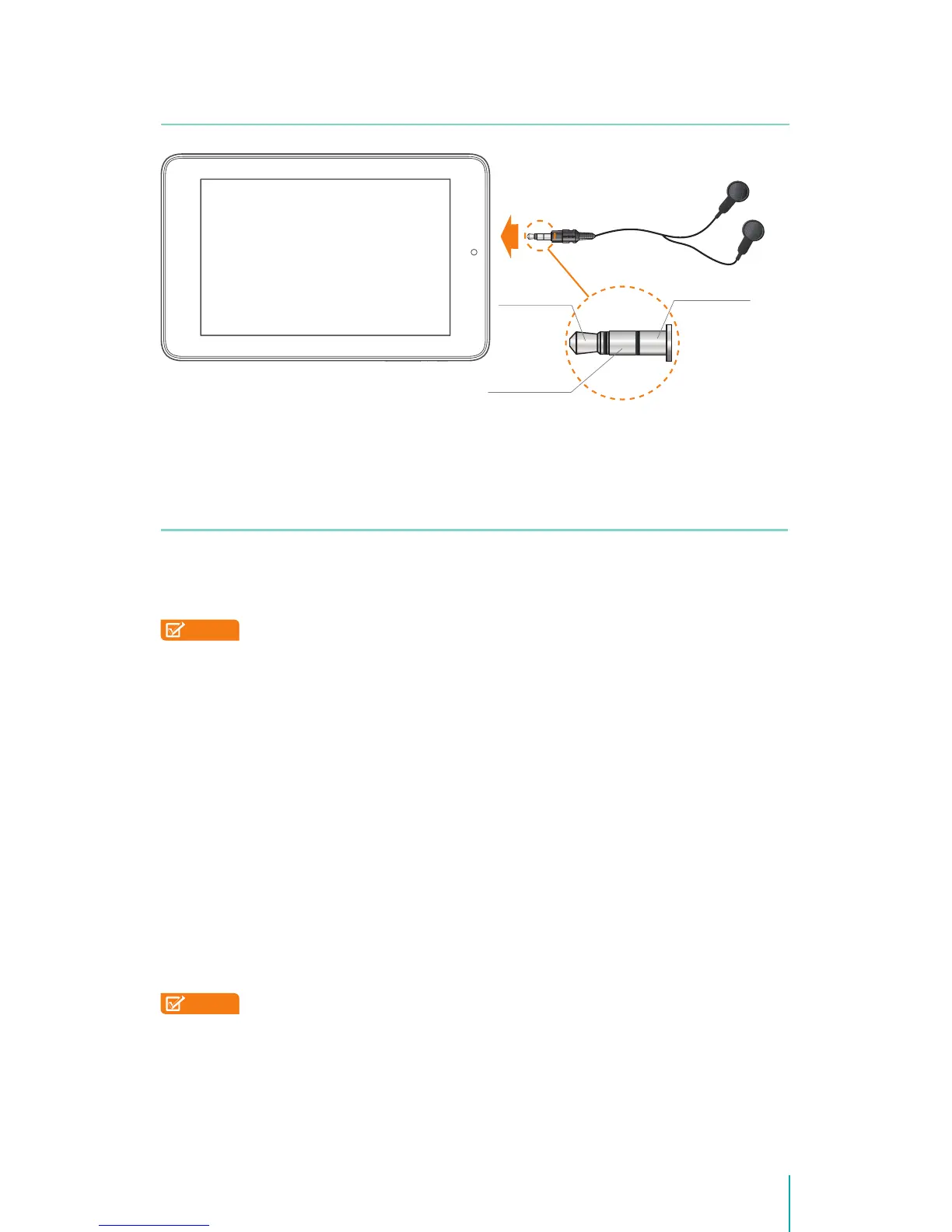
Headphone
Headphones can be connected to the Sero 8’s headphone port. For more
information about headphones, see Important Safety Instructions on page 41.
Wi-Fi
You can connect to a wireless access point, or hotspot to use Wi-Fi. Some
hotspots are open and you can simply connect to them. Others implement
security features that require other steps to set up.
NOTES
• To extend the life of your battery between charges, turn off Wi-Fi
when you’re not using it.
• The Wi-Fi function and the Bluetooth function can simultaneous
operation, but can not simultaneous transmit.
Connect to a Wi-Fi Network
If you’re adding a Wi-Fi network when first setting up your device, Wi-Fi is
turned on automatically.
1. Press and drag Quick Settings, tap Wi-Fi icon, or go to Settings > WIRELESS
& NETWORKS > Wi-Fi.
2. Slide the Wi-Fi switch to the ON position. The device scans for available Wi-
Fi networks and displays the names of those it finds. If the device finds a
network that you connected to previously, it connects to it.
3 Tap a network name to see more details or connect to it, and enter a
password if necessary.
NOTE
To modify a network’s settings, press & hold the network name.
Add a Wi-Fi Network
You can add a Wi-Fi network so your device will remember it, along with any
security credentials, and connect to it automatically when it’s in range. You
must also add a Wi-Fi network if the network does not broadcast its name
(SSID), or to add a Wi-Fi network when you are out of range.
Audio left
Audio right
Grounded


 To Next Page