28
Repeat playback (DVD/VCD)
1
Press PLAY MODE during playback or stop
mode.
2
Press ENTER
repeatedly to
select “Chapter”
or “Title”.
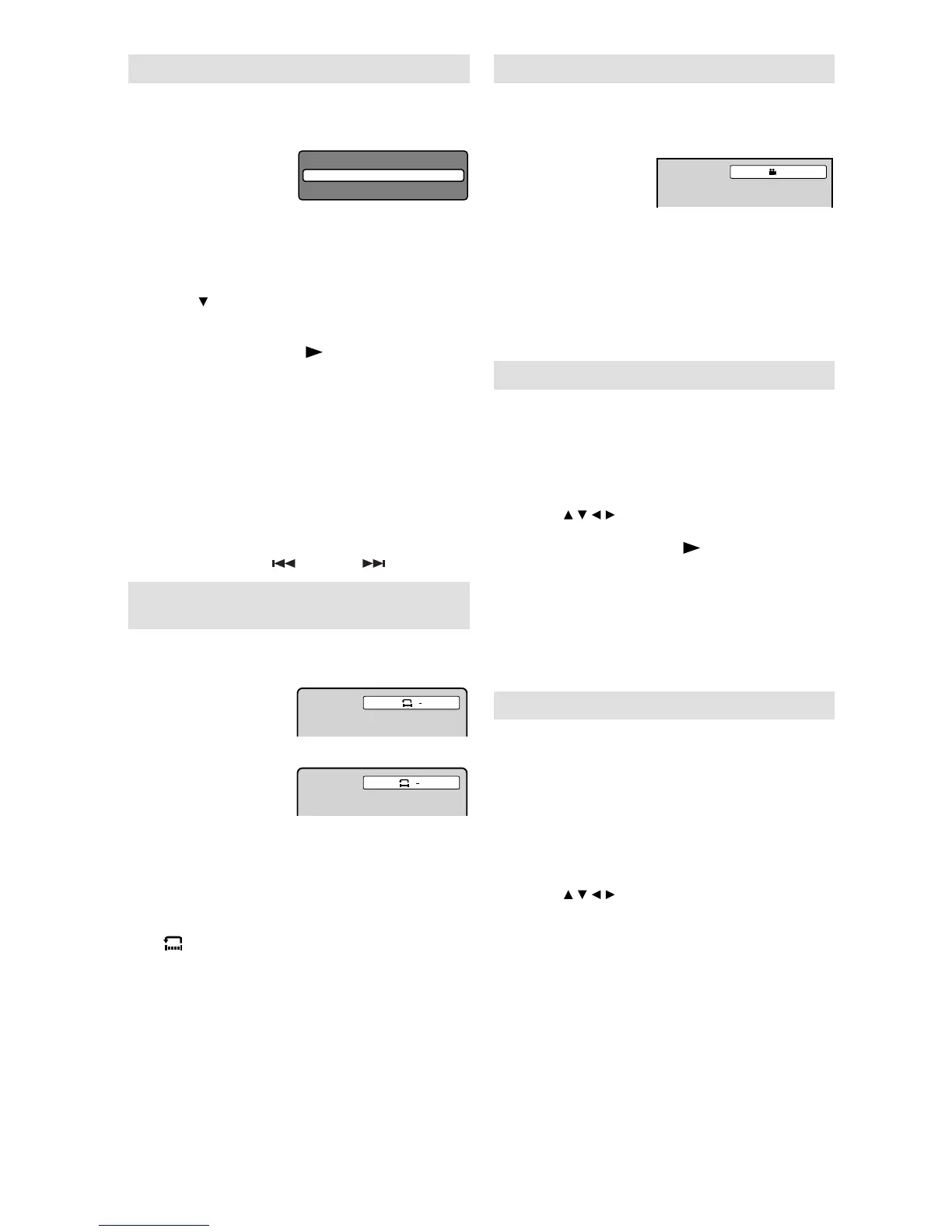
Play Mode
Repeat : Off
The unit automatically starts repeat playback
after fi nishing the current title or chapter.
[Video CD]
Press to select “Repeat”.
Press ENTER to select “Track” or “All”.
If you set the repeat mode during stop
mode, press PLAY (
) to start Repeat
playback.
•
3
Press PLAY MODE again to clear the screen.
To resume normal playback
Select Repeat : “Off” in step 2.
Note:
Some discs may not work with the repeat
operation.
In case of Video CD with PBC, Repeat functions
are prohibited during playback.
Chapter/Track repeat function is cancelled
whenever SKIP (
) or SKIP ( ) is pressed.
•
•
•
A-B Repeat playback (DVD/VCD/
Audio CD)
A-B repeat playback allows you to repeat selection
between two selected points.
1
Press REPEAT A-
B during playback.
The start point is
selected.
A
2
Press REPEAT
A-B again.
AB
The end point is selected. Playback starts
at the point that you selected. Playback
stops at the end point and returns to Point A
automatically, then starts again.
To resume normal playback
Press REPEAT A-B again.
“
Off
” appears on the screen.
Note:
In A-B Repeat mode, subtitles near the A or B
locations may not be displayed.
You may not be able to set A-B Repeat for the
scenes that include multiple angles.
A-B Repeat playback does not work when Repeat
playback is activated.
You may not be able to set A-B Repeat during
certain scenes of the DVD.
•
•
•
•
Changing angles (DVD)
When playing back a disc recorded with multi-
angle facility, you can change the angle that you
are viewing the scene from.
1
Press ANGLE
during playback.
The current angle
will appear.
1/2
2
Press ANGLE repeatedly until the desired
angle is selected.
Note:
Depending on the DVD, you may not be
able to change the angles even if multi-
angles are recorded on the DVD.
•
Title selection (DVD)
Two or more titles are recorded on some discs.
If the title menu is recorded on the disc, you can
select the desired title.
1
Press TOP MENU during playback.
Title menu appears on the screen.
2
Press / / / to select the desired title.
3
Press ENTER or PLAY ( ).
The playback of the selected title will start.
Note:
Some DVDs allow you to select the disc contents
using the menu.
When you playback these DVDs, you can select
the subtitle language and soundtrack language,
etc. using the menu.
•
DVD menu (DVD)
Two or more titles are recorded on some discs.
If the title menu is recorded on the disc, you can
select the desired title.
1
Press DVD MENU during playback.
The DVD menu appears on the screen.
Press DVD MENU again to resume
playback at the scene when you pressed
DVD MENU.
•
2
Press / / / to select the desired item.
3
Press ENTER.
The menu continues to another screen.
Repeat steps 2 and 3 to set the item
completely.
Note:
Depending on the DVD, you may not be able to
resume playback from the scene point when you
press DVD MENU.
•



 To Next Page