32
Repeat playback (Audio CD/MP3/
WMA/JPEG)
1
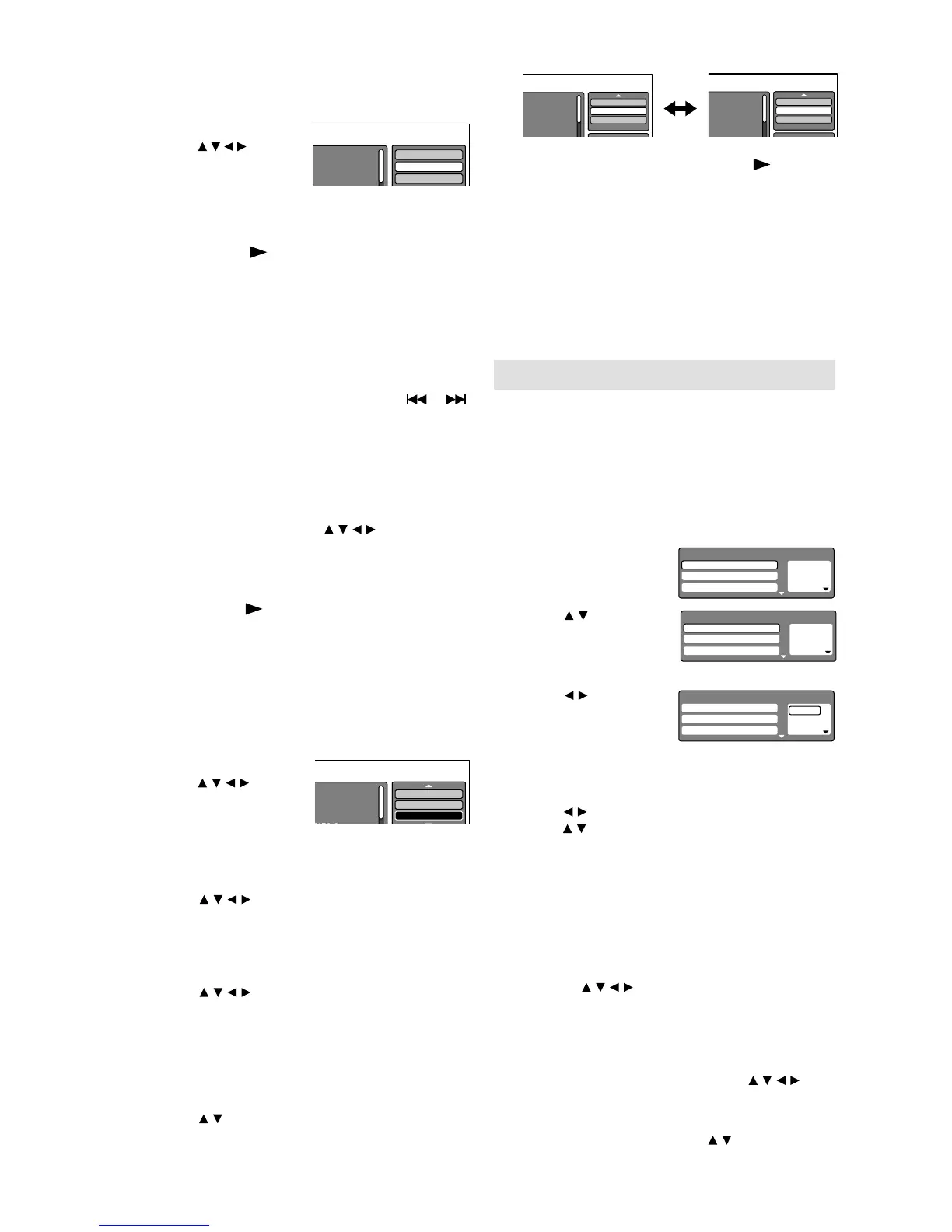
In the fi le browser,
press
/// to select
“Repeat” during stop
mode.
Folder-1
Folder-2
MP3-1
Select Files
Repeat :Off
Mode :Off
2
Press ENTER repeatedly to select “Track” or
“All”.
3
Press PLAY ( ).
The unit automatically starts repeat playback
after fi nishing the current track.
To resume normal playback
Select Repeat : “Off” in step 2.
Note:
The repeat or random function is cancelled when you
eject the disc or turn the power off.
The track repeat function is cancelled when
or
is pressed.
In case of Audio CD, the function of A-B Repeat also
can be used. See “A-B Repeat playback” (See page 28).
•
•
•
Random playback (Audio CD/MP3/
WMA/JPEG)
1
In the fi le browser, press /// to select
“Mode” during stop mode.
2
Press ENTER to select “Random”.
3
Press PLAY ( ).
The Random playback will start.
To resume normal playback
Select Mode : “Off” in step 2.
Program playback (Audio CD/MP3/
WMA/JPEG)
1
In the fi le browser,
press
/ / / to select
“Edit Mode”, then
press ENTER.
Folder-1
Folder-2
MP3-1
Repeat :Off
Mode :Off
Edit Mode
When “Edit Mode” is black color, you can
mark the fi les which you want to add into
Program list.
2
Press /// to select the fi le you want to
add into the program list.
Press ENTER. Selected fi le was marked.
Repeat this procedure to select the other fi les.
3
Press / // to select “Add To Program”.
Then press ENTER. All marked fi les are added
into the program list.
When you fi nish storing the fi les you want into
the Program list, select “Edit Mode” again and
press ENTER to release edit mode.
4
Press / to select “Program View”, then
press ENTER. Program View shows only the
programed fi les that you have added in Step 2
and 3.
Browser View Program View
Folder-1
Folder-2
MP3-1
MP3-2
Edit Mode
Browser View
Clear Program
5
In the Program View, press PLAY ( ). The
fi les start to playback in programmed order
that were added by you.
To remove fi le from program list in stop mode
In the Edit Mode, switch to Program View. Select
the fi les you want to remove, then press ENTER.
Select “Clear Program” and press ENTER. Marked
fi le is removed from program list.
Note:
The program function is canceled when you eject the
disc or turn the power off.
•
Program playback
You can arrange the playback order of tracks
or fi les on the disc. And the unit can also select
tracks or fi les at random and playback them.
These feature works for Video CD.
For Audio CD and MP3/WMA/JPEG CD, please
see “Random playback (Audio CD/MP3/WMA/
JPEG)” and “Program playback (Audio CD/
MP3/WMA/JPEG)”.
1
Press PLAY MODE
during stop mode.
1 – – –
2 – – –
3 – – –
Play Mode
Repeat : Off
Program Playback
Mode : Off
2
Press / to select
“Mode”, then press
ENTER to select
“Program”.
1 – – –
2 – – –
3 – – –
Play Mode
Repeat : Off
Program Playback
Mode : Program
3
Press / to select the
programming position.
Use Number buttons
(0–9) to input the
1 9
2 – – –
3 – – –
Play Mode
Repeat : Off
Program Playback
Mode : Program
track numbers on sequentially.
If you input a wrong number, press CANCEL.
•
4
Press / to return to the left column, then
press
/ to select the “Program Playback”
and press ENTER.
The programs you selected will start to
playback in order.
To resume normal playback, select Mode
“Off” in step 2.
•
To change the program
Select Mode to “Program” (as step 2),
press
/ / / to select the track number
you want to change, then press CANCEL.
Press Number buttons (0–9) to overwrite
the new track number.
To clear the program one by one
Select Mode to “Program”, press / /
/ to
select the track number. Then press CANCEL.
To clear all the programs
In the above column, press / to select
“Clear Program”. Then press ENTER.
1.
2.



 To Next Page