English - 20 -
name, start-end time and date, genre of the highlighted
event and a brief information about it will be displayed
on the bottom of the screen.
Press Blue
the desired type quicker. Press Yellow button to see
detailed information on the highlighted event. You
can also use Red and Green buttons to see events
of previous day and next day. The functions will be
assigned to the coloured buttons on the remote when
they are available. Follow the on-screen information
for accurate button functions.
The guide can not be displayed if TV input source
is blocked from the Settings>Channel>Parental
Controls>Inputs Blocked menu in Live TV mode or
on Home Screen.
Connecting to the Internet
You can access the Internet via your TV, by connecting
the network settings in order to enjoy a variety of
streaming content and internet applications. These
Settings>Network &
Internet menu. You can also highlight the Connected/
Not Connected icon on the Home screen and press OK
to access this menu. For further information refer to
Network & Internet section under the title of Settings.
Wired Connection
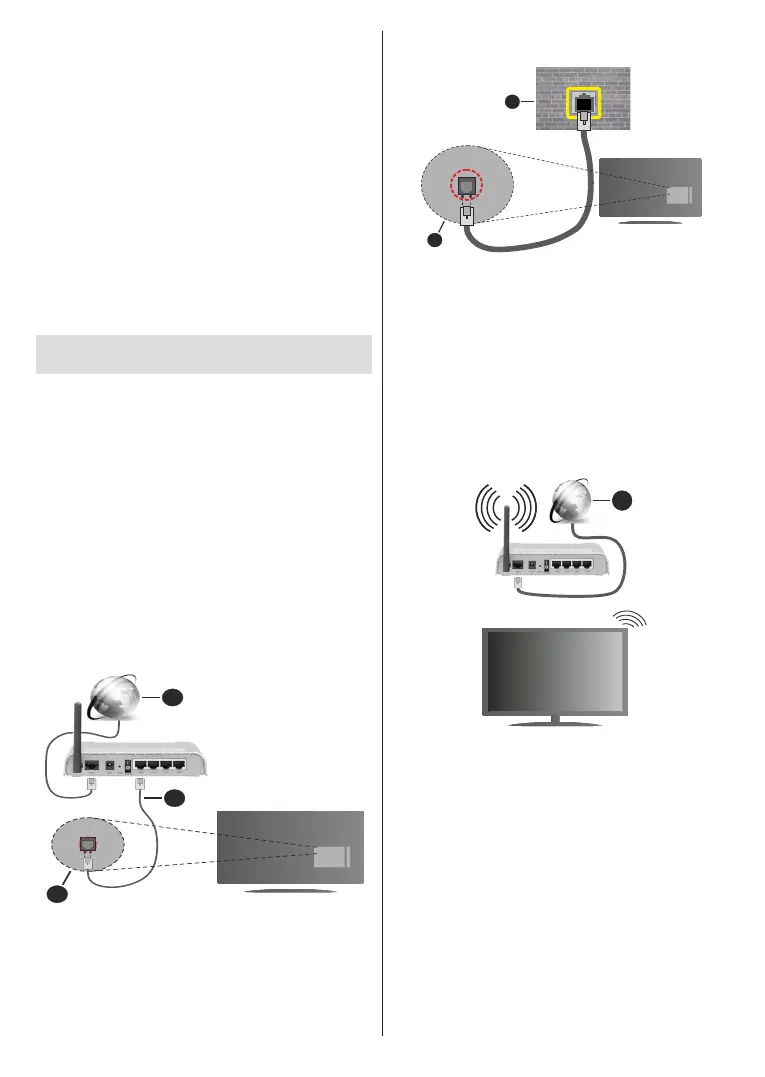
Connect your TV to your modem/router via an Ethernet
cable. There is a LAN port on the rear side of your TV.
The status of the connection under the Ethernet
section in the Network & Internet menu will changed
from Not connected to Connected.
1. Broadband ISP connection
2. LAN (Ethernet) cable
3. LAN input on the rear side of the TV
You might be able to connect your TV to a network
In that case, you can connect your TV directly to the
network using an Ethernet cable.
1. Network wall socket
2. LAN input on the rear side of the TV
Wireless Connection
A wireless LAN modem/router is required to connect
the TV to the Internet via wireless LAN.
Highlight Wi-Fi option in the Network & Internet
menu and press OK to enable wireless connection.
Available networks will be listed. For more information
refer to Network & Internet>Wi-Fi section under the
title of Settings.
1
1. Broadband ISP connection
A network with hidden SSID can not be detected by
other devices. If you want to connect to a network with
hidden SSID, highlight the Add new network option
under the Settings>Network & Internet menu on
the Home Screen and press OK. Add the network by
entering its name manually using the related option.
A Wireless-N router (IEEE 802.11a/b/g/n/ac) with
simultaneous 2.4 and 5 GHz bands is designed to
increase bandwidth. These are optimized for smoother
wireless gaming.
Use a LAN connection for quicker data transfer
between other devices like computers.
distance and number of obstructions between the


 To Next Page