EasyManua.ls Logo

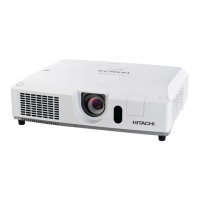
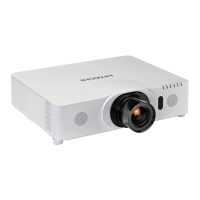
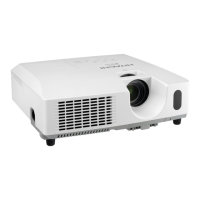
Hitachi CP-WX4021N - User Manual

Hitachi CP-WX4021N
37 pages
Print Icon
To Next Page IconTo Next Page
Loading...
1
Projector
CP-X4021N/CP-X5021N
CP-WX4021N
User's Manual (detailed)
Instant Stack Guide
Thank you for purchasing this product.
This manual is intended to explain only Instant Stack feature. Other than what is
mentioned in this manual, please see other manuals of this product.
WARNING ►Before using this product, be sure to read all manuals for this
product. After reading them, store them in a safe place for future reference.
►Follow all the instructions in the manuals or on the product. The manufacturer
assumes no responsibility for any damage caused by mishandling that is beyond
normal usage dened in the manuals.
NOTE • The information in this manual is subject to change without notice.
• The manufacturer assumes no responsibility for any errors that may appear in
this manual.
• The reproduction, transfer or copy of all or any part of this document is not
permitted without express written consent.
Trademark acknowledgment
All the trademarks in this manual are the properties of their respective owners.
Features
This projector can be used with one more same type projector to make one image
on one screen with Instant Stack feature.
The two projectors can work simultaneously to make the image brighter.
Moreover, if you connect two projectors with RS-232C cross-over cable, it turns to
a kind of intellectual stacking system. The two projectors can work alternately by
themselves, and once one projector has an accident the other voluntarily starts to
work to keep your presentation going.
These features, generically called Instant Stack, provide you with the broad use.


Table of Contents

Other manuals for Hitachi CP-WX4021N

Questions and Answers

  • N
    nrodriguezAug 10, 2025
    How to adjust overlapping images on Hitachi Projector?
    • J
      James WolfeAug 10, 2025
      If images from your Hitachi Projector are not overlapping correctly or appear defocused, adjust the ZOOM ring, VERTICAL adjuster, HORIZONTAL adjuster, and FOCUS ring to superimpose them accurately. If needed, fine-tune using PERFECT FIT and KEYSTONE settings.
  • C
    Cassandra HendersonAug 15, 2025
    How to fix Hitachi CP-WX4021N Intellectual Stack if it does not work?
    • D
      Debra LopezAug 15, 2025
      To resolve an inoperative Intellectual Stack on your Hitachi Projector, ensure that both the Main and Sub projectors are properly connected to AC power. Verify that the RS-232C cable connects the Main and Sub projectors correctly. Also, confirm that the STACK MODE is set to MAIN on one projector and SUB on the other via the STACK menu. Finally, check all signal cable connections and ensure they match the port settings in the menu.
  • M
    Miranda HowardAug 21, 2025
    How to fix Hitachi CP-WX4021N Projector images not overlapping properly?
    • J
      Jerry JonesAug 22, 2025
      If the images from your Hitachi Projector are not overlapping correctly or appear defocused, adjust the ZOOM ring, VERTICAL adjuster, HORIZONTAL adjuster, and FOCUS ring to superimpose them. If needed, fine-tune with PERFECT FIT and KEYSTONE adjustments.
  • R
    Robert RodriguezAug 27, 2025
    How to troubleshoot Hitachi CP-WX4021N Projector Intellectual Stack not working?
    • L
      Lisa VegaAug 28, 2025
      If the Intellectual Stack feature isn't working on your Hitachi Projector, check the following: ensure both Main and Sub projectors are connected to AC power. Verify the RS-232C cable is correctly connected between the Main and Sub projectors. Confirm the STACK MODE is set to MAIN on one projector and SUB on the other via the STACK menu. Ensure all signal cables are properly connected and that the cable connections match the port settings in the menu. To use Intellectual Stack feature, supply Main and Sub projectors with AC power. To use Intellectual Stack, connect Main and Sub projectors with RS-232C cross cable.
  • C
    Christopher CohenSep 2, 2025
    How to enable Hitachi CP-WX4021N STACK menu?
    • J
      John StaffordSep 2, 2025
      To operate the STACK menu on your Hitachi Projector, verify these settings on both Main and Sub projectors: Set STANDBY MODE in the SETUP menu to NORMAL. Ensure COMMUNICATION TYPE in COMMUNICATION within the SERVICE menu is set to OFF. Confirm that STACK LOCK in the SECURITY menu is set to OFF.

Summary

Projector Introduction and Safety

Essential Safety Instructions

Crucial safety guidelines for using the projector, especially with the Instant Stack feature.

Projector Installation Procedures

Installing the First Projector (Set A)

Detailed steps for installing the primary projector, including physical setup and initial adjustments.

Setting Up Projector A

Configuration steps for the first projector, including lens, image, and menu settings.

Installing the Second Projector (Set B)

Steps for installing the secondary projector and connecting it to the first for stacking.

Setting Up Projector B

Configuration steps for the second projector to match the first for image superimposition.

Fine Image Position Adjustment

Detailed procedures for precisely aligning images from multiple projectors using various adjustment tools.

STACK Menu Configuration

Assigning Projector Roles

Setting projector roles as Main, Sub, or Off within the STACK menu for Intellectual Stack.

Selecting Lamp Working Modes

Configuring lamp operation modes (DUAL or ALTERNATE) for the projectors.

Important Information for Intellectual Stack

Key operational notes, restrictions, and error handling guidelines for the Intellectual Stack feature.

Cable Connections for Stacking

Sub Input from Main Projector

Routing video signals from the Main projector's MONITOR OUT to the Sub projector.

Input Port Configuration

Troubleshooting Projector Issues

Hitachi CP-WX4021N Specifications

General IconGeneral
ResolutionWXGA (1280 x 800)
Contrast Ratio2000:1
Throw Ratio1.5 - 1.8:1
Zoom Ratio1.2x
Display Technology3LCD
Aspect Ratio16:10
Brightness4000 ANSI Lumens
ConnectivityHDMI, VGA, USB, RS-232
Projection Size30 - 300 inches
Output ConnectorsAudio Out, HDMI, VGA
Noise Level37 dB (Normal mode), 29 dB (Eco mode)
Projection LensManual zoom/focus
Lamp TypeUHB

Related product manuals