EasyManua.ls Logo

Hitachi DZ-MV550A - User Manual

Hitachi DZ-MV550A
187 pages
Print Icon
To Next Page IconTo Next Page
Loading...
English
DZ-MV550A
DZ-MV580A
HITACHI AMERICA, LTD.
HOME ELECTRONICS DIVISION
900 Hitachi Way
Chula Vista, CA 91914-3556
Service Hotline: 1-800-HITACHI
(1-800-448-2244)
HITACHI CANADA LTD.
DIGITAL MEDIA DIVISION
2495 Meadowpine Blvd.
Mississauga, Ontario L5N 6C3
CANADA
Service Direct: 1-800-HITACHI
(1-800-448-2244)
QR35303 ©Hitachi, Ltd. 2004 Printed in Japan OS-H(I)
Instruction Manual
DZ-MV550A DZ-MV580A
This manual was printed
with soy based ink.
Printed on recycled paper
DVDCAM PC Software Support Center
URL http://dvdcam-pc.support.hitachi.ca/
Thank you for buying a Hitachi product. Please take time to become familiar with the manual and how it
is set up. Keep it handy for future reference.
Be sure to read page 187 before unpacking the provided CD-ROM.
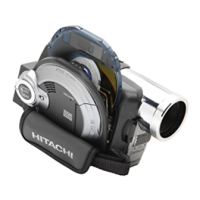
The illustration of DZ-MV550A is shown on the front cover of this instruction
manual. The method for operating the DZ-MV550A is the same as that for
DZ-MV580A.

Table of Contents

Questions and Answers

  • K
    Kelsey JonesAug 20, 2025
    Why won't my Hitachi Camcorder battery charge?
    • R
      Rebecca NelsonAug 20, 2025
      Your Hitachi Camcorder battery might not be charging due to several reasons. The ambient temperature could be too low or too high; charge the battery at 50-86°F (10-30°C). Alternatively, the battery might be abnormally hot; remove it and let it cool down before charging. Ensure the DC power cord isn't connected to the AC adapter/charger, unplug it if it is. Finally, if the battery has been unused for a long time, remove and reattach it; if it still doesn't charge, it may be dead, and you might need a new one.
  • R
    Randy WelchAug 22, 2025
    What to do if my Hitachi Camcorder power turns off immediately after being turned on?
    • B
      Brad RogersAug 22, 2025
      If your Hitachi Camcorder turns off immediately after being turned on, it is likely that the battery is not charged. Charge the battery.
  • D
    Dana AguilarAug 25, 2025
    Why does my Hitachi DZ-MV550A Camcorder battery weaken so fast?
    • E
      Elizabeth CarlsonAug 25, 2025
      If your Hitachi Camcorder battery weakens quickly, especially in low temperatures, consider keeping extra batteries on hand. The battery may also be dead, in which case you should purchase a new one.
  • C
    Chelsea DominguezAug 26, 2025
    Why is the CHARGE indicator blinking on my Hitachi DZ-MV550A Camcorder AC adapter?
    • R
      Richard CastilloAug 26, 2025
      If the CHARGE indicator on the AC adapter of your Hitachi Camcorder is blinking, the ambient temperature might be too low or too high. Charge the battery in an environment where the temperature is 50-86°F (10-30°C). The battery may have also discharged excessively; continue charging, and the indicator should light up after a while.
  • K
    Kylie GrayAug 27, 2025
    How to fix no sound on Hitachi Camcorder?
    • S
      sophiamorrisAug 28, 2025
      If there is no sound on your Hitachi Camcorder, make sure that the TV volume control is properly adjusted. Adjust the TV volume and ensure it is set appropriately.
  • J
    John ThomasAug 29, 2025
    Why no playback picture appears on TV screen from Hitachi DZ-MV550A Camcorder?
    • R
      rebeccasheltonAug 30, 2025
      If no playback picture appears on the TV screen from your Hitachi Camcorder, check that the TV input selector is correctly set to match the connected jacks. Also, verify that the Camcorder is correctly connected to the TV.
  • F
    fsandersAug 31, 2025
    How to correct the focus on a Hitachi Camcorder?
    • J
      Jacob BlanchardAug 31, 2025
      If the focus is not correct on your Hitachi Camcorder, try these steps: If it’s difficult to use auto focus, focus manually. If “MF” appears, focus the subject manually or release manual focus. If you're using the viewfinder, adjust the diopter control.
  • L
    Lisa AverySep 2, 2025
    How to improve LCD screen visibility on Hitachi DZ-MV550A?
    • M
      Maurice WardSep 2, 2025
      If the LCD screen on your Hitachi Camcorder is hard to see, especially outdoors, try these solutions: Stop recording and adjust the brightness of the LCD screen. If outdoors, use the viewfinder or adjust the LCD monitor's angle to avoid direct sunlight.
  • D
    Dennis TaylorSep 4, 2025
    Why does my Hitachi DZ-MV550A Camcorder recording start and stop immediately?
    • T
      Travis SanfordSep 4, 2025
      If your Hitachi Camcorder recording starts but stops immediately, the disc may be scratched or have dirt or fingerprints on it. Clean the disc, and if there's still no improvement, replace it. Also, if another AV device is connected, reduce the number of devices through which the video signal is transmitted, or connect the AV device directly. Note that some video games or PCs cannot be recorded on the camcorder.
  • A
    Ashley SaundersSep 6, 2025
    What to do if disc cannot be removed from Hitachi DZ-MV550A?
    • J
      Jody BellSep 6, 2025
      If the disc cannot be removed from your Hitachi Camcorder, connect the battery or AC adapter/charger, set the power switch to “O VIDEO” and then to “POWER OFF”, and then try removing the disc.

Summary

Important Information

For Your Safety

Provides essential safety guidelines for operating the DVD video camera/recorder.

Precautions

Lists important operational precautions to ensure proper use and avoid issues.

IMPORTANT SAFEGUARDS

Cautions When Using

Handling the LCD and Viewfinder

Provides guidelines for safely handling the delicate LCD screen and viewfinder.

Read This First

Manual Structure and Navigation

Explains the manual's structure, including chapter outlines and how to find information.

Checking Provided Accessories

Names of Parts

External Camera Components

Identifies external components of the DVD video camera/recorder, labeled with numbers.

Try to Record and Play Back using Disc (Video and Photo)

Connecting Power and Inserting Disc

Step-by-step guide on connecting the power supply and inserting a disc into the camera.

Discs and Cards

Media Compatibility and Functions

Details which functions are available for DVD-RAM, DVD-R, and SD cards.

Setups

Setting Up the DVD Video Camera;Recorder

Covers initial setup procedures like holding the device and attaching straps.

Inserting and Removing Disc

Inserting a Disc

Step-by-step instructions for correctly inserting a disc into the camera's disc guide.

Basic Techniques

Recording Movie

Explains the process of recording video footage onto discs or cards.

Playing Back

Basic Playback Operation

Guides on how to start and stop playback of recorded video and stills.

Disc Navigation

Starting or Terminating Disc Navigation

Explains how to access and exit the Disc Navigation mode.

Manually Focusing Subject

Focusing During Recording

Details how to switch to and use manual focus for subjects that may not autofocus correctly.

Adjusting Color (White Balance)

Setting White Balance Manually

Explains how to manually set the white balance for accurate color reproduction under different lighting.

Connecting to PC

Available PC Operations

Lists operations possible when connecting the camera to a PC, including using software.

Uninstalling Software

Uninstalling USB Driver

Provides steps to uninstall the USB driver for Windows 98/Me and Windows 2000/XP.

Troubleshooting

Power Supplies Issues

Addresses common problems related to battery charging, weakening, and power supply indicators.

System Reset

Major Specifications

CCD and Lens Specifications

Details CCD sensor specifications, lens parameters, and filter diameter.

Recording Performance Specifications

Lists specifications for illumination, viewfinder, LCD, stabilizer, shutter speed, and self-timer.

Hitachi DZ-MV550A Specifications

General IconGeneral
TypeCamcorder
Recording MediaDVD-RAM, DVD-R
Image SensorCCD
Video Resolution720 x 480
Optical Zoom10x
Image StabilizerElectronic
Focus AdjustmentAutomatic, Manual
Min Illumination5 lux
Display TypeLCD
Screen Size2.5"
LCD ScreenYes
Microphone Operation ModeStereo
Video Recording FormatMPEG-2
Audio Recording FormatDolby Digital
USB InterfaceYes
FireWire InterfaceYes
Weight1.1 lbs
Effective Pixels400, 000 pixels
Shooting ProgramsSports, Spotlight, Sand & Snow
White BalanceAutomatic
ViewfinderColor
Connector TypeIEEE 1394 (FireWire), USB
Included AccessoriesAV cable
Battery TypeLithium ion

Related product manuals