EasyManua.ls Logo

Hitachi DZ-MV730A - User Manual

Hitachi DZ-MV730A
190 pages
Print Icon
To Next Page IconTo Next Page
Loading...
180
English
DZ-GX20A / DZ-MV730A / DZ-MV780A
HITACHI AMERICA, LTD.
HOME ELECTRONICS DIVISION
900 Hitachi Way
Chula Vista, CA 91914-3556
Service Hotline: 1-800-HITACHI
(1-800-448-2244)
HITACHI CANADA LTD.
DIGITAL MEDIA DIVISION
2495 Meadowpine Blvd.
Mississauga, Ontario L5N 6C3
CANADA
Service Direct: 1-800-HITACHI
(1-800-448-2244)
QR35602 ©Hitachi, Ltd. 2005 Printed in Japan OG-H(I)
Instruction Manual
This manual was printed
with soy based ink.
Printed on recycled paper
DVDCAM PC Software Support Center
URL http://dvdcam-pc.support.hitachi.ca/
Thank you for buying a Hitachi product. Please take time to become familiar with the manual and how it
is set up. Keep it handy for future reference.
Be sure to read page 181 before unpacking the provided CD-ROM.
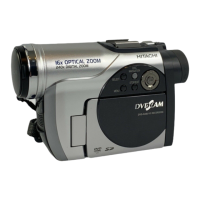
The illustrations of DZ-MV780A and DZ-MV730A are
shown only on the front cover of this instruction manual.
The method for operating the DZ-MV780A and DZ-MV730A
is the same as that for DZ-GX20A.
DZ-GX20A DZ-MV780A
DZ-MV730A
SELECT
STOP/EXIT
DISC
NAVIGATION
MENU
SELECT
STOP/EXIT
DISC
NAVIGATION
MENU
SELECT
STOP/EXIT
DISC
NAVIGATION
MENU

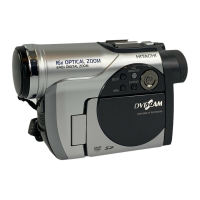
Table of Contents

Questions and Answers

  • C
    Charles CrawfordAug 13, 2025
    Why does my Hitachi DZ-MV730A power go off unexpectedly?
    • M
      Megan MendezAug 13, 2025
      Your Hitachi Camcorder might be turning off unexpectedly because the Power Save feature is set to “On.” When the camcorder is left for 5 minutes without recording or playback, it will automatically turn off to save battery. To stop this, set the power switch to “OFF” and then to “O”, or specify “Power Save: Off” in the settings.
  • J
    joseph01Aug 17, 2025
    What to do if Hitachi DZ-MV730A Camcorder battery cannot be charged?
    • K
      Kristin MaxwellAug 17, 2025
      If your Hitachi Camcorder battery isn't charging, consider these possibilities: * The ambient temperature might be too low or too high. Charge the battery at 50 – 86ºF (10 – 30ºC). * The battery might be abnormally hot. Remove it and let it cool before charging. * The DC power cord may be connected to the AC adapter/charger. Unplug it. * The battery may have been unused for a long time. Remove and reattach it. If it still doesn't charge, it may be dead, and you may need to purchase a new one. If none of these steps work, the battery might be dead, and you'll need to buy a replacement.
  • B
    Benjamin PearsonAug 21, 2025
    Why is the CHARGE indicator blinking on my Hitachi DZ-MV730A AC adapter?
    • R
      Robert PattersonAug 21, 2025
      The CHARGE indicator on your Hitachi Camcorder AC adapter might be blinking because the ambient temperature is too low or too high. Charge the battery in an environment where the temperature is 50 – 86ºF (10 – 30ºC). It's also possible that the battery has discharged excessively. If so, continue charging; after a while, the battery will be charged to the specified voltage, and the CHARGE indicator will light, indicating normal completion of the battery charge.
  • L
    Leslie SuarezAug 25, 2025
    What to do if my Hitachi Camcorder power turns off immediately after being turned on?
    • E
      Eric CordovaAug 25, 2025
      If your Hitachi Camcorder turns off immediately after being turned on, the battery may not be charged. Charge the battery.
  • R
    Robert BrownAug 27, 2025
    Why does my Hitachi Camcorder battery weaken fast?
    • A
      annathomasAug 28, 2025
      If your Hitachi Camcorder battery is weakening quickly, it could be due to using the camcorder in low temperatures. Keeping extra batteries on hand can help. Also, the battery itself might be dead, in which case you should purchase a new one.
  • P
    paultaylorSep 1, 2025
    How to clean a dirty disc for Hitachi DZ-MV730A?
    • D
      Dale JohnsonSep 1, 2025
      If the Hitachi Camcorder disc is dirty, use the provided disc cleaning cloth to clean it.
  • K
    Kelli StarkSep 4, 2025
    What to do if Hitachi Camcorder power cannot be turned off?
    • M
      Michael OlsenSep 4, 2025
      To resolve the issue where your Hitachi Camcorder cannot be turned off, detach the battery or AC adapter/charger, then press the RESET button on the camcorder. Reattach a power supply before turning it on again.
  • M
    Michelle BestSep 8, 2025
    What does an error message for repair mean on Hitachi DZ-MV730A Camcorder?
    • L
      Laura AndrewsSep 8, 2025
      Repair is only possible when the Hitachi Camcorder is powered by the AC adapter/charger. Remove the disc, and then insert another disc. The removed disc can later be repaired by connecting the AC adapter/charger.

Summary

HITACHI DVDCAM Instruction Manual

Important Information

For Your Safety

Provides essential safety guidelines for operating the device.

Important Safety Instructions

Cautions When Using

Read This First

Checking Provided Accessories

Names of Parts

Try Recording and Playing Back using Disc

Try Recording and Playing Back using Card

Discs and Cards

Setups

Setting Up the DVD Video Camera;Recorder

Physical setup instructions for the camera.

Setting Date and Time

Setting Up the Battery

Charging the Battery

Procedure for charging the device battery using the AC adapter.

Efficient Use of Battery

Using with AC Adapter;Charger

Turning DVD Video Camera;Recorder On and Off

Inserting and Removing Disc

Inserting Disc

Step-by-step guide for inserting a disc into the device.

Removing Disc

Inserting and Removing Card

Basic Techniques

Recording Movie

Detailed instructions on how to record video footage.

Recording Stills

On-Screen Information

Information Display During Recording

Explanation of data shown on screen during recording.

Zooming Operations

Playing Back Content

Basic Playback Operation

How to start, stop, and navigate playback.

Checking Flow of Quick Menu

Disc Navigation Functions

Manually Focusing Subject

Adjusting Image Brightness (Exposure)

Connecting to TV

Viewing on TV Screen

Recording (Dubbing) Images

Advanced Techniques

Camera Functions Setup

Record Functions Setup

Setting Up Camera Functions

Selecting Shooting Mode (Program AE)

Choosing the optimal shooting mode based on the subject.

Adjusting Color (White Balance)

Setting Movie Quality (Video Mode)

Initial Settings Menu

Resetting Menu Settings to Defaults

Disc Navigation

Starting and Terminating Disc Navigation

How to access and exit the Disc Navigation feature.

Disc Navigation Screen Overview

Playing Back from Disc Navigation Screen

Selecting Scenes in Disc Navigation

Functions Available with Disc Navigation

Understanding Disc Navigation Menu Flow

Deleting Scenes (Edit - Delete)

Dividing Movies (Edit - Divide)

Combining Multiple Scenes (Edit - Combine)

Arranging Order of Scenes (Edit - Move)

Directing Scenes Effectively (Effect - Fade)

Playing Back by Skipping Scenes (Effect - Skip)

Copying Stills to Card (Copy)

Locking Scenes on Card (Lock)

Selecting Scenes Using Menu Screen (Select)

Program Management

Play List Creation

Creating New Play List

Step-by-step guide to creating a new play list.

Adding Scenes to Play List

Deleting Scenes from Play List

Arranging Order of Scenes (Move)

Disc or Card Management

Initializing Disc or Card (Format)

Procedure to format discs or cards for use.

Protecting Disc from Writing (Protect Disc)

Verifying Remaining Free Space (Capacity)

Finalizing DVD-R Disc

Connecting to PC

Contents on Provided CD-ROM

Requirements of Available PC

Installing Software

Installing Software Applications

Creating DVD Video from DVD-RAM Disc

Using DVDfunSTUDIO to Create DVD Video

Cautions When Connecting to PC

Cleaning Procedures

Troubleshooting: No DVD Video Camera;Recorder Operation

Check 1: No Movie Recording

Troubleshooting steps for when movie recording fails.

Check 2: No Still Recording

Troubleshooting steps for when still photo recording fails.

Check 4: ACCESS;PC or CARD ACCESS Indicator Issues

Diagnosing issues related to disc/card access indicators.

Check 5: No Camera;Recorder Operation

Check 6: No Image in Viewfinder

Check 7: No Image on LCD Screen

Trouble Messages

Troubleshooting: Power Supplies

Battery Cannot Be Charged

Troubleshooting steps for when the battery is not charging.

Battery Weakens Fast

Addressing rapid battery discharge, possibly due to temperature.

CHARGE Indicator Blinking

Troubleshooting when the battery charging indicator blinks.

Power Turns Off Immediately

Resolving issues where the device powers off immediately.

Power Goes Off Unexpectedly

Troubleshooting sudden power loss.

Power Cannot Be Turned Off

Resolving problems with powering down the device.

Troubleshooting: During Recording

REC;PHOTO Button Not Starting Recording

Resolving issues where recording buttons do not initiate recording.

Recording Starts but Stops Immediately

Troubleshooting recording interruptions.

LCD Screen Hard to See

Adjusting LCD screen visibility for optimal viewing.

Focus Not Correct

Resolving focus issues during recording.

Troubleshooting: During Playback

Disc Recognition Issues

Troubleshooting problems with the device recognizing inserted discs.

Playback Button Issues

Resolving issues with playback control buttons.

No Playback Picture on TV

Troubleshooting steps for lack of video output to TV.

Troubleshooting: PC Connection Issues

No Drive Icon on PC

Resolving PC connection issues where the device is not recognized.

Miscellaneous Troubleshooting

Power Does Not Come On

Troubleshooting steps for when the device fails to power on.

System Reset Procedure

Contact Information for Service and Support

Warranty Limitations

Conditions of Hitachi Limited Warranty

Hitachi Canada Ltd. Warranty Policy

Hitachi DZ-MV730A Specifications

General IconGeneral
BrandHitachi
ModelDZ-MV730A
CategoryCamcorder
LanguageEnglish

Related product manuals